Calculation of design heat load of rooms: Difference between revisions
| Line 81: | Line 81: | ||
# If the ''<IS_TS id=Grunt/>'' component was used in the project, and the ''<IS_TS id=sBudynek/>'' is sunk below ground level, at this stage the border is displayed between the ''<IS_TS id=rsTypKonstrukcjiPrzegrodyScianaZewnetrzna/>'' and ''<IS_TS id=rsTypKonstrukcjiPrzegrodyScianaPrzyGruncie/>'' partition types which is demarcated by the shape of the ground outline around the building. </br>[[File:Walls-near-the-ground.png|900 px|left|thumb|6. <IS_TS id=rsTypKonstrukcjiPrzegrodyScianaZewnetrzna/> and <IS_TS id=rsTypKonstrukcjiPrzegrodyScianaPrzyGruncie/> types of partition demarcated by the ground line.]]<br clear="all"/> | # If the ''<IS_TS id=Grunt/>'' component was used in the project, and the ''<IS_TS id=sBudynek/>'' is sunk below ground level, at this stage the border is displayed between the ''<IS_TS id=rsTypKonstrukcjiPrzegrodyScianaZewnetrzna/>'' and ''<IS_TS id=rsTypKonstrukcjiPrzegrodyScianaPrzyGruncie/>'' partition types which is demarcated by the shape of the ground outline around the building. </br>[[File:Walls-near-the-ground.png|900 px|left|thumb|6. <IS_TS id=rsTypKonstrukcjiPrzegrodyScianaZewnetrzna/> and <IS_TS id=rsTypKonstrukcjiPrzegrodyScianaPrzyGruncie/> types of partition demarcated by the ground line.]]<br clear="all"/> | ||
=== | ===Completion and verification of the building structure=== | ||
# ( | # (Optionally) Insert the ''<IS_TS id=iNameKierunkiSwiata/>''. It is accessible in the ''<IS_TS id=GraphicalEdit/>'' window on the ''<IS_TS id=NarzedziaGlowne/>'' bar in section ''<IS_TS id=lystrFloors/>'' when the editing scope ''<IS_TS id=lystrFloors/>'' is enabled. After placing it once in the project it is displayed on all storeys, and its orientation determines the orientation of the thermal partitions.<br/>[[File:Compass_rose.png|900 px|left|thumb|6. <IS_TS id=iNameKierunkiSwiata/>.]]<br clear="all"/> | ||
# | # Import definitions of thermal partitions from another .isproj file. If the current project requires the same definitions as those used in other projects, the earlier .isproj files may be used and partition definitions imported from them into the current project. <br/> {{#ev:youtube|CogFOY5W7f8|900||||rel=0}} <br clear="all"/> | ||
# | # Create new definitions of thermal partitions in the project. Depending on the design needs and available data, three types of thermal partitions can be defined: | ||
#* ''<IS_TS id=rsObliczeniowyTypKPrzegrodyGotowa/>'' | #* ''<IS_TS id=rsObliczeniowyTypKPrzegrodyGotowa/>'' | ||
#* ''<IS_TS id=rsObliczeniowyTypKPrzegrodyObliczana/>'' | #* ''<IS_TS id=rsObliczeniowyTypKPrzegrodyObliczana/>'' | ||
#* ''<IS_TS id=rsObliczeniowyTypKPrzegrodyKompozytowa/>.''<br/> {{#ev:youtube|3k9SNVamj2k|900||||rel=0}} <br clear="all"/> | #* ''<IS_TS id=rsObliczeniowyTypKPrzegrodyKompozytowa/>.''<br/> {{#ev:youtube|3k9SNVamj2k|900||||rel=0}} <br clear="all"/> | ||
# | #In the ''<IS_TS id=DataEditorTable/>'' window of the individual ''<IS_TS id=sISFKonstrukcjaPrzegrody/>'' components specify default definitions by checking the ''<IS_TS id=DomyslnaDlaTegoTypu/>'' box and select ''<IS_TS id=strSposobAutomatycznegoPrzypisaniaDoPrzegrodyCaption/>'': ''<IS_TS id=strAnyThickness/>'' or ''<IS_TS id=strSuitToThicknessWithTolerance/>''. In the case of ''<IS_TS id=strSuitToThicknessWithTolerance/>'' the value must also be specified in the field: ''<IS_TS id=strDefPrzegrodyTolerancjaSymbol/>'' - ''<IS_TS id=strTolerancjaGrubosciDefinicjaPrzegrody/>''. All default definitions of thermal partitions are displayed in bold font in the ''<IS_TS id=rsPrzegrody/>'' list in the ''<IS_TS id=ProjectBrowser/>'' window. <br/>[[File:Default_partition.png|900 px|left|thumb|7.Default ''<IS_TS id=sISFKonstrukcjaPrzegrody/>''.]]<br clear="all"/> | ||
# | # Execute ''<IS_TS id=BuildingStructureCalculation/>'' and verify in the ''<IS_TS id=GraphicalEdit/>'' and ''<IS_TS id=View3D/>'' windows, for the enabled ''<IS_TS id=ScopeOZC_T_Short/>'' scope, whether the created thermal partitions have their definitions assigned to them.<br/> {{#ev:youtube|upwOaGYO4pE|900||||rel=0}} <br clear="all"/> | ||
<!--'' | <!--''Attention!'' Working with definitions of thermal partitions is possible in many windows, i.e.: | ||
* | * ''<IS_TS id=ProjectBrowser/>'' window for the ''<IS_TS id=ObliczeniaCieplneBudynku/>'' scope - sorting, defining, copying and importing thermal partition definitions from other projects is possible | ||
* | * ''<IS_TS id=OZCModuleName/>'' window | ||
* | * ''<IS_TS id=DataEditorTable/>'' window. </br>[[File:Partition_definition.png|900 px|left|thumb|5. podpis screena]]<br clear="all"/>--> | ||
===Edycja danych pomieszczeń, przegród i jednostek budynku=== | ===Edycja danych pomieszczeń, przegród i jednostek budynku=== | ||
Revision as of 23:19, 26 September 2022
| Product | InstalSystem 5 |
| Type of article | DESIGNING LESSON |
| Source for translation | 2022-08-22 |
Scope of lesson
The article presents the procedure for preparing data for calculating the design heat load of rooms with the use of standard packages.
Modules and program configuration
- InstalSystem 5 package with the module:
- Heat loss (Heat loss)
Webinars
We encourage you to see the video from our webinars on the topics described in this article:
The webinars present the topics described in this article, but they aren’t a recording of this lesson.
Project file
The project file used in this lesson: Design heat load in residental building (example for the lesson).
Inital state
The project includes building structure (storeys, building units, rooms, graphical partitions) and starting package of standards.
For more information, see: Preparation of building structure.
Another project file contains definitions of partitions to be imported.
Steps to perform
Default data setting for the project
- Project scope tab - enable project scope: Thermal calculations of building.
- Calculation standards and options tab - select appropriate Standards package and set important parameters for thermal calculations (dispaly of some data in the tab is determined by selections made in the Heat loss standard field):
- Standards package
- Heat loss standard
- Heat loss to ground calculation method
- Calculation method for c.h. interruptions
- Thermal bridges calculation method
- Manner of making allowance for thermal bridges
- Determine temperature of adjacent space.
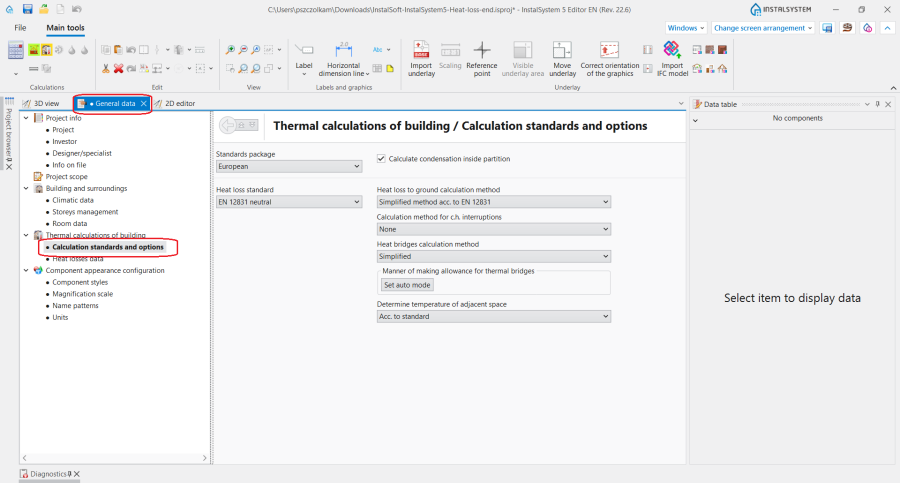
1. Calculation standards and options.

Editing building and surroundings data
- Climatic data tab - specify the location of the building by making selections in the list of fields:
- Country
- Town.
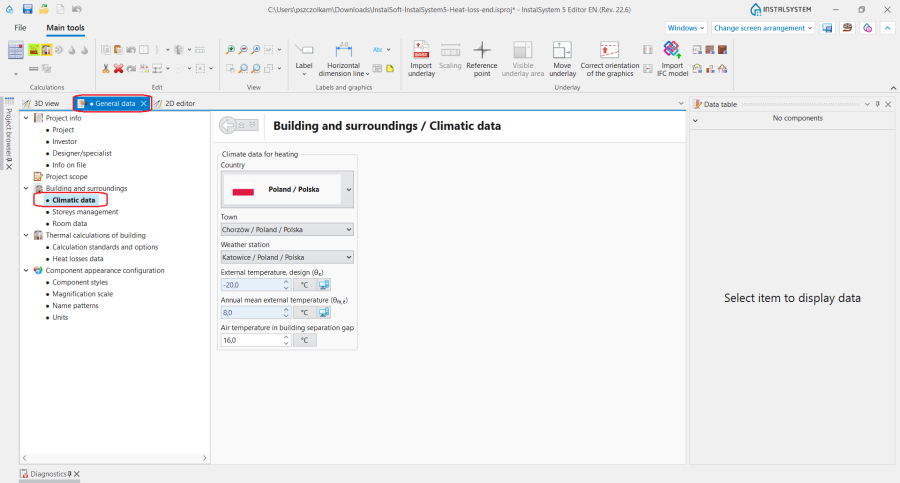
2. Climatic data
- Every location is assigned automatically to a weather station for which the climatic database specifies the required values, e.g.:
- External temperature, design θe
- Annual mean external temperature θm,e.
- Climatic data tab - enter the value in the Air temperature in building separation gap field.
- Storeys management tab - if necessary, in the Data table window, component Building, modify Position.
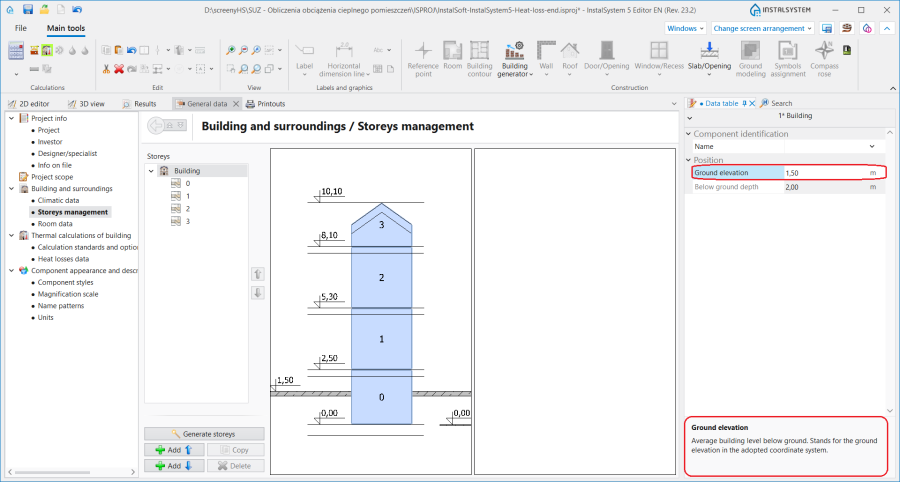
3. Position of a Building - Heat losses data tab - specify the important parameters of the building for Thermal calculations of building in the fields displayed in the form. The display of some data in the tab depends on the selection made in the Heat loss standard field on the Calculation standards and options tab.
Data fields displaying red question marks, if set in the Auto mode , will be filled automatically after performing the first calculations. The following data are available in the form, e.g.:
- Data on building structure:
- Building structure type
- Building tightness
- Building sheltering class
- Air change rate at 50 Pa press. diff..
- Building parameters:
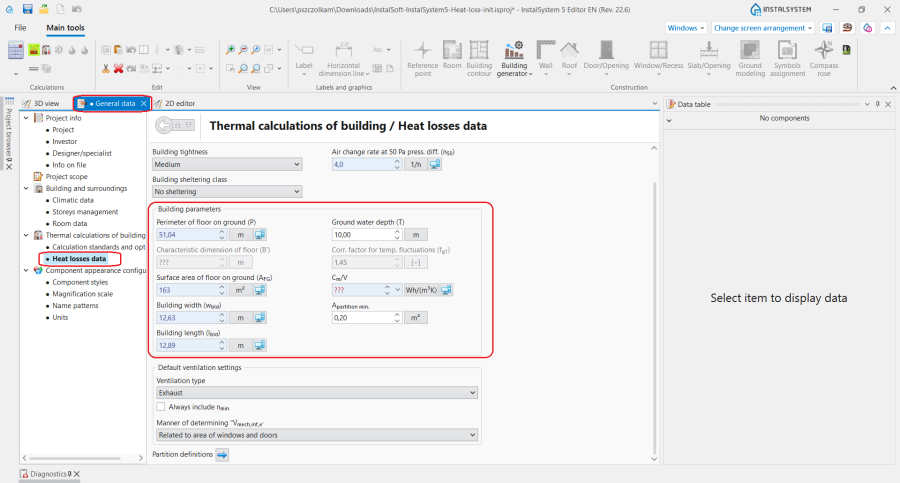
4. Heat losses data - Default ventilation settings.
- Data on building structure:
- Room data tab - specify important room data:
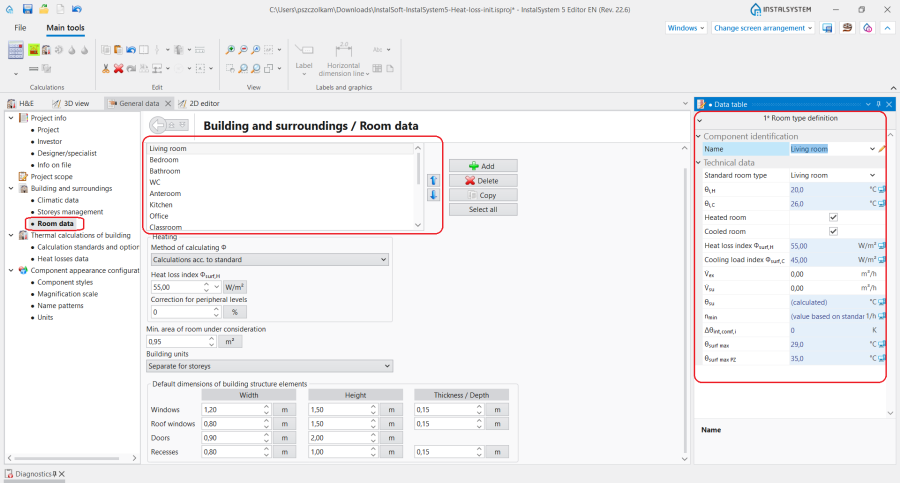
4. Room data
- Room type - the field list provides default Room type definition components. The data and calculation parameters that can be modified or specified for the selected room types are displayed in the Data table window after the room type is checked in the field list.
Data entered for the first room in the list become the default data for every Room placed in the project. If necessary, the order of components in the list can be changed using the arrows. For each selected Room its Room type can be changed in the Data table window; it is also possible to enter user-defined room types. - Method of calculating Φ - when working with the Thermal calculations of building scope, check the Calculations acc. to standard option. The selection in the list is distributed to all Room components placed in the project and it can be modified manually in the Data table window for the individual compnents.
- Building units - set Common to entire building or Separate for storeys as required.
For more information, see: Editing data of Building units.
- Room type - the field list provides default Room type definition components. The data and calculation parameters that can be modified or specified for the selected room types are displayed in the Data table window after the room type is checked in the field list.


Preparation of building structure
For more information, see: Preparation of building structure - Complete building structure.
Preparation of building structure introduces graphical partitions that form structural components of the building, i.e. Wall, Slab, Window, Door, Roof, etc.
At this stage the project can also be provided with a ground model. For more information, see: Ground modeling.
Verification of thermal partition model
Computation of building structure launches a number of operations that devise complete structure of the building. During that computation, based on the structural components and rooms defined in the project, thermal partitions are created for further use in the design process when performing Thermal calculations of building.
A thermal partition is a logic component which is a fragment of a graphical partition within a single room. It is created automatically and is used in the calculation and presentation of heat losses due to transmission across a partition within a single room.
Attention! No thermal partition is formed between Room type components separated by a Wall with a thickness of 0.
Attention! The necessary condition for proper creation of thermal partitions is that Room Automatic components are recognised.
- In the 3D view window enable the H&E(T) editing scope and check that the created model of thermal partitions is complete. To make the view clearer select the Invisible when inactive option for the Construction editing scope.
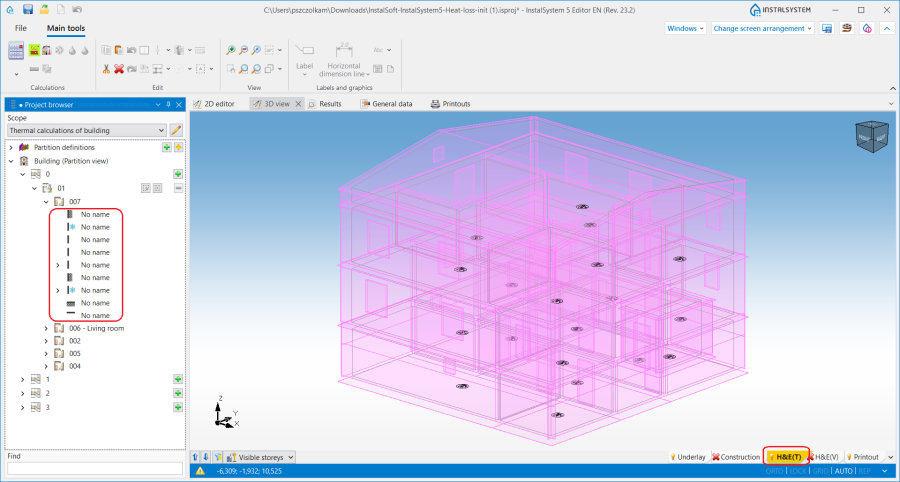
5. Model of thermal partitions. - After any modification of the building structure the Computation of building structure must be launched to generate the model of thermal partitions. If, upon verification, the model proves to be incomplete or faulty, the building structure must be provided with the required structural components, and Computation of building structure must be performed again.
- If the Ground component was used in the project, and the Building is sunk below ground level, at this stage the border is displayed between the External wall and Wall near the ground partition types which is demarcated by the shape of the ground outline around the building.
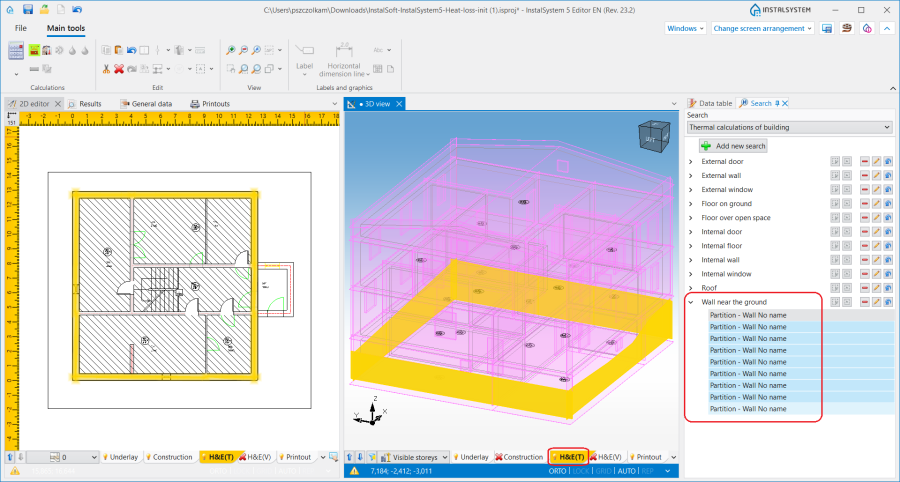
6. External wall and Wall near the ground types of partition demarcated by the ground line.


Completion and verification of the building structure
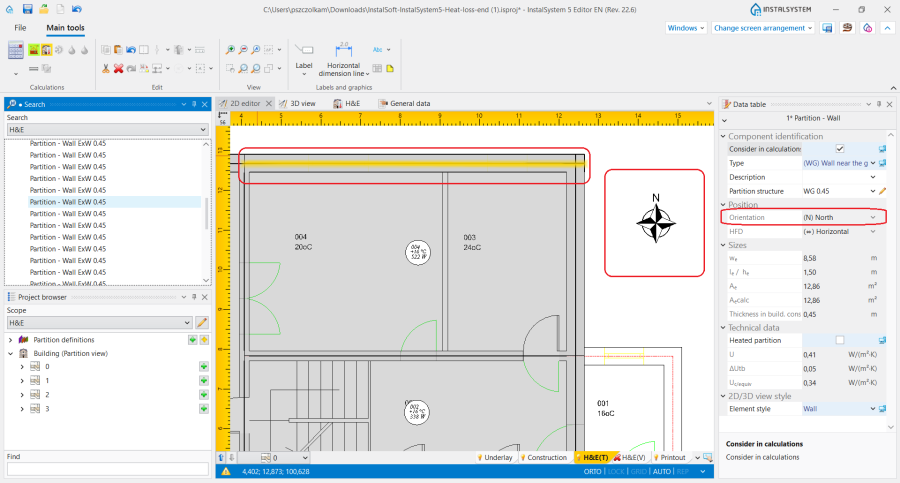
- (Optionally) Insert the Compass rose. It is accessible in the 2D editor window on the Main tools bar in section Construction when the editing scope Construction is enabled. After placing it once in the project it is displayed on all storeys, and its orientation determines the orientation of the thermal partitions.
6. Compass rose. - Import definitions of thermal partitions from another .isproj file. If the current project requires the same definitions as those used in other projects, the earlier .isproj files may be used and partition definitions imported from them into the current project.
- Create new definitions of thermal partitions in the project. Depending on the design needs and available data, three types of thermal partitions can be defined:
- Part. with specified U
- Part. with defined layers
- Non-uniform part..
- In the Data table window of the individual Partition definition components specify default definitions by checking the Default for this type box and select Selection criterion: Any thickness or Match to thickness with tolerance. In the case of Match to thickness with tolerance the value must also be specified in the field: ΔD - Tolerance relative to thickness of graphical partition, ±. All default definitions of thermal partitions are displayed in bold font in the Partition definitions list in the Project browser window.
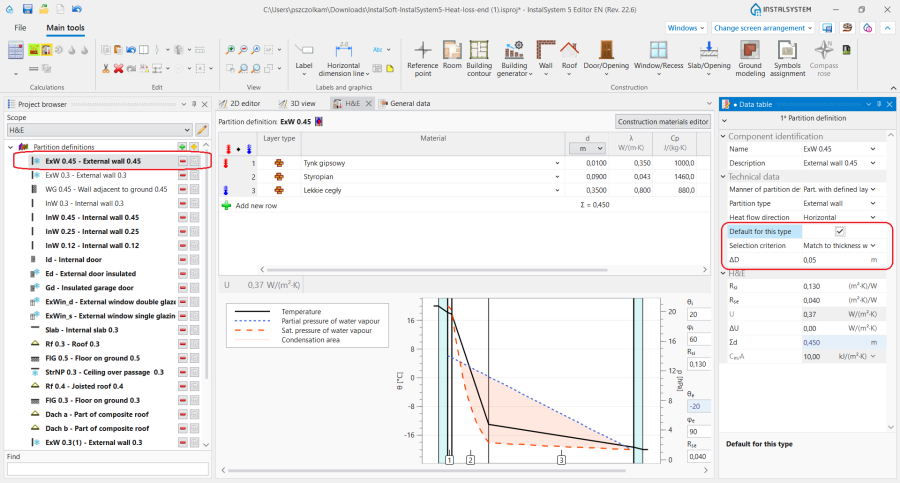
7.Default Partition definition. - Execute Computation of building structure and verify in the 2D editor and 3D view windows, for the enabled H&E(T) scope, whether the created thermal partitions have their definitions assigned to them.


Edycja danych pomieszczeń, przegród i jednostek budynku
- Przejrzeć strukturę budynku w oknie Project browser dla zakresu Building structure. W razie potrzeby zmienić dla wybranych elementów Room w oknie Data table Room type na inny niż domyślny oraz skorygować wartość dla danej: θi,H - Design room temperature w elementach o niestandardowych temperaturach.
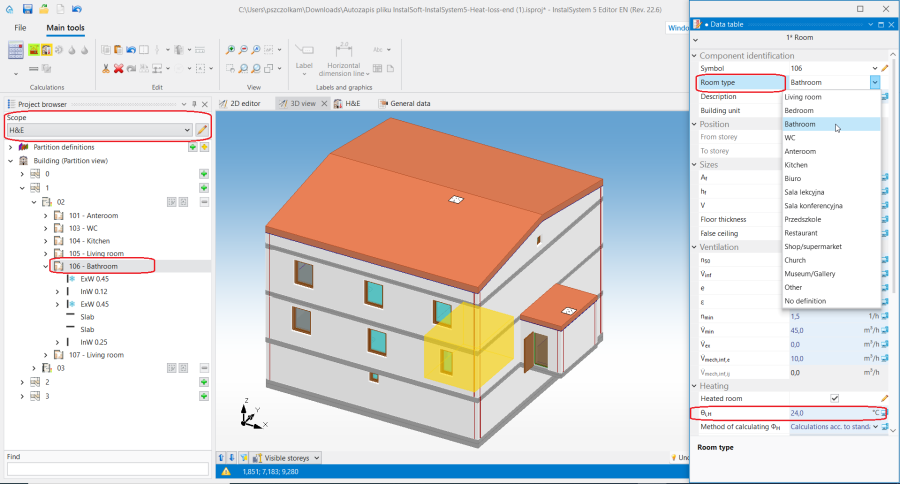
8. Okno Data table - Room type. - Przejrzeć utworzone przegrody cieplne. W razie potrzeby zmienić przypisaną definicję domyślną. Zmiany można dokonać ręcznie dla wybranej przegrody lub poprzez zmianę Selection criterion, przy czym po zmianie kryterium Selection criterion konieczne jest ponowne wykonanie Computation of building structure .
- Opcjonalnie, skorygować przypisanie elementów Room do Building units. Zmiany można dokonać w polu Building unit w oknie Data table dla wybranego elementu Room lub w oknie Project browser przeciągając wybrane Room w drzewie struktury budynku do docelowej Building units.
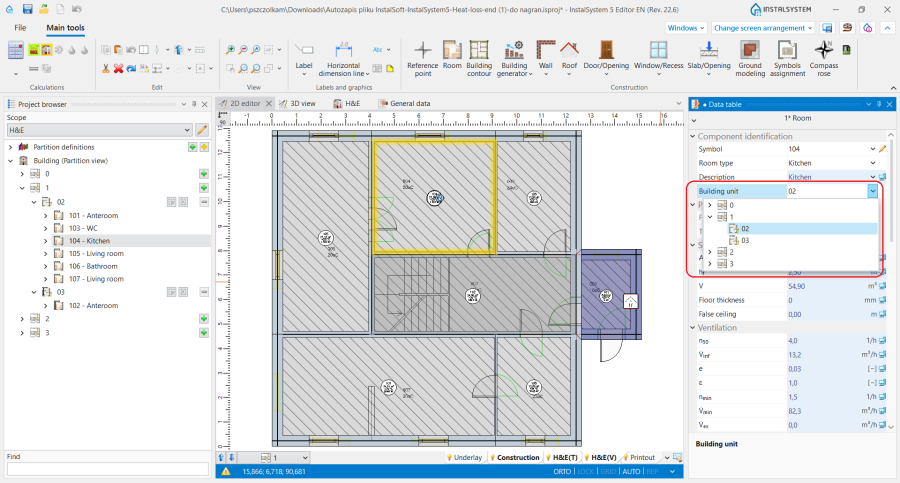
9. Zmiana jednostki budynku. - Przejrzeć i w razie potrzeby uzupełnić lub skorygować dane Building units w zakresie H&E. Widoczność niektórych danych dla Building units jest zależna od wyboru w polu Heat loss standard na zakładce Calculation standards and options:
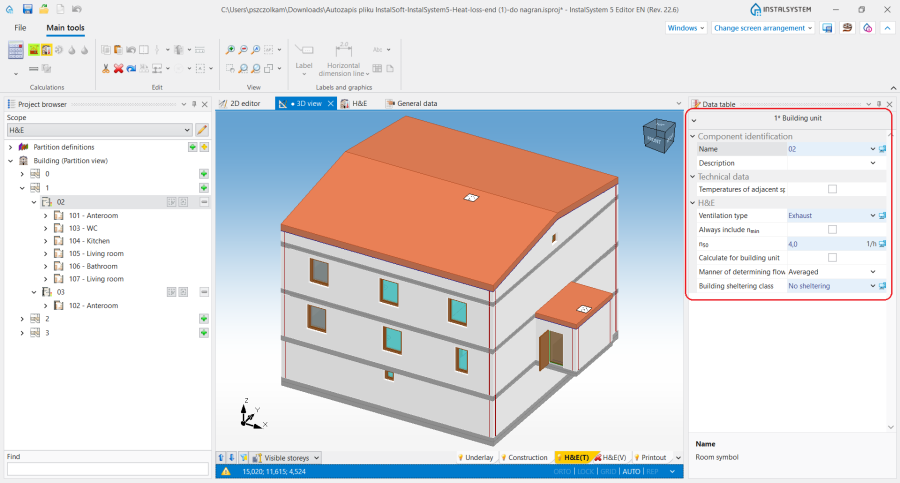
10. Jednostka budynku - tabela danych.
- Ventilation type
- Always include nmin
- Air change rate at 50 Pa press. diff. - n50
- Calculate for building unit - If checked 'n50' will be determined for the building unit in accordance with the options selected in the fields 'Structure of building part' and 'Tightness of building part'
- Manner of determining flow rates of infiltrating air between rooms within building unit
- Building sheltering class
- Default temperature of supplied air θsu oraz sprawności systemu wentylacji w przypadku wybrania typu: Supply and exhaust with heat recuperation lub Supply and exhaust with recirculation.
- Zweryfikować i w razie potrzeby skorygować stan przegród ogrzewanych:
- Dla przegród pionowych typu External wall / Internal wall pole Heated partition w stanie Calculate (ikona kalkulatora) pozostaje domyślnie odznaczone, niezależnie od tego, czy na elemencie konstrukcji został położony element Heating/Cooling Wall Zone. Stan w polu można zmienić po przejściu w tryb Ołówek.
- Dla przegród poziomych typu Internal floor lub Floor on ground pole Heated partition w stanie Calculate (ikona kalkulatora) jest domyślnie zaznaczone, jeżeli na elemencie konstrukcji występuje element Heating/Cooling Floor Zone. Stan w polu można zmienić po przejściu w tryb Ołówek.
- Ustawienia w polu Heated partition mogą zostać grupowo zweryfikowane w oknie H&E dla zaznaczonego elementu Room.
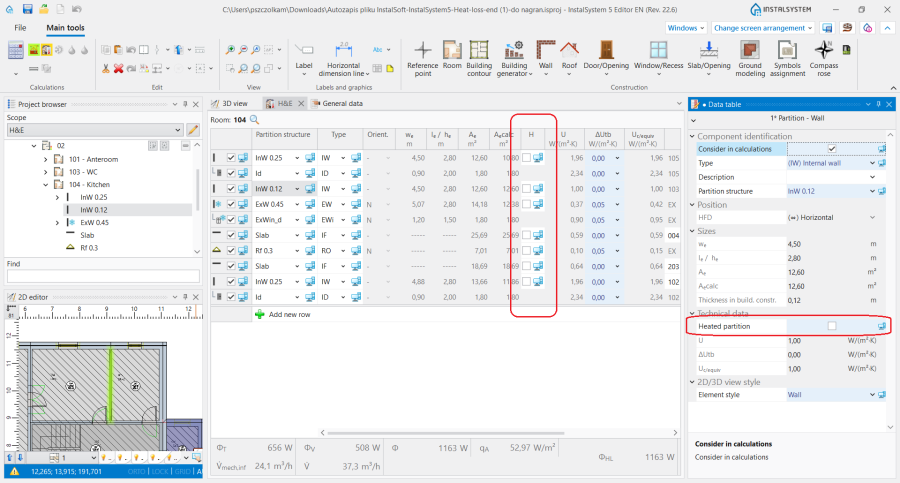
11. Heated partition.
- W sytuacji, gdy rzeczywista struktura budynku nie może zostać w pełni zamodelowana w programie, w oknie H&E dla wybranego elementu Room dodać przegrody tabelaryczne poprzez kliknięcie w Add new row. Dla każdej ręcznie dodanej przegrody należy określić parametry: Partition structure, Sizes lub Partition area %s oraz wybrać Room on other side.
- W oknie H&E dla kolejnych elementów Room zweryfikować wyznaczone wartości w polu ΔUtb - Allowance for thermal bridges i w razie potrzeby dokonać ich korekty.
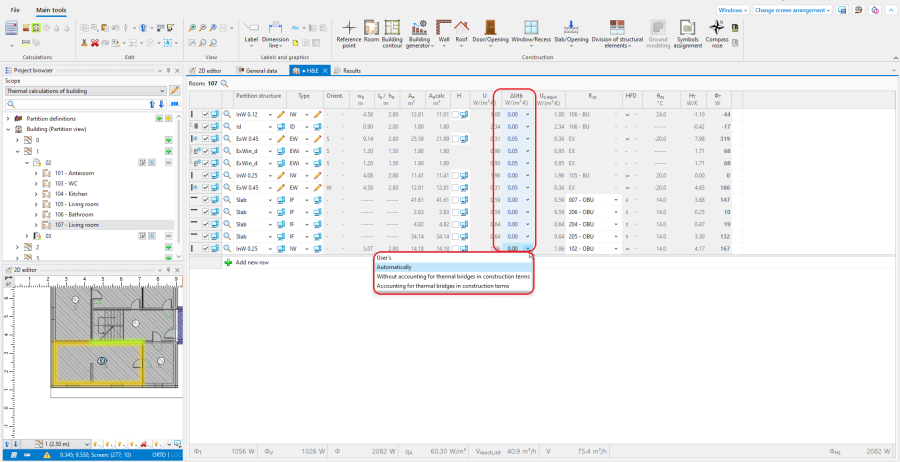
12. Allowance for thermal bridges.


Wykonanie obliczeń
- Wywołać obliczenia za pomocą ikony kalkulatora Thermal calculations of building
 znajdującej się w sekcji Calculations na pasku Main tools.
 - Zweryfikować uzyskane wyniki obliczeń ze szczególnym zwróceniem uwagi na:
- Komunikaty błędów w oknie Diagnostics dla zakresu Thermal calculations of building.
- Wyniki obliczeń prezentowane dla elementów Room w oknie H&E.
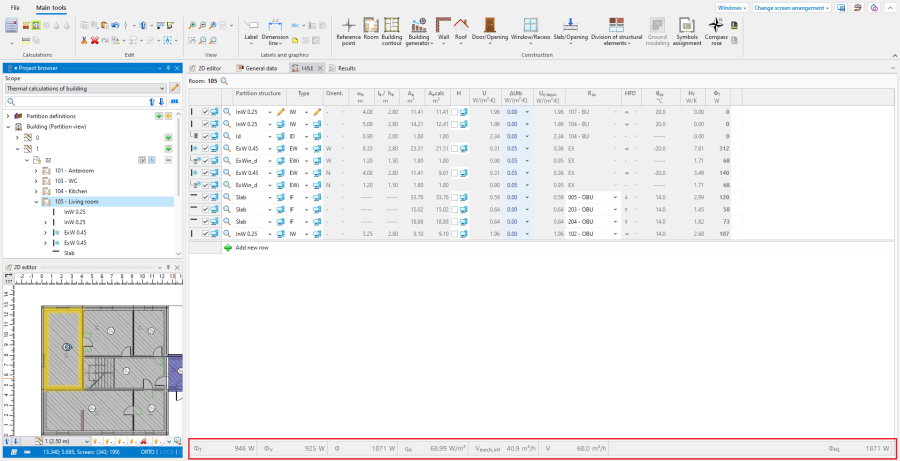
13. Wyniki obliczeń dla elementu Room - Graficzną prezentację strumieni wentylacyjnych dla wentylacji mechanicznej w oknie 2D editor na zakresie H&E(V).
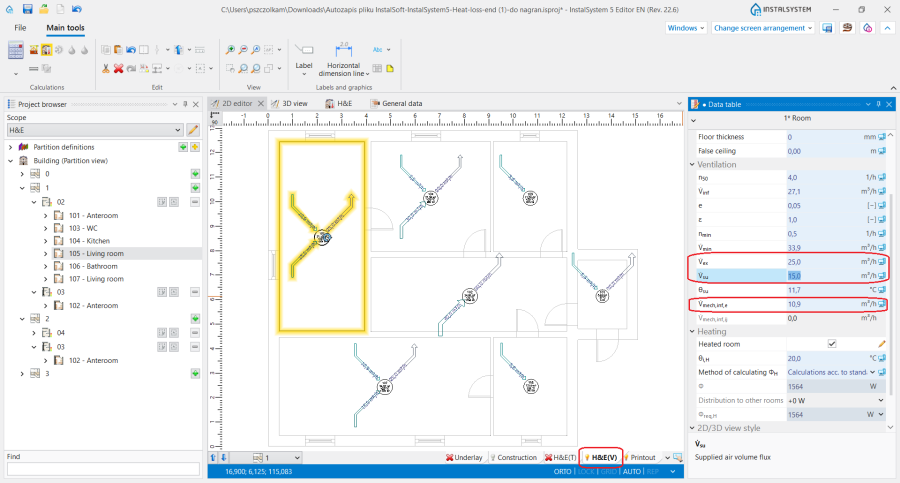
14. Graficzna prezentacja przepływów strumieni wentylacyjnych - Wyniki prezentowane w hintach i etykietach elementów Room.
- Tabelaryczne wyniki dla projektu prezentowane w oknie Results.


Rozdział projektowych obciążeń cieplnych
- Uzupełnić dane rozdziału ciepła, jeżeli w projekcie występują Heated room, których obciążenie cieplne ma być rozdzielone do pomieszczeń sąsiadujących. Edycja danych jest możliwa w oknie Data table dla elementu Room w edytorze Manner of heat loss distribution.
- Wybrać sposób obliczania rozdziału ciepła:
- Manual - umożliwia ręczny wybór sąsiadujących pomieszczeń z listy wszystkich pomieszczeń i narzucenie, jaki będzie ich procentowy Contribution w pokryciu strat ciepła wybranego pomieszczenia.
- Semiautomatic - umożliwia wybór sąsiadujących pomieszczeń z listy wszystkich pomieszczeń, a ich procentowy Contribution w pokryciu strat ciepła wybranego pomieszczenia jest wyznaczany automatycznie, proporcjonalnie na podstawie wyliczonych wartości strat ciepła.
- Automatic - pomieszczenia sąsiadujące i ich procentowy Contribution w pokryciu strat ciepła wybranego pomieszczenia są wyznaczane automatycznie, proporcjonalnie na podstawie wyliczonych wartości strat ciepła, biorąc pod uwagę przegrody typu Internal door lub Internal window, występujące w przegrodach typu Internal wall dzielących wybrane pomieszczenie i pomieszczenia sąsiadujące.
- W polu Distribution to other rooms prezentowana jest wartość mocy pochodząca z rozdziału:
- Dla elementów Room oddających energię do pomieszczeń sąsiednich prezentowana jest wartość mocy oddawanej ze znakiem minus.
- Dla elementów Room przyjmujących energię od pomieszczeń sąsiednich prezentowana jest wartość mocy ze znakiem plus.
- Dla wybranej opcji Manner of heat loss distribution: Manual wartość mocy dla 'biorcy energii' jest wyświetlana po zamknięciu okna edytora.
- Energia może być przekazywana tylko pomiędzy elementami Room, które są oddzielone od siebie przegrodą typu Internal door lub Internal window.
- Ponownie wywołać Thermal calculations of building i zweryfikować uzyskane wyniki.
Prepare drawing for printing/export
For more information, see: Presentation of the calculations result.