Program umożliwia eksportowanie rysunków projektu i wyników do wielu formatów (JPG, PDF, DWG, XLS i wiele innych) lub ich wydruk. Eksport do plików DWG/DXF jest realizowany za pomocą osobnej funkcji, natomiast eksport do wielu innych formatów jest realizowany za pomocą tych samych funkcji co wydruk na drukarce. Ma formę wydruku do pliku określonego formatu.
The program provides the opportunity to export / print drawings and results in both 2D and 3D formats.<br/>
Drawings / graphical printouts can be exported to:
* '''DWG / DXF,'''
* '''PDF,'''
* '''JPG,'''
* '''BMP,'''
* '''PNG''';
3D model can be exported to:
* '''DWG(3D) / DXF(3D),'''
* '''[[BIM - Export of installation and construction data from the project to IFC models | IFC4]] (BIM export)''',
* '''glTF,'''
* '''PDF(3D),'''
* '''WebGL''';
<IS_TS id=ResultModuleTitle/> tables can be exported to:
* '''PDF,'''
* '''XLSX,'''
* '''DOCX''';
Bill of materials can be exported to:
* '''GAEB 81,
* '''UGS,'''
* '''ISB,'''
* '''CSV'''.<br/>
'''''Note:''''' Export to '''DWG / DXF, DWG(3D) / DXF(3D), IFC4, glTF, PDF(3D)''' and '''WebGL''' files is performed using dedicated functions, whereas exporting to other file formats is done using ''<IS_TS id=sBtnPrint/>'' functions. This process involves printing to a file of the selected type.
==Location in the program==
==Location in the program==
* Funkcja ''<IS_TS id=ExportDXFDWGFile/>'' dostępna jest na pasku ''<IS_TS id=NarzedziaGlowne/>'' przy włączonym zakresie edycji ''<IS_TS id=lystrPrintPreview/>''. Funkcja pozwala na przeprowadzenie eksportu rysunków graficznych z pliku projektu do formatu DXF/DWG.<br/>[[File:Suf-export-other-extensions5.png|left|thumb|700px|1. <IS_TS id=ExportDXFDWGFile/>]]<br clear="all"/>
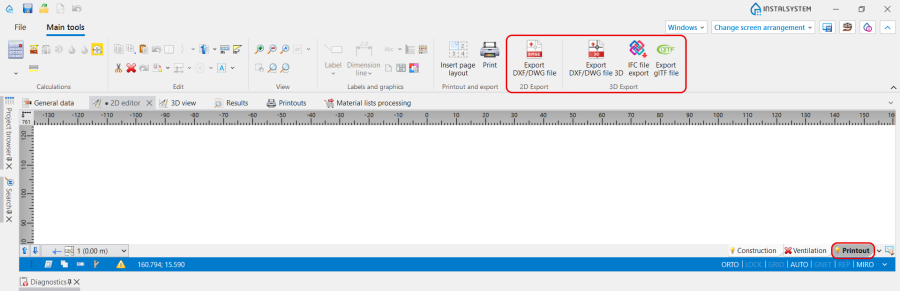
* The icons with functions related to ''<IS_TS id=rpEksport2DToolbar/>'' and ''<IS_TS id=rpEksport3DToolbar/>'' are located on the ''<IS_TS id=NarzedziaGlowne/>'' bar when the ''<IS_TS id=lystrPrintPreview/>'' editing scope is active. The functions enable exporting graphics from the project file.<br/>[[File:Export print results and drawings location.png|900 px|left|thumb|1. <IS_TS id=rpEksport2DToolbar/> and <IS_TS id=rpEksport3DToolbar/> functions location.]]<br clear="all"/>
* Wydruk i eksport do pozostałych formatów realizowany jest z użyciem okna ''<IS_TS id=Printouts/>''. Funkcja ''<IS_TS id=sBtnPrint/>'' dostępna na pasku ''<IS_TS id=NarzedziaGlowne/>'' przy włączonym zakresie edycji ''<IS_TS id=lystrPrintPreview/>'' powoduje przejście programu do tego okna. Analogiczny skutek daje wywołanie tego okna z menu ''<IS_TS id=Windows/>'' na pasku ''<IS_TS id=NarzedziaGlowne/>''.<br/>[[File:Suf-export-other-extensions4.png|left|thumb|600px|2. <IS_TS id=sBtnPrint/>]]<br clear="all"/>
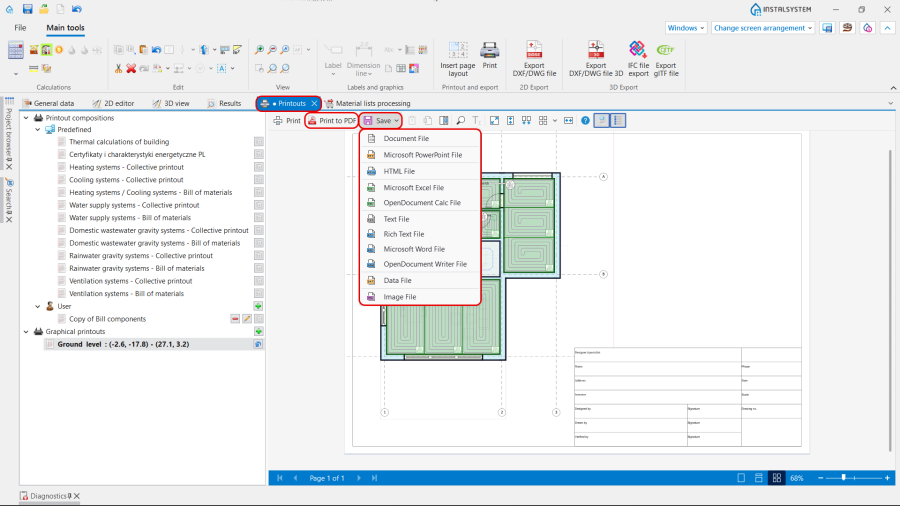
* Printing and exporting to file formats are performed in the ''<IS_TS id=Printouts/>'' window. The ''<IS_TS id=sBtnPrint/>'' function, available on the ''<IS_TS id=NarzedziaGlowne/>'' bar when the ''<IS_TS id=lystrPrintPreview/>'' editing scope is enabled, switches the program to that window. Alternatively this can be done by calling this window from the ''<IS_TS id=Windows/>'' menu on the ''<IS_TS id=NarzedziaGlowne/>'' bar.<br/>[[File:Export print results and drawings Print location.png|900 px|left|thumb|2. <IS_TS id=sBtnPrint/> functions location.]]<br clear="all"/>
* Ikona ''<IS_TS id=InsertPageLayout/>'' dostępna na pasku ''<IS_TS id=NarzedziaGlowne/>'' przy włączonym zakresie edycji ''<IS_TS id=lystrPrintPreview/>'' pozwala wstawić na rysunek element ''<IS_TS id=PrintoutPages_ElementName/>''. Każdy taki element w projekcie stanowi nową definicję zakresu wydruku / eksportu rysunków graficznych.<br/>[[File:Suf-export-printout-pages.png|left|thumb|700px|3. <IS_TS id=InsertPageLayout/>]]<br clear="all"/>
* Results can be printed or exported using ''<IS_TS id=PrintoutCompositions/>'' - either predefined or defined by the ''<IS_TS id=UserPrintout/>''. ''<IS_TS id=UserPrintout/>''-defined and saved ''<IS_TS id=PrintoutCompositions/>'', in addition to ''<IS_TS id=PredefinedPrintout/>'', will also be available in other projects.<br/>{{Info}} [[Software configuration#Printout compositions|Printout compositions]];
* Drawings can be printed or exported using ''<IS_TS id=GraphicPrintouts/>''.
'''''Note:''''' To create ''<IS_TS id=GraphicPrintouts/>'' the ''<IS_TS id=PrintoutPages_ElementName/>'' component needs to be inserted on the drawing. Every such component is a new definition of the scope of printout / export of graphics. <br/> Inserting ''<IS_TS id=PrintoutPages_ElementName/>'' can be done with the use of ''<IS_TS id=stractAddSelItemCaption/>'' function in the ''<IS_TS id=Printouts/>'' window:<br/>[[File:Export print results and drawings Add graphical printouts.png|900 px|left|thumb|3. Add <IS_TS id=PrintoutPages_ElementName/>.]]<br clear="all"/>
or ''<IS_TS id=InsertPageLayout/>'' function, available on the ''<IS_TS id=NarzedziaGlowne/>'' bar when the ''<IS_TS id=lystrPrintPreview/>'' editing scope is active.<br/>[[File:Export print results and drawings Add printout page.png|900 px|left|thumb|4. <IS_TS id=InsertPageLayout/>.]]<br clear="all"/>
The ''<IS_TS id=ResultModuleTitle/>'' tables can also be printed and exported separately in the ''<IS_TS id=ResultModuleTitle/>'' window:<br/>[[File:Export print results and drawings Results table.png|900 px|left|thumb|5. Export / print <IS_TS id=ResultModuleTitle/> tables.]]<br clear="all"/>
''<IS_TS id=psnZestawienieMaterialow/>'' can be exported in '''GAEB 81, UGS, ISB''' and '''CSV''' formats in the ''<IS_TS id=MaterialBillExport/>'' window:<br/>[[File:Export print results and drawings Material lists.png|900 px|left|thumb|6. Export <IS_TS id=psnZestawienieMaterialow/>.]]<br clear="all"/>
==Example of use==
==Example of use==
===Eksport rysunków do formatu DWG===
===Preparation drawings for exporting / printing===
{{#ev:youtube|c_UvgJ82TQU|900||||rel=0}}
* Insert ''<IS_TS id=PrintoutPages_ElementName/>'' component. Adjust its settings to meet the project requirements:
===Wydruk / Eksport wyników do pliku XLS===
** ''<IS_TS id=PaperFormat/>'',
{{#ev:youtube|QBgH4UyRmyI|900||||rel=0}}
** ''<IS_TS id=strpnOrientation/>'',
===Wydruk / Eksport rysunku wybranej kondygnacji do pliku PDF===
To export 2D drawings to DXF / DWG formats use ''<IS_TS id=ExportDXFDWGFile/>'' function. The following settings can be modified in the ''Export table'':
* ''<IS_TS id=strTypPliku/>'',
* ''<IS_TS id=strOpisProjektuWersjaPliku/>'',
* ''<IS_TS id=Coordinates/>''. {{info}} [[How_to_change_coordinates_in_the_imported_DWG_underlay#Changing_coordinates_for_exporting |Changing coordinates for exporting]],
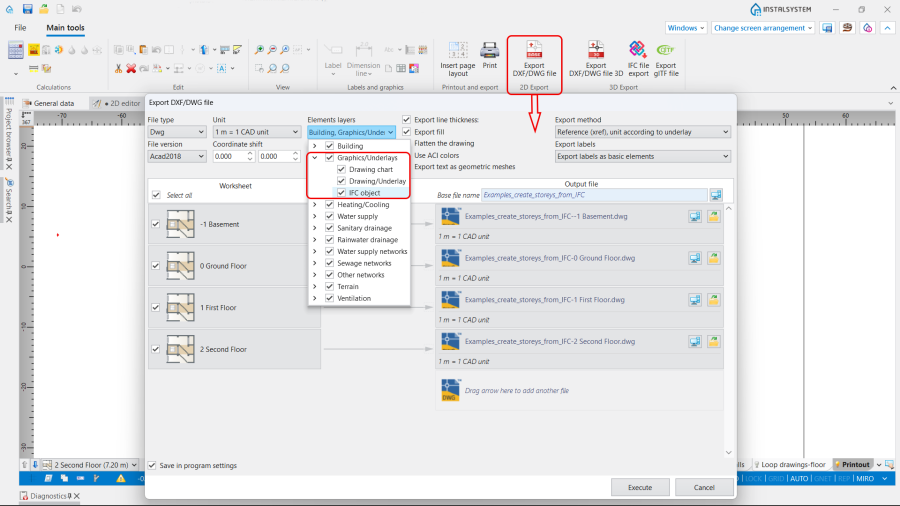
* Visibility of ''<IS_TS id=PrintoutPagesLayers/>'' and their components. '''''Note:''''' There is an option to change the visibility of ''<IS_TS id=ElementZPlikuIfc/>'' elements underlay export, if they are present in the project. <br/>[[File:Export print results and drawings DWG Export IFC underlay.png|900 px|left|thumb|7. <IS_TS id=ElementZPlikuIfc/> underlay export visibility.]]<br clear="all"/>
* Usage of the function ''<IS_TS id=ExportTextAsMesh/>'' - <IS_TS id=ExportTextAsMeshHint/>
* ''<IS_TS id=ExportMethod/>'',
* Indicating of exporting ''<IS_TS id=strArkuszRoboczy/>'' elements by separate selection or ''<IS_TS id=CStrZaznaczWszystko/>'' function,
* Selection of ''<IS_TS id=strHeaderFileNamesSections1Text/>'':
** Several ''<IS_TS id=strArkuszRoboczy/>'' elements can be exported to a single file,
** ''<IS_TS id=BazowaNazwaPliku/>'' can be modified,
** The export location can be changed (by default, files are saved in the folder containing the calculation file).
'''''Note:''''' It is possible to ''<IS_TS id=searchSaveInSettings/>'' the modified settings.<br/>{{#ev:youtube|SEJjqQL6cgo|900||||rel=0}}<br/><br/>
===Exporting 3D drawings===
* To export 3D models to '''DXF / DWG''' formats use ''<IS_TS id=ExportDXFDWGFile/> 3D'' function. The settings can be modified in the ''Export table'' in the similar way as for [[Export_/_print_results_and_drawings#2D_exporting_drawings_to_DXF_/_DWG_formats | 2D exporting drawings to DXF / DWG formats]].<br/> '''''Note:''''' Access to the function depends on the availability of the relevant IFC (BIM) export modules.<br/><br/>
* To export 3D models to '''IFC (BIM)''' formats use ''<IS_TS id=rpExportPlikuIFC/>'' function. {{Info}} [[BIM - Export of installation and construction data from the project to IFC models]]. <br/> '''''Note:''''' Access to the function depends on the availability of the relevant IFC (BIM) export modules.<br/><br/>
* To export 3D models to '''glTF, PDF(3D), WebGL''' formats use ''<IS_TS id=ExportOther3DFormat/>'' function. The settings can be modified in the ''Export table'' in the similar way as for [[Export_/_print_results_and_drawings#2D_exporting_drawings_to_DXF_/_DWG_formats | 2D exporting drawings to DXF / DWG formats]].<br/> '''''Note:''''' Access to the function depends on the availability of the relevant IFC (BIM) export modules.<br/>[[File:Export print results and drawings Export glTF.png|900 px|left|thumb|8. <IS_TS id=rpEksport3DToolbar/> in glTF, PDF(3D), WebGL formats.]]<br clear="all"/>
===Printing drawings with a defined range of storey levels===
If the building contains ''<IS_TS id=AdditionalInternalStoreyLevel/>'' or ''<IS_TS id=AdditionalStoreyLevel/>'' the program provides the option to set the range of storey levels to be printed:
** Uncheck the boxes of ''<IS_TS id=PrintoutPagesLayers/>'' for the main storey or ''<IS_TS id=AdditonalWorksheetPrintoutPagesLayers/>'' OR
** Specify the ''<IS_TS id=PrintoutLevels/>'';
* Verify the ''<IS_TS id=GraphicPrintouts/>'' in the ''<IS_TS id=Printouts/>'' window, ''<IS_TS id=Refresh/>'' if necessary.<br/>{{#ev:youtube|CgpguFGhAc0|900||||rel=0}}<br/><br/>
===Exporting results to PDF, XLSX and DOCX formats===
* Export separate ''<IS_TS id=ResultModuleTitle/>'' tables or ''<IS_TS id=PredefinedPrintout/>'' ''<IS_TS id=PrintoutCompositions/>''; <br/>{{#ev:youtube|0l65roOKHRU|900||||rel=0}}<br/>
* Create defined by the ''<IS_TS id=UserPrintout/>'' ''<IS_TS id=PrintoutCompositions/>'', if necessary. <br/>{{#ev:youtube|azznWRknqrU|900||||rel=0}}<br/><br/>
==Additional information==
==Additional information==
* W przypadku gdy podkład został zaimportowany z opcją ''<IS_TS id=Underlay_SaveTypeCaption/> -> <IS_TS id=StoreInExternalFile/>'' i oryginalna lokalizacja pliku nie jest dostępna, nie można wykonać eksportu obejmującego warstwy podkładu. W takim przypadku, aby podkład został uwzględniony przy eksporcie lub wydruku, należy wczytać go ponownie.
* When underlay drawing was imported with the ''<IS_TS id=Underlay_SaveTypeCaption/> -> <IS_TS id=StoreInExternalFile/>'' option and original location of the file is not available, the underlay layers cannot be exported. In such case, in order to have the underlay drawing included in the export or printout, it must be loaded again.<br/>{{Info}} [[Import underlay files#Import underlay files|Import underlay files]].
* Utworzone i zapisane własne kompozycje wydruków będą dostępne, obok kompozycji predefiniowanych, również dla innych projektów.<br/>{{Info}} [[Konfigurowanie aplikacji#Kompozycje wydruków|Kompozycje wydruków]].
====Adding supplementary drawing information before exporting / printing====
Once all required changes have been made to the project and calculations have been completed, elements that complement the information provided in printouts can be entered into the project. These elements are of informative nature and do not affect the course of calculations. Inserting them into the project only at this stage is recommended, as iterative work with the project in earlier stages may also require modification of these elements. Therefore, inserting them in the final stage of work may be most effective. <br/>Details of the types of elements available for specific types of installations can be found in the program application descriptions.
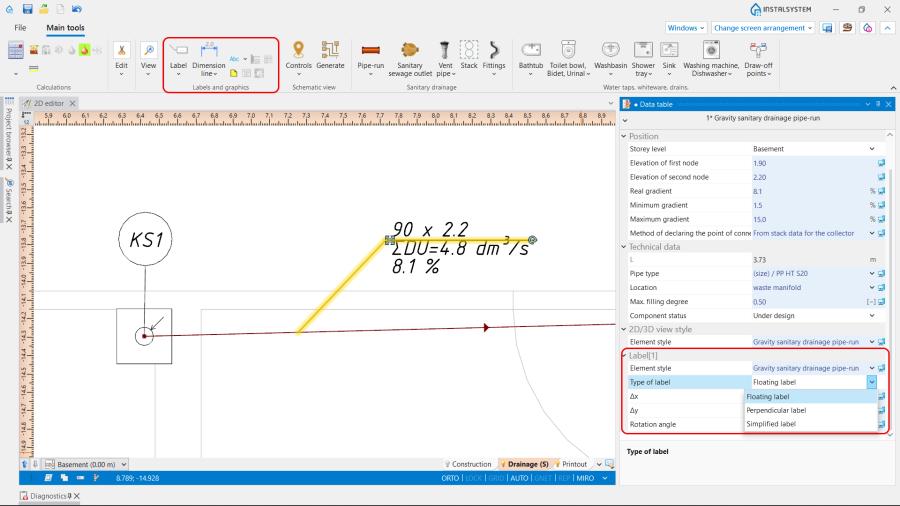
* '''Component labels''', available in the ''<IS_TS id=NarzedziaGlowne/>'' bar in the ''<IS_TS id=DescriptionsAndGraphics/>'' section, are an example of such elements. A label is inserted by selecting the appropriate icon from the toolbar and clicking on the drawing component for which the label is intended. When a component with a label is selected in the drawing, the label style can be selected in the ''<IS_TS id=DataEditorTable/>'' window.<br/>[[File:Export print results and drawings Labels.png|900 px|left|thumb|9. Component <IS_TS id=Label/>.]]<br clear="all"/> Label styles are customizable. It is possible to create and save many user-defined label styles.<br/>{{Info}} [[General data#Component appearance configuration|Component appearance configuration]].
!If you have any comments on this article, please send us a short message at ''info@instalsoft.com''.
|}
[[Category:InstalSystem 5]]
[[Category:InstalSystem 5]]
[[Category:FUNCTIONALITY]]
[[Category:FUNCTION AND TOOL]]
<!-- Do not write text below this tag -->
<br class="iwlinks"/>[[pl:Eksport / wydruk wyników i rysunków|Eksport / wydruk wyników i rysunków]][[it:Esportazione / stampa dei risultati e dei disegni|Esportazione / stampa dei risultati e dei disegni]][[zh-cn:输出 / 打印结果和图纸|输出 / 打印结果和图纸]][[lt:Eksportas / rezultatų ir brėžinių spausdinimas|Eksportas / rezultatų ir brėžinių spausdinimas]]
The program provides the opportunity to export / print drawings and results in both 2D and 3D formats.
Drawings / graphical printouts can be exported to:
Note: Export to DWG / DXF, DWG(3D) / DXF(3D), IFC4, glTF, PDF(3D) and WebGL files is performed using dedicated functions, whereas exporting to other file formats is done using Print functions. This process involves printing to a file of the selected type.
Location in the program
The icons with functions related to 2D Export and 3D Export are located on the Main tools bar when the Printout editing scope is active. The functions enable exporting graphics from the project file. 1. 2D Export and 3D Export functions location.
Printing and exporting to file formats are performed in the Printouts window. The Print function, available on the Main tools bar when the Printout editing scope is enabled, switches the program to that window. Alternatively this can be done by calling this window from the Windows menu on the Main tools bar. 2. Print functions location.
Results can be printed or exported using Printout compositions - either predefined or defined by the User. User-defined and saved Printout compositions, in addition to Predefined, will also be available in other projects. For more information, see:Printout compositions;
Drawings can be printed or exported using Graphical printouts.
Note: To create Graphical printouts the Printout pages component needs to be inserted on the drawing. Every such component is a new definition of the scope of printout / export of graphics. Inserting Printout pages can be done with the use of Add function in the Printouts window:
3. Add Printout pages.
or Insert page layout function, available on the Main tools bar when the Printout editing scope is active.
4. Insert page layout.
The Results tables can also be printed and exported separately in the Results window:
5. Export / print Results tables.
Bill of materials can be exported in GAEB 81, UGS, ISB and CSV formats in the Material lists processing window:
6. Export Bill of materials.
Example of use
Preparation drawings for exporting / printing
Insert Printout pages component. Adjust its settings to meet the project requirements:
Paper format,
Orientation,
Scale,
Margins;
Insert Drawing chart. For more information, see:Drawing chart.
Exporting 2D drawings to DXF / DWG formats
To export 2D drawings to DXF / DWG formats use Export DXF/DWG file function. The following settings can be modified in the Export table:
Visibility of Elements layers and their components. Note: There is an option to change the visibility of IFC object elements underlay export, if they are present in the project. 7. IFC object underlay export visibility.
Usage of the function Export text as geometric meshes - Converts all text to geometric meshes. This option may prevent export errors related to unsupported fonts.
Export method,
Indicating of exporting Worksheet elements by separate selection or Select all function,
Selection of Output file:
Several Worksheet elements can be exported to a single file,
Base file name can be modified,
The export location can be changed (by default, files are saved in the folder containing the calculation file).
Note: It is possible to Save in program settings the modified settings.
Exporting 3D drawings
To export 3D models to DXF / DWG formats use Export DXF/DWG file 3D function. The settings can be modified in the Export table in the similar way as for 2D exporting drawings to DXF / DWG formats. Note: Access to the function depends on the availability of the relevant IFC (BIM) export modules.
To export 3D models to glTF, PDF(3D), WebGL formats use Export glTF file function. The settings can be modified in the Export table in the similar way as for 2D exporting drawings to DXF / DWG formats. Note: Access to the function depends on the availability of the relevant IFC (BIM) export modules. File:Export print results and drawings Export glTF.png8. 3D Export in glTF, PDF(3D), WebGL formats.
Printing drawings with a defined range of storey levels
If the building contains Internal storey level or Additional storey level the program provides the option to set the range of storey levels to be printed:
Uncheck the boxes of Elements layers for the main storey or Element layers from an additional storey/levels OR
Specify the Print levels range;
Verify the Graphical printouts in the Printouts window, Refresh if necessary.
Exporting results to PDF, XLSX and DOCX formats
Export separate Results tables or PredefinedPrintout compositions;
Create defined by the UserPrintout compositions, if necessary.
Additional information
When underlay drawing was imported with the Save underlay drawing -> In external file option and original location of the file is not available, the underlay layers cannot be exported. In such case, in order to have the underlay drawing included in the export or printout, it must be loaded again. For more information, see:Import underlay files.
Adding supplementary drawing information before exporting / printing
Once all required changes have been made to the project and calculations have been completed, elements that complement the information provided in printouts can be entered into the project. These elements are of informative nature and do not affect the course of calculations. Inserting them into the project only at this stage is recommended, as iterative work with the project in earlier stages may also require modification of these elements. Therefore, inserting them in the final stage of work may be most effective. Details of the types of elements available for specific types of installations can be found in the program application descriptions.
For more information, see:DESIGN APPLICATIONS.
Component labels, available in the Main tools bar in the Labels and graphics section, are an example of such elements. A label is inserted by selecting the appropriate icon from the toolbar and clicking on the drawing component for which the label is intended. When a component with a label is selected in the drawing, the label style can be selected in the Data table window. 9. Component Label. Label styles are customizable. It is possible to create and save many user-defined label styles. For more information, see:Component appearance configuration.
If you have any comments on this article, please send us a short message at info@instalsoft.com.