InstalSmart Desktop
| Product | InstalSmart |
| Type of article | DESIGNING LESSON |
| Source for translation | 2024-09-09 |
Scope of lesson
This article presents the basic path for quick and easy design of underfloor heating installations. Projects, created in InstalSmart application, can be continued in InstalSystem application. In turn, opening of projects, created in InstalSystem application, is blocked, and the corresponding message is appeared.
Modules and program configuration
- InstalSmart with the modules:
- Base module
- Radiant systems
The videos present the topics described in this article, but they aren’t a recording of this lesson.
Steps to perform
Preparing the working environment
Gaining access to the application
Download the program installation file from our website: Installation files.
Installation, activation, updating
Install the program via "Install" button.

To activate the free neutral version of the program use the multi-activation license number SM-ISFEN-2432-001-YA.

Creating the project file
Create the project using the New project function.

Working with the project
Editing the general project data
Climatic data
- Identify the location of the object to obtain the External temperature, design.
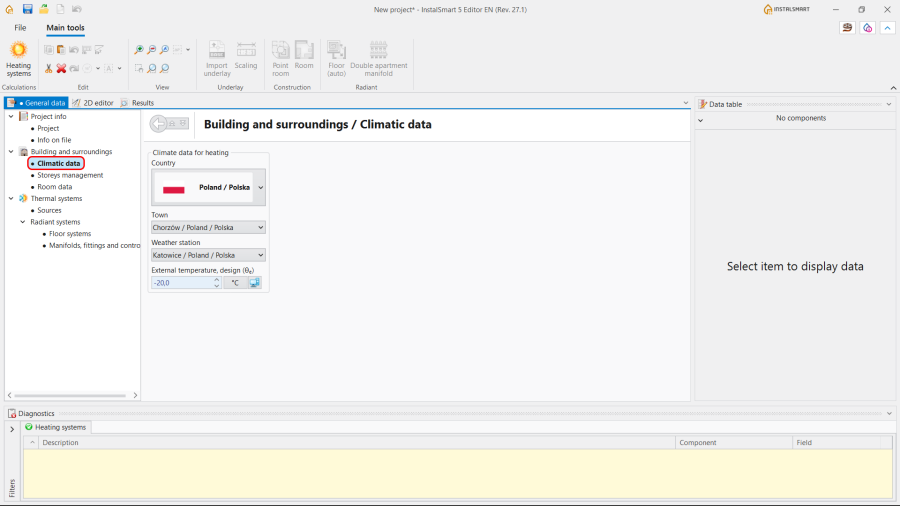
4.Climatic data.

Storeys management
- Create the required number of storeys;
- Specify Symbol and Description for each Storey;
- Fill in the sections Position and Sizes.
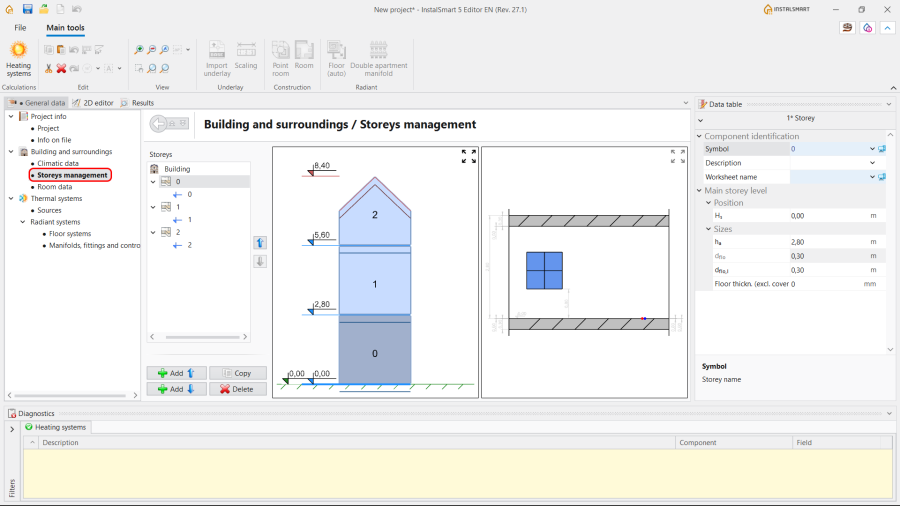
5.Storeys management.

Room data
- Choose the Method of calculating Φ - Calculated acc. to coefficient or User specified;
- (optionally) Adjust the Heat loss index Φsurf,H.
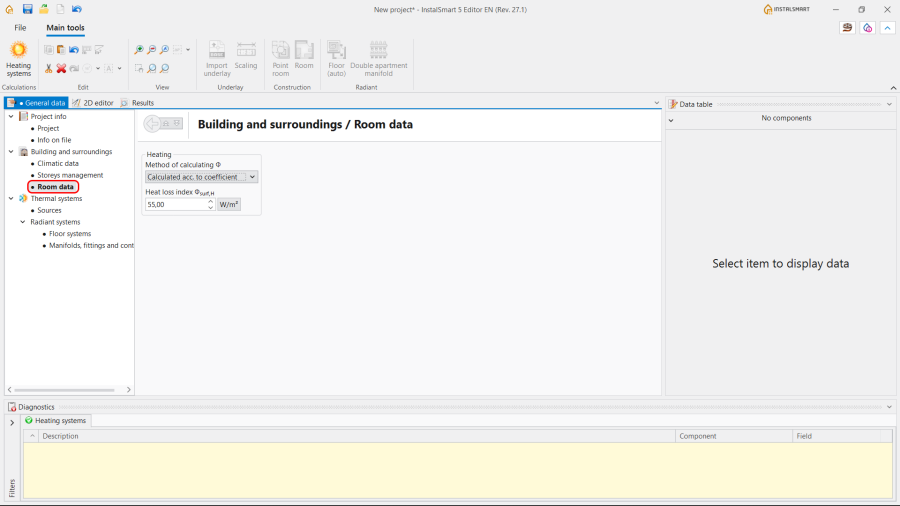
6.Room data.

Thermal systems / Sources
Select the method of determining the supply temperature:
- Optimized by the program in accordance with min. investment costs or heat output and press. drop;
- Impose supply temperature manually.
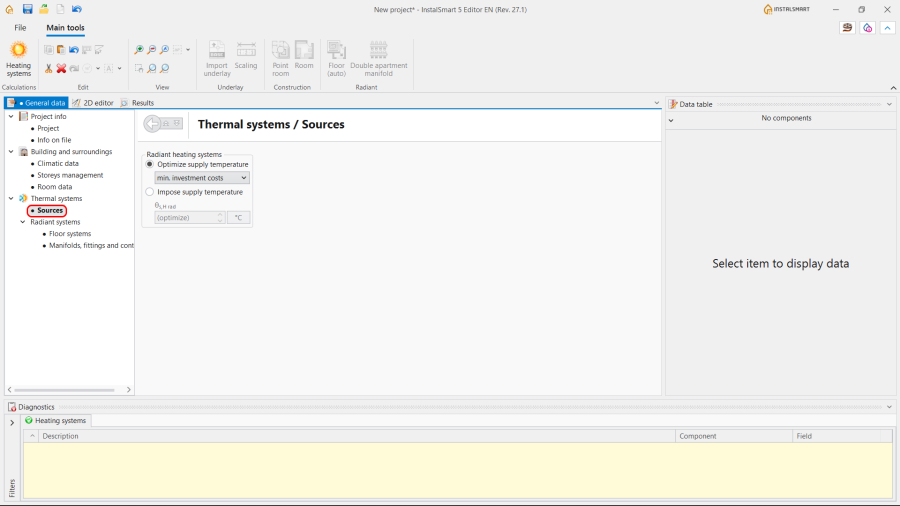
7.Thermal systems / Sources.

Thermal systems / Radiant systems
- Floor systems:
- Specify Structural parameters;
- Specify Operating parameters.
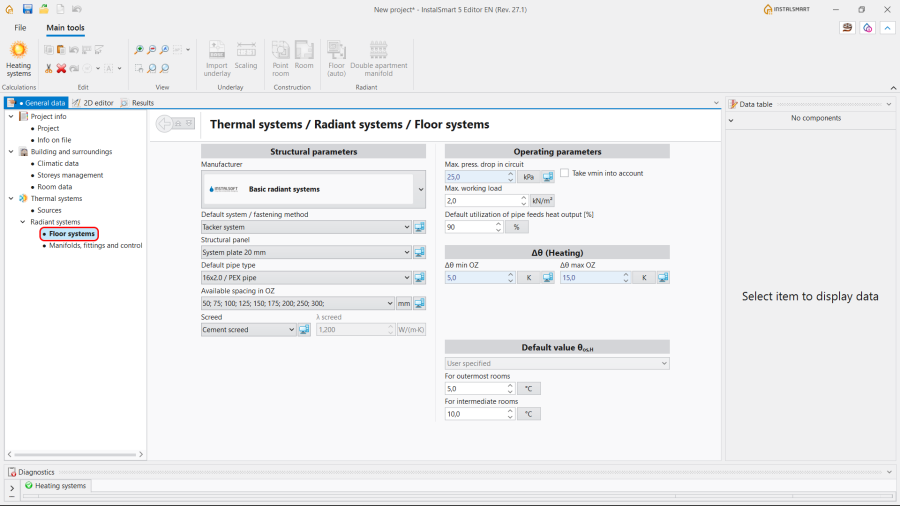
8.Thermal systems / Radiant systems / Floor systems.

Note: InstalSmart application does not offer the following options:
- the option of generating loops, so there is no ability to set the Pipe laying pattern and to Generate loops drawings;
- the option of inserting the Peripheral zone (PZ), so the adjustment of Available spacing in PZ is impossible;
- the option to set the H/C Area spacing from wall;
- the option pipe-feeds routing, so there is no possibility to specify the settings for the Pipe feeds arrangement;
- the option of automatically indicating of the Default value θos,H (Temperature on the opposite side during heating period), so this value can be only User specified.
- Manifolds, fittings and control:
- Specify parameters for the Manifold;
- Specify parameters for the Circuit control system.
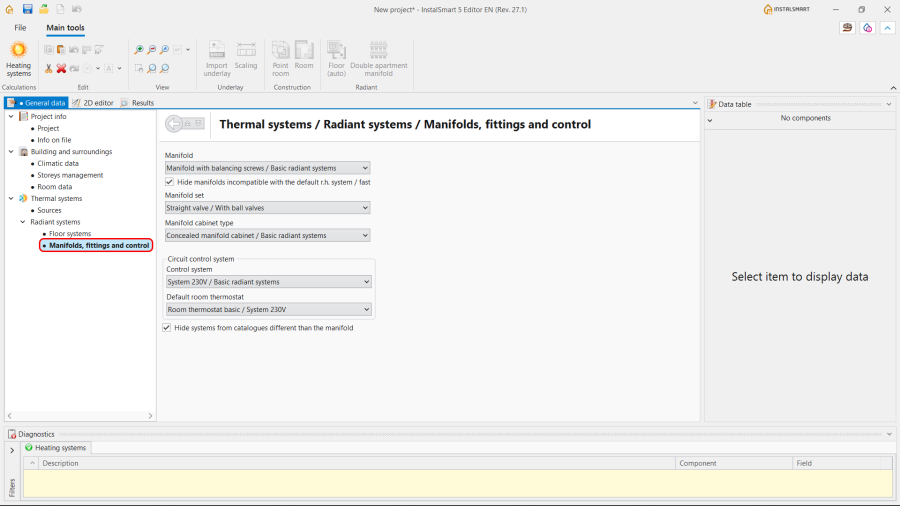
9.Thermal systems / Radiant systems / Manifolds, fittings and control.

Editing the installation and its data
Verifying the correctness of the installation structure
Editing installation components data
Running the calculations
- If no errors are found during verification, start the calculation of the Drainage systems by clicking
 in the Calculations section of the toolbar. The calculations finally determine the vertical routing of the pipe-runs.
 - After the calculations, it is possible to correct manually the vertical passage of pipe-runs in the following way:
- imposing proper values in the Data table window for the Gravity sanitary drainage pipe-run element in the following fields: Real gradient, Elevation of first node, Elevation of second node,
- dividing the chosen pipe-runs into parts and modifying their data.
It is recommended to implement such changes gradually and to observe their influence upon the system, as the change in one node after calculations may have a significant impact on positioning of its greater part.
- Note: Defining the vertical passage of pipe-runs, the program does not exceed the value imposed in the Maximum gradient field in the General data window in the Calculation standards and options tab. This value is also automatically propagated to data of all pipe-runs. In case a difference of ordinates between the end of the calculated pipe-run and another pipe-run or a sewage outlet occurs, an additional vertical pipe-run is generated. To avoid it, allow for a greater gradient, by augmenting individually for each pipe-run a new value in the Maximum gradient field of the Data table and then recalculating the project.

Verification of results
- After calculations, the system layout should be verified visually by means of the 3D view.
- If the calculations end with at least one error, the layout may be unreliable
- The sized diameters of the pipe-runs and fittings can be verified directly in the drawings.
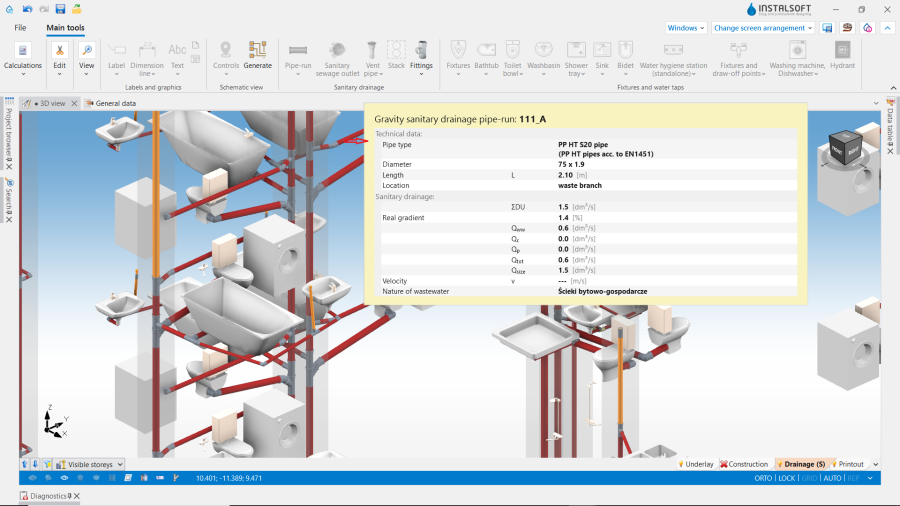
10. Visual verification in the 3D view window. - If a catalogue with visualisation of fittings (like tees, bends etc.) is used in the project, it can helpful in assessing the correctness of fittings selection and sizing for pipe-run nodes (junctions). To do so, node visualisation should be turned on in the General data window, on the Drawing options tab, or using the icon of the Installation elements' visibility directly in the 3D view.
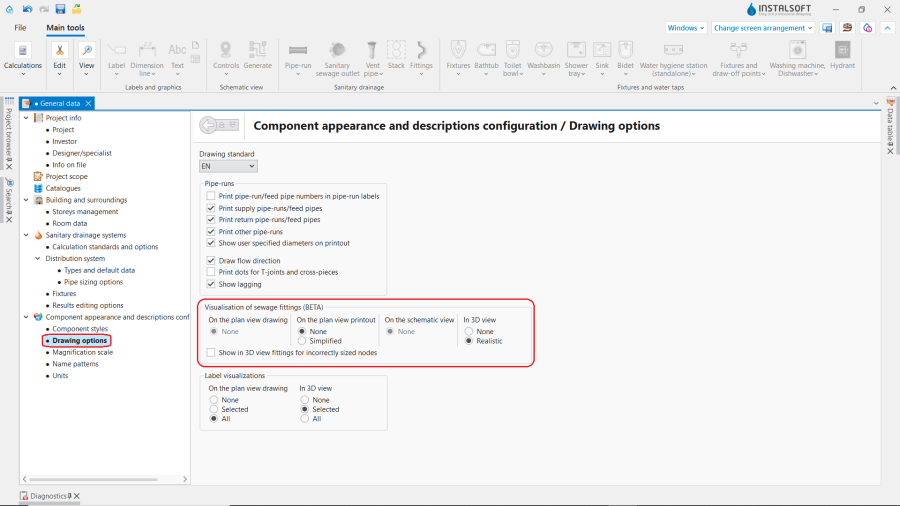
11. Visualization of sewage fittings.
Note: By default, only the nodes with correctly selected fittings, for which there are no warnings in the Diagnostics window, are visualised. Visualisation of the nodes having angle tolerance warnings may be enabled on request, and they will be drawn in a different colour.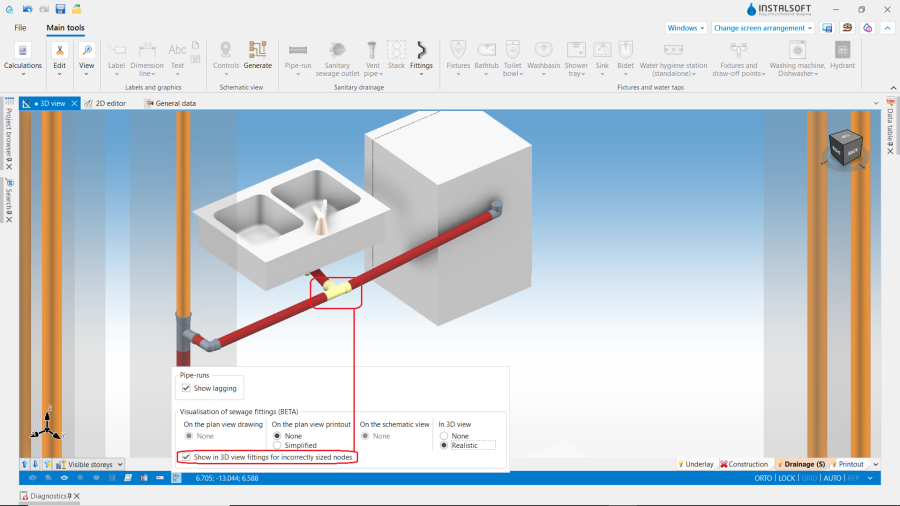
12. Show in 3D view fittings for incorrectly sized nodes. - Other forms of presentation of calculation results are: component labels and tables of results For more information, see: Presentation of the calculations result
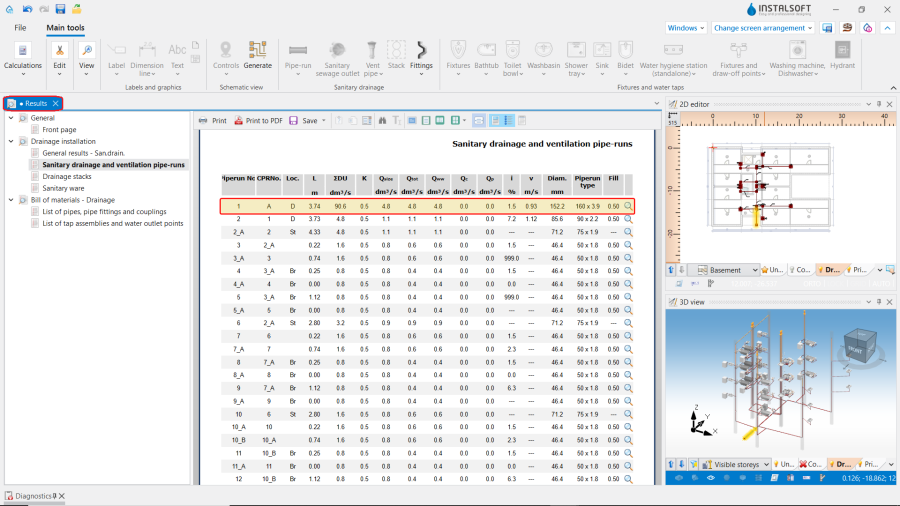
13. List of pipes, pipe fittings and couplings.


Generating schematic views
The schematic view will be generated automatically. For more information, see: Automatically generate schematic views.

A Label with list of fittings may be added manually to each Junction.

Note: After obtaining the schematic view, fittings may be added on any pipe-run on the schematic view worksheet, that may be the best solution for vertical pipe-runs.
Preparing drawings for export/printing
- To have the results for pipe-runs and installation nodes included in the printout of a drawing, appropriate labels must be inserted For more information, see: Preparation of drawings for export / printing
- Completed drawings can be printed and/or exported For more information, see: Export / print results and drawings
BIM - Export of the installation to an IFC model
Specify the required settings and execute export of the installation using the IFC file export icon on the Main tools bar in the Printout and export section when the Printout editing scope is active.

For more information, see: BIM - Export of installation and construction data from the project to IFC models.