Manifolds, manifold sets and accessories
| Product | InstalSystem 5 |
| Type of article | FUNCTION AND TOOL |
| Source for translation | 2021-09-03 |
Description
The program enables automatic selection and sizing of the required manifold accessories, defined as Manifold set type. It also enables proper sizing of the manifold cabinet which takes into account the size of the manifold itself and the accessories. Examples of manifold accessories that are selected automatically or by the user:
- ball valve sets,
- heat meters,
- control and balancing valves,
- necessary pipe fittings, adapters and connection kits,
- other (caps, plugs, etc.)
The manifold is placed and presented in a drawing with a Manifold set and manifold cabinet. All these components are scaled to their real dimensions. In addition there is a differentiation between surface-mounted and concealed cabinets, and depending on that the cabinet can be snapped to the wall or to room outline.
Selection of the automatic control type ensures that appropriate actuators are selected for the manifold valves.
In unusual cases the manifold accessories and cabinet size can be selected manually.
It is also possible to insert an element Mixing and distribution unit,which only applies to heating. Consists of the:
- high temperature part,
- the mixing set,
- low temperature part,
- optional set.
Connection to the network is always via a high temperature part. The number of outputs is not selected automatically, but assigned to a specific manifold.
Location in the program
Components associated with the use of manifold are available in the Main tools bar. These include:
- Manifold
- Manifold table
- Label
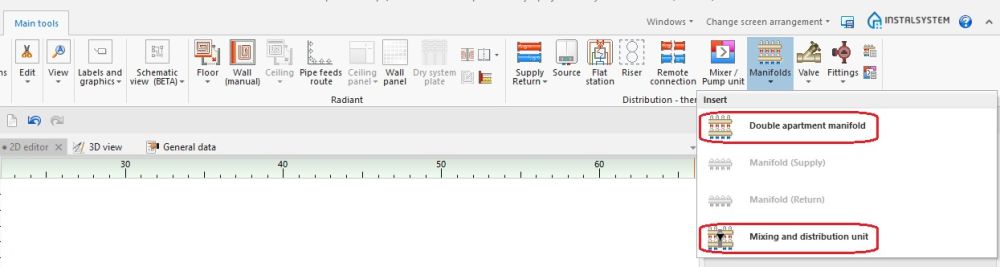
1. Insertion of an element Manifold, Mixing and distribution unit.

Examples of use
Automatic selection of manifold and accessories
Selecting a predefined Manifold set from a list of sets available for a particular manifold ensures proper selection of accessories and size of the manifold cabinet.
Manual selection of a Mixing and distribution unit and its accessories
After inserting a Mixing and distribution unit it is neccessary to select it's type from the list, after which the components and connection points appear. The choice of the number of outlets is based on the choice of the product.
Manual selection of manifold accessories
- Select from avaiable on the list a Manifold set type with connection points arranged as required.
- Change Manifold set type to Other.
- Select the required accessories for the manifold.
- In the case of a manually defined set of accessories the size of the cabinet has to be selected by the user!
Orientation modification
- Choose a proper manifold orientation among those available in the Orientation list:
- standard vertical manifold orientation:
- manifold outlets downward oriented,
- manifold outlets upward oriented.
- horizontal maniofold orientation:
- lateral manifold outlets, facing backwards,
- lateral manifold outlets, facing forward.
- vertical arrangement of the manifold arms:
- manifold outlets to the right,
- manifold outlets to the left.
- standard vertical manifold orientation:
Changing the orientation of the Mixing and distribution unit
The orientation selection is to choose the left or right manifold folder, if the given orientation exists in the offer.
Label
Label of Mixing and distribution unit
Element style and label styles have their own place in the styles tree.
For more information, see: Component appearance configuration
Manifold table
Manifold table Mixing and distribution unit
Manifold table is assigned to low temperature or high temperature part, use twice if necessary.
Additional information
Manifold boards
- For each manifold used in the project there is a Manifold boards available in the Results window which displays complete calculation results and a list of accessories. A printout of the Manifold boards can be placed inside the manifold cabinet.
For more information, see: Export / print results and drawings