Preparation of building structure - Rooms layout: Difference between revisions
| Line 89: | Line 89: | ||
[[File:Room_datatable1.png|900 px|left|thumb|5. Data table of the ''<IS_TS id=iNameKonstrPomieszczenie/>''.]]<br clear="all"/> | [[File:Room_datatable1.png|900 px|left|thumb|5. Data table of the ''<IS_TS id=iNameKonstrPomieszczenie/>''.]]<br clear="all"/> | ||
=== | ===Graphical presentation of the rooms layout=== | ||
After editing is completed the appearance of the rooms layout is as shown in the video: {{#ev:youtube|cEY2-t_dlsU|900||||rel=0}} | |||
{{Info}} [[View_navigation_in_the_graphical_editor|View navigation in the graphical editor]]. | {{Info}} [[View_navigation_in_the_graphical_editor|View navigation in the graphical editor]]. | ||
Revision as of 19:02, 18 March 2022
| Product | InstalSystem 5 |
| Type of article | FUNCTION AND TOOL |
| Source for translation | 2022-02-16 |
Description
Rooms layout consists of manually entered Room components which together with the storey data make up the building structure. Buikding structure design based on the rooms layout should be selected when:
- the room thermal load is determined on an indicative basis
- the user specifies the thermal load.
A design made using a building structure based on polyhedral cubicles (without the use of structural components such as walls, slabs or roofs) is a good way to significantly reduce working time when there is no need to make thermal load calculations based on standards.
Location in program
Storeys management
- Storeys management can be found in the General data window, section Building and surroundings.
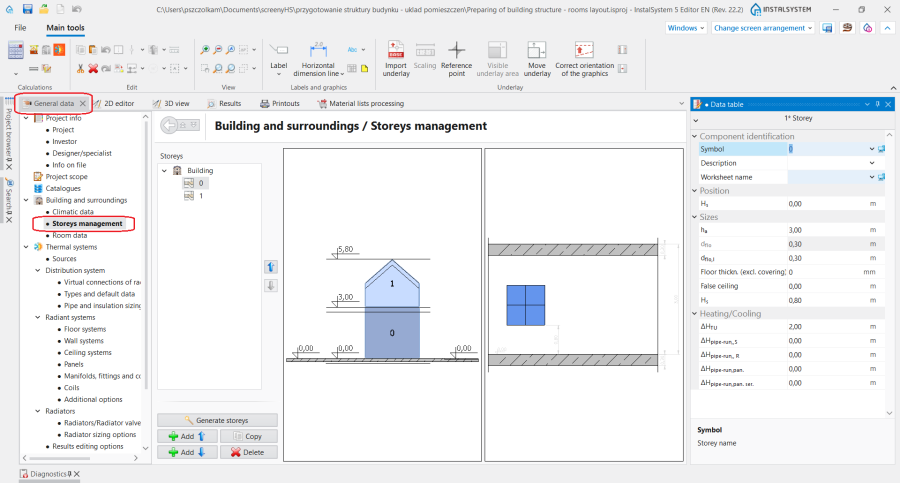
1. Storeys management.

Room data
- Room data can be found in the General data window, section Building and surroundings.
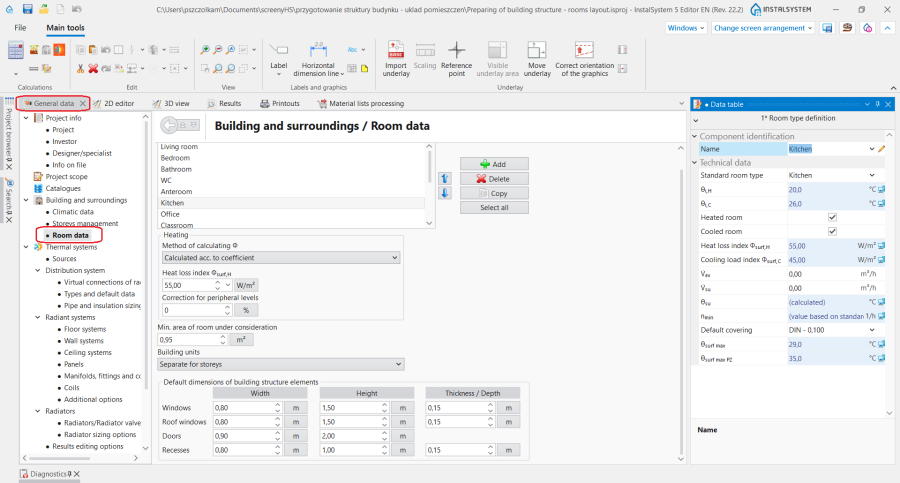
2. Room data.

Room
- The icon used for placing a Room is on the Main tools bar, section Construction, when the Construction scope is enabled.
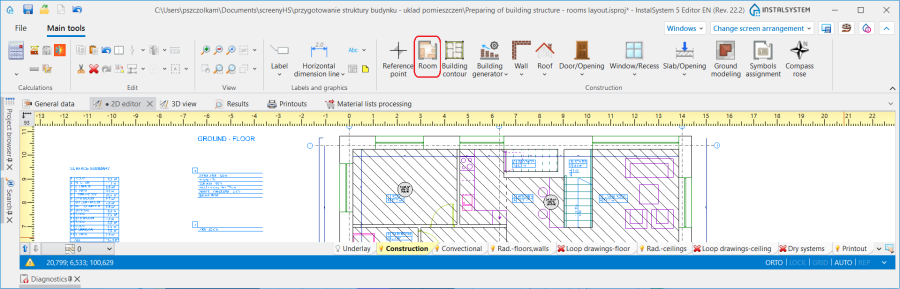
3. Room component.

Examples of use
Creating a storey
In the Storeys management section information on the building location can be entered:
- Average building depression
- Ground elevation
as well as the major Storey data:
- Position
- Storey elevation
- Storey height
- Upper slab thickness
- Lower slab thickness
For more information, see: Preparation of building structure - Storeys.
Underlay
Underlay is a two-dimensional (flat) graphical object extracted from a raster or vector file. Underlay in itself does not provide any components of the building structure, but it allows for their manual creation in agreement with reality.
For more information, see: Import underlay files.
Inserting a room
There are two methods of inserting a room into the design:
- by outlining the room edges
- by drawing a room diagonal
For more information, see: Preparation of building structure - manual creation of rooms.
Tips:
- When inserting multiple rooms, enabling the REP function (F5) will facilitate work.
- To insert a Room by drawing a diagonal it is necessary to enable the ORTO function.
Creating multi-storey rooms
For more information, see: Preparation of building structure - Multi storey rooms.
Specifying room data
Room data
Section Room data in the General data window contains the most important Room parameters, which are passed onto the components placed in the design. The following parameters are defined here:
- Room type definition - select from a list of standard rooms or specify user room type.
- Method of calculating Φ for the Heating and Cooling scopes (section display depends on the scopes enabled in the design).
- Values of Heat loss index Φsurf,H / Cooling load index Φsurf,C when Method of calculating Φ method is selected: Calculated acc. to coefficient.
- For every type of room: Internal temperature in heating mode / Internal temperature in cooling mode and many other parameters that can be changed by the user.

Editing room data in data table
All data in the table of Room in the AUTO mode (fields with a computer icon) are transferred from General data. The user can change each of these values after substituting the computer icon with a pencil icon.
Subsequent sections of the data table have the following parameters arranged:
- section Component identification:
- Symbol - Room number in accordance with Pattern of manifold symbol, which is defined in the General data window, section Component appearance and descriptions configuration
- Room type - selection of this room type affects the parameters transferred to Heating, Cooling sections
- Building unit - in this field it is possible to change the unit to which the Room is assigned
- section Position - here the room can be moved to another storey or it can be defined as a multi-storey room. For more information, see: Preparation of building structure - Multi storey rooms.
- From storey
- To storey
- section Sizes:
- Af - Room area within partition faces|Room area faces
- Floor thickness - in the AUTO mode the value is taken from the same name field of the Storey component
- Thickness of false ceiling - in the AUTO mode the value is taken from the same name field of the Storey component
The data table also contains the following sections: Heating, Cooling, 2D/3D view style, Label.

Graphical presentation of the rooms layout
After editing is completed the appearance of the rooms layout is as shown in the video:
For more information, see: View navigation in the graphical editor.
Numbering the rooms
For more information, see: Preparation of building structure - Numbering the rooms.
Przeglądanie utworzonej struktury budynku
Przeglądanie utworzonej struktury budynku jest możliwe zarówno w oknie 2D editor jak i 3D view. Pomocnymi funkcjami w nawigacji po strukturze budynku jest również Project browser oraz Search, których użycie zaprezentowano na filmie poniżej.
Konfiguracja stylu elementu
Styl elementu Room i styl jego etykiety mają własne miejsce w drzewie stylów.
For more information, see: Component appearance configuration.