Preparation of building structure - Roof modeling: Difference between revisions
Klintsevicho (talk | contribs) |
Klintsevicho (talk | contribs) |
||
| Line 53: | Line 53: | ||
==Example of use== | ==Example of use== | ||
The steps to be performed to create ''<IS_TS id=Roof/>'' will depend on the format of the file used like an ''<IS_TS id=lystrGraphicBackground/>''. | |||
===Working with DWG / DXF / PDF files=== | |||
There are two ways to create ''<IS_TS id=Roof/>'' in case the files of dwg, dxf of pdf formats are used: | |||
# '''Manual creation.''' Use the tools available in the program and listed above. | |||
# ''' Automatic creation''' based on the ''<IS_TS id=PartitionsGenerator/>'' function. In this case the program will generate the flat ''<IS_TS id=Roof/>'' in accordance with the data set in the ''<IS_TS id=rsDanogi/>'' window, ''<IS_TS id=StoreyManagement/>'' tab for the last ''<IS_TS id=iNameKondygnacja/>''. The roof edges with the corresponding elevations can be added manually. | |||
1. Create an outline of the roof cover using the ''<IS_TS id=Roof/>'' component. Then draw the edges of the roof using ''<IS_TS id=AddRoofEdge/>'' and specify the elevations of the characteristic points of the roof.<br/>Roof division lines can be deleted by clicking [[File:Delete-ikon.png|18 px|]].<br/>Red roof division lines indicate that the division cannot be effected and the elevations of the points or the division lines need to be adjusted. | |||
<!-- 1. Create an outline of the roof cover using the ''<IS_TS id=Roof/>'' component. Then draw the edges of the roof using ''<IS_TS id=AddRoofEdge/>'' and specify the elevations of the characteristic points of the roof.<br/>Roof division lines can be deleted by clicking [[File:Delete-ikon.png|18 px|]].<br/>Red roof division lines indicate that the division cannot be effected and the elevations of the points or the division lines need to be adjusted. | |||
* shed roof,<br/>{{#ev:youtube|3ZAYeNR2ZvQ|900||||rel=0}} <br clear="all"/> | * shed roof,<br/>{{#ev:youtube|3ZAYeNR2ZvQ|900||||rel=0}} <br clear="all"/> | ||
* gable roof,<br/>{{#ev:youtube|c1Xe-0rJTHA|900||||rel=0}} <br clear="all"/> | * gable roof,<br/>{{#ev:youtube|c1Xe-0rJTHA|900||||rel=0}} <br clear="all"/> | ||
| Line 64: | Line 80: | ||
2. Create a roof with a dormer using ''<IS_TS id=Lukarna/>'': | 2. Create a roof with a dormer using ''<IS_TS id=Lukarna/>'': | ||
* roof with a shed dormer,<br/>{{#ev:youtube|T3xHd_ESvmo|900||||rel=0}} <br clear="all"/> | * roof with a shed dormer,<br/>{{#ev:youtube|T3xHd_ESvmo|900||||rel=0}} <br clear="all"/> | ||
* roof with a gabled dormer.<br/>{{#ev:youtube|h53hAnTdTvw|900||||rel=0}} <br clear="all"/> | * roof with a gabled dormer.<br/>{{#ev:youtube|h53hAnTdTvw|900||||rel=0}} <br clear="all"/>--> | ||
[[Category:InstalSystem 5]] | [[Category:InstalSystem 5]] | ||
Revision as of 10:12, 22 October 2024
| Product | InstalSystem 5 |
| Type of article | FUNCTION AND TOOL |
| Source for translation | 2024-10-17 |
Description
The article describes the possibilities of preparing various kinds of Roof constructions.
Functions and tools related to the creation or modification of the Roof structure and related elements are the following:
- Construction scope, Roof tab:
- Roof,
- Add roof edge,
- Dormer,
- Join roofs,
- Opening in roof;
- Construction scope, Window/Recess tab:
- Roof window;
- Underlay scope, Interpret from IFC file tab:
- Creates roofs from an IFC file. For more information, see: Interpretation of roofs,
- Creates windows, doors, and wall openings from an IFC file (to create Roof window);
- Operations related to the creation of Roof during preparation of Building structure:
- Convert to roof (right mouse button context menu),
- Building generator - Automatic walls, slabs and roofs.
Note: In order to view the effects of changes made during editing it is necessary to invoke Computation of building structure .
For more information, see: Preparation of building structure
Location in the program
Construction scope
Icons of tools and functions related to the creation of Roof are accessible in the 2D editor and partly in the 3D view window on the Main tools bar, section Construction when Construction editing is enabled.


Underlay scope
Icons of tools and functions related to the creation of Roof and its elements from the IFC file are accessible in 2D editor and 3D view windows on the Main tools bar, section Underlay when Underlay editing is enabled.

Related operations
- Convert to roof operation is available in 2D editor and 3D view windows in the right mouse button context menu. Allows to convert Slab element into Roof.

6. Convert to roof. - Automatic walls, slabs and roofs operation is available in 2D editor and 3D view windows on the Main tools bar, section Construction when Construction editing is enabled. Allows to automatically generate Roof on the basis of previously created Rooms and Building contour.
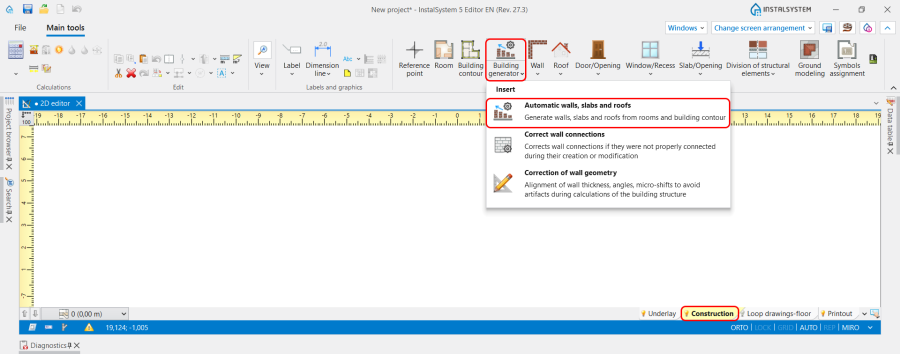
7. Automatic walls, slabs and roofs.


Computation of building structure
- Computation of building structure is available on Main tools bar, section Calculations.

8. Computation of building structure

Example of use
The steps to be performed to create Roof will depend on the format of the file used like an Underlay.
Working with DWG / DXF / PDF files
There are two ways to create Roof in case the files of dwg, dxf of pdf formats are used:
- Manual creation. Use the tools available in the program and listed above.
- Automatic creation based on the Automatic walls, slabs and roofs function. In this case the program will generate the flat Roof in accordance with the data set in the General data window, Storeys management tab for the last Storey. The roof edges with the corresponding elevations can be added manually.