Software configuration: Difference between revisions
(Created page with "{{subst:Functionality}}") |
No edit summary Tag: Manual revert |
||
| (194 intermediate revisions by 12 users not shown) | |||
| Line 1: | Line 1: | ||
<IS_HELP id="HS74"/> | |||
<!--Case 121359, Case 187588, W8788--> | |||
{{Article table | |||
|commercial_product1=InstalSystem 5 | |||
|p2 =<!--gdy jest kolejny produkt handlowy, zamienić na->"produkt_handlowy2="--> | |||
|p3 =<!--gdy jest kolejny produkt handlowy, zamienić na->"produkt_handlowy3="--> | |||
|p4 =<!--gdy jest kolejny produkt handlowy, zamienić na->"produkt_handlowy3="--> | |||
|category1 =InstalSystem 5#Functionalities | |||
|category_name1 =FUNCTION AND TOOL | |||
|c2 =<!--Jest kategoria -> zamienić na: "category2=" i uzupełnić link do sekcji kategorii na stronie głównej produktu--> | |||
|category_name2 =<!--podać nazwę kategorii "ZASTOSOWANIE"/"FUNKCJONALNOŚĆ"/...--> | |||
|c3 =<!--if there is the second category, change to->"category3="--> | |||
|category_name3 =<!--fill up with category "SOFTWARE APPLICATION"/"FUNCTIONALITY"/...--> | |||
|version1 =2022-12-01 | |||
|v2 =<!--Jest wersja -> zamienić na: "version2=" i uzupełnić link do sekcji RN danego produktu--> | |||
|v3 =<!--Jest wersja -> zamienić na: "version2=" i uzupełnić link do sekcji RN danego produktu--> | |||
|v4 =<!--Jest wersja -> zamienić na: "version2=" i uzupełnić link do sekcji RN danego produktu--> | |||
}} | |||
==Description== | ==Description== | ||
' | This article describes the possibilities of configuring the '''InstalSystem 5''' package. The package is configurable at various levels, which enables the user to adapt the application to individual needs and improve the comfort of work. | ||
' | |||
==Location in the program== | ==Location in the program== | ||
'' | Application configuration options are accessible from the window ''Editor InstalSystem'', which is automatically opened when a new project starts or existing project file opens. Most of the options are accessible from the tab bar, which includes the ''<IS_TS id=rsFile/>'' tab of the main menu. Each change to the application configuration is saved and applied to subsequent projects opened with the given package. Uninstalling and reinstalling the software causes the user's configuration to be lost. | ||
[[File:InstalSystem 5 Editor EN edit.png|900px|left|thumb|1. Tab bar]]<br clear="all"/> | |||
==Example of use | ==Example of use== | ||
'' | ===Settings=== | ||
<p>Settings apply to the keyboard, mouse, pop-up menu, some aspects of display view; they enable modifying the toolbar and specifying which diagnostic messages are to be displayed. Basic settings in the program can be made after clicking the ''Settings'' button.</p>[[File:Settings-screen.png|900 px|left|thumb|1. Settings]]<br clear="all"/> | |||
In the Setting window it is also possible to choose templates: | |||
* ''<IS_TS id=DefaultSchemeForManifoldTable/>''. {{Info}} [[Manifold_table|Manifold table]]. | |||
*'' | * ''<IS_TS id=DomyslnySzablonTP/>''. {{Info}} [[Drawing_chart|Drawing chart]]. | ||
'' | |||
[[pl: | ===Window Layout - modifying the current view=== | ||
<p>Window Layout can be modified by selecting the active windows and arranging them on the screen. '''InstalSystem 5''' supports using two displays at the same time. We recommend this mode of work. Windows can be selected (on / off) from a list available on the toolbar. The enabled window appears initially in an area of the screen selected by the program.</p>[[File:EUkonfig-windows-arrangement-choose.png|900 px|left|thumb|2. Windows]]<br clear="all"/><p>To lock a selected window on the screen, "grab" the tab with that window’s name with the left mouse button and drag it towards the centre of the main window so that a cross appears showing the possible window layouts. To position the window in one of the proposed layouts, drop it onto that layout. You can also drop the window anywhere else on the display, even outside of the main window. {{#ev:youtube|Vt9ycSMdp3c|900||||rel=0}}</p> | |||
===Screen arrangement - creating and saving user defined compositions=== | |||
The user can create and save his or her own compositions under a specific name using ''<IS_TS id=ZapiszUklad/>''.<br/> | |||
The following elements can be saved in a user-defined composition: | |||
* List of open windows. | |||
* Position and placement of the windows. | |||
* Sizes of all displayed windows. | |||
* Active scope or editing scopes of the project in 2D and 3D view. | |||
Example compositions: | |||
* Composition for working on a project at the stage of entering data in the ''<IS_TS id=rsDanogi/>'' window.<br/>{{#ev:youtube|v8v83n4bBks|900||||rel=0}} <br clear="all"/> | |||
* Composition for working on a project at the stage of graphical editing.<br/>{{#ev:youtube|5X2rcSCK8Q0|900||||rel=0}} <br clear="all"/> | |||
* Composition for working on a project at the stage of verifying the 3D view.<br/>{{#ev:youtube|tMfQ858onbc|900||||rel=0}} <br clear="all"/> | |||
* Composition for working on a project at the stage of analysing calculation results.<br/>{{#ev:youtube|bCKukhe7zuE|900||||rel=0}} <br clear="all"/> | |||
Compostion can be selected from the ''<IS_TS id=ZmianaUkladuEkranu/>'' list.<br/>{{#ev:youtube|Zt1s1zRIfI0|900||||rel=0}} <br clear="all"/> | |||
===Printout compositions=== | |||
<p>Pre-defined printout compositions are available in the tree on the left hand side of the ''<IS_TS id=Printouts/>'' window. The number and types of ready-to-use sets depend on the program version used. An existing composition can be selected and reviewed. The user can also create and save additional printout compositions which, in addition to the pre-defined compositions, will also be available in other projects.</p>[[File:Suf-konfig-printout2.png|500 px|left|thumb|3. Printout compositions]]<br clear="all"/> | |||
===Component search=== | |||
<p>User-defined filters can be created and configured to find components in the project that meet defined criteria. Such filters will then also be available for use in other projects.</p>[[File:Suf-prezwiw-new-search.png|500 px|left|thumb|4. Printout compositions]]<br clear="all"/>{{#ev:youtube|qpXd2EFUNoU|900||||rel=0}} | |||
===Template files=== | |||
<p>Template is a predefined project file. | |||
The following features can be defined in a template: | |||
*template name, | |||
*available calculation scopes, | |||
*selection of catalogues, | |||
*configuration of general editing data, | |||
*configuration of general project data: | |||
** building surroundings (e.g.: heat loss coefficients w/m2), | |||
**systems; | |||
*graphical fragment of a system design. | |||
A number of templates can be used, the content of which can be adapted to various typical design cases. | |||
The option to save the project status as a template is available in the main menu - ''<IS_TS id=rsFile/>'' tab. Default save location: C:\...\Documents\InstalSystem 5 EN (or other package name)\Rev\XX.X\AppWindowSettings\Templates.</br>[[File:Saveastemplete edit.png|600px|left|thumb|6. <IS_TS id=SaveAsTemplate/>]]<br clear="all"/> | |||
Data can be loaded from any template: | |||
*when creating a new project in the window;</br>[[File:Newproject-templetes edit.png|900px|left|thumb|7. <IS_TS id=sNowyProjekt/> - templates]]<br clear="all"/> | |||
*when working on a project: | |||
** by restoring data configuration (excluding the tabs:''<IS_TS id=StoreyManagement/>'' and <IS_TS id=strLblWygladCaption/>)</br>[[File:Restre general data edit.png|600px|left|thumb|8. <IS_TS id=btReadTemplate/>]]<br clear="all"/> | |||
** by loading component and label appearance styles.</br> {{Info}}[[Components appearance configuration:Component styles tab]]. | |||
===Modules=== | |||
Modules are fragments of a system ready to be placed in a project. Depending on the software package configuration, various pre-defined modules may be available. Additional modules can also be created by the user.<br/>To create a module, mark the selected fragment of installation and select ''Create module'' on the toolbar. To be able to use the module, it must be appended to a tab created on the toolbar.<br/>In the File/Settings/Ribbon settings menu it is possible to create new tabs (''New tab''), add galleries (''New gallery'') and manage the tabs.<br/>[[File:Suf-konfig-modules.png|550 px|left|thumb|6. Creating modules]]<br clear="all"/>{{#ev:youtube|wYJrWxTZvjM|900||||rel=0}} | |||
{|class="wikitable" style="width: 800px; margin: 0 auto;" | |||
!If you have any comments on this article, please send us a short message at ''info@instalsoft.com''. | |||
|} | |||
[[Category:InstalSystem 5]] | |||
[[Category:FUNCTION AND TOOL]] | |||
<!-- Do not write text below this tag --> | |||
<br class="iwlinks"/>[[pl:Konfigurowanie aplikacji|Konfigurowanie aplikacji]][[it:Configurazione del software|Configurazione del software]][[zh-cn:软件配置|软件配置]][[lt:Programinės įrangos nustatymai|Programinės įrangos nustatymai]] | |||
Latest revision as of 23:07, 12 June 2026
| Product | InstalSystem 5 |
| Type of article | FUNCTION AND TOOL |
| Source for translation | 2022-12-01 |
Description
This article describes the possibilities of configuring the InstalSystem 5 package. The package is configurable at various levels, which enables the user to adapt the application to individual needs and improve the comfort of work.
Location in the program
Application configuration options are accessible from the window Editor InstalSystem, which is automatically opened when a new project starts or existing project file opens. Most of the options are accessible from the tab bar, which includes the File tab of the main menu. Each change to the application configuration is saved and applied to subsequent projects opened with the given package. Uninstalling and reinstalling the software causes the user's configuration to be lost.

Example of use
Settings
Settings apply to the keyboard, mouse, pop-up menu, some aspects of display view; they enable modifying the toolbar and specifying which diagnostic messages are to be displayed. Basic settings in the program can be made after clicking the Settings button.

In the Setting window it is also possible to choose templates:
- Default template for manifold table. For more information, see: Manifold table.
- Default project table template. For more information, see: Drawing chart.
Window Layout - modifying the current view
Window Layout can be modified by selecting the active windows and arranging them on the screen. InstalSystem 5 supports using two displays at the same time. We recommend this mode of work. Windows can be selected (on / off) from a list available on the toolbar. The enabled window appears initially in an area of the screen selected by the program.

To lock a selected window on the screen, "grab" the tab with that window’s name with the left mouse button and drag it towards the centre of the main window so that a cross appears showing the possible window layouts. To position the window in one of the proposed layouts, drop it onto that layout. You can also drop the window anywhere else on the display, even outside of the main window.
Screen arrangement - creating and saving user defined compositions
The user can create and save his or her own compositions under a specific name using Save arrangement.
The following elements can be saved in a user-defined composition:
- List of open windows.
- Position and placement of the windows.
- Sizes of all displayed windows.
- Active scope or editing scopes of the project in 2D and 3D view.
Example compositions:
- Composition for working on a project at the stage of entering data in the General data window.
- Composition for working on a project at the stage of graphical editing.
- Composition for working on a project at the stage of verifying the 3D view.
- Composition for working on a project at the stage of analysing calculation results.
Compostion can be selected from the Change screen arrangement list.
Printout compositions
Pre-defined printout compositions are available in the tree on the left hand side of the Printouts window. The number and types of ready-to-use sets depend on the program version used. An existing composition can be selected and reviewed. The user can also create and save additional printout compositions which, in addition to the pre-defined compositions, will also be available in other projects.

Component search
User-defined filters can be created and configured to find components in the project that meet defined criteria. Such filters will then also be available for use in other projects.

Template files
Template is a predefined project file. The following features can be defined in a template:
- template name,
- available calculation scopes,
- selection of catalogues,
- configuration of general editing data,
- configuration of general project data:
- building surroundings (e.g.: heat loss coefficients w/m2),
- systems;
- graphical fragment of a system design.
A number of templates can be used, the content of which can be adapted to various typical design cases.
The option to save the project status as a template is available in the main menu - File tab. Default save location: C:\...\Documents\InstalSystem 5 EN (or other package name)\Rev\XX.X\AppWindowSettings\Templates.

Data can be loaded from any template:
- when creating a new project in the window;
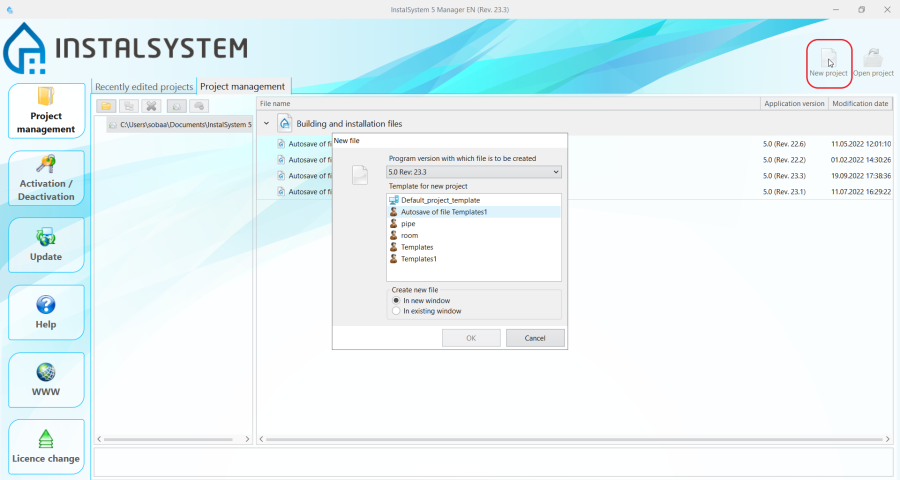
7. New project - templates - when working on a project:
- by restoring data configuration (excluding the tabs:Storeys management and Component styles)
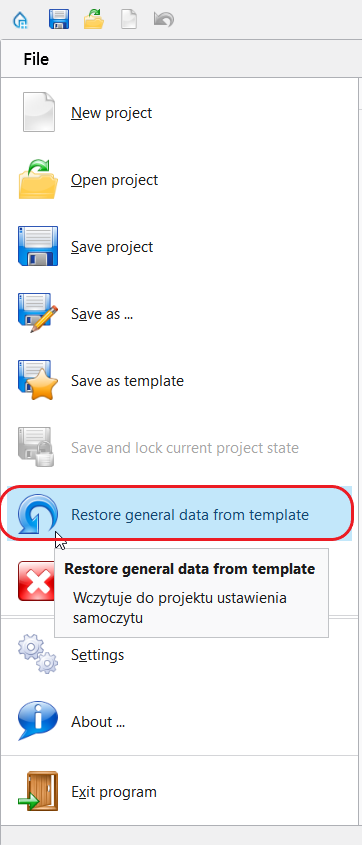
8. Restore general data from template - by loading component and label appearance styles.
For more information, see:Components appearance configuration:Component styles tab.
- by restoring data configuration (excluding the tabs:Storeys management and Component styles)


Modules
Modules are fragments of a system ready to be placed in a project. Depending on the software package configuration, various pre-defined modules may be available. Additional modules can also be created by the user.
To create a module, mark the selected fragment of installation and select Create module on the toolbar. To be able to use the module, it must be appended to a tab created on the toolbar.
In the File/Settings/Ribbon settings menu it is possible to create new tabs (New tab), add galleries (New gallery) and manage the tabs.

| If you have any comments on this article, please send us a short message at info@instalsoft.com. |
|---|