Inserting plates in dry floor heating system
| Product | InstalSystem 5 |
| Type of article | FUNCTION AND TOOL |
| Source for translation | IS 5.0 Beta Rev. 5.B1 |
Description
This functionality enables inserting Dry system plate components to form a base for pipes in dry underfloor heating systems with guide plates.
Dry system plate components can be arranged in any configuration and cut to fit the edge of the room, while the cut away pieces can still be used.
After completing calculations a List of radiant heating components is generated specifying the number of plates used in the project.

Location in the program
- Icon: Dry system plate - available in the active scope of editing: Dry systems (Main tools tab, Radiant group)

- Additional dedicated tab with icons of plates with assigned types, depending on the configuration of the package.
Example of use
Manual inserting plates in dry floor heating system
- Dry system plate is inserted within the Heating/Cooling Floor Zone area.
For more information, see: Heating/cooling zone
Therefore this step has to be preceded by necessary design operations. For more information, see: Design of radiant heating floor and wall installation and selection in General data in the Floor systems section of "Dry system" in the Default system / fastening method field. - When inserting Dry system plate appropriate catalog type should be selected in the Data table window, to take into account the pipe spacing distance determined or specified for the zone.
When the program configuration includes a dedicated toolbar it is possible to select an icon of a plate of defined type. - Inserting Dry system plate components is supported by the AUTO mode, both with regard to room outline, as well as to the plates themselves. For more information, see: Additional information
- Using cut off pieces of Dry system plate components.
The portion of Dry system plate component being inserted that extends beyond Room or overlaps the Dry system plate inserted before is automatically cut off. The cut off piece can be used in the project and the corresponding number of Dry system plate components used is included in the bill of materials. The cut off pieces can be pasted outside of the drawing and reinserted elsewhere within the Heating/Cooling Floor Zone cut to fit the edge provided that Cut and Paste functions are used.
Adjusting the line dividing the Heating/Cooling Floor Zone into Heating/cooling floor components
- The lines dividing the Heating/Cooling Floor Zone into Heating/cooling floor components determined automatically may not match the edges of Dry system plate components inserted manually. In order to match these the dividing line has to be adjusted.
For more information, see: Manual indication of the dividing line
For more information, see: Modifying the dividing line after automatic division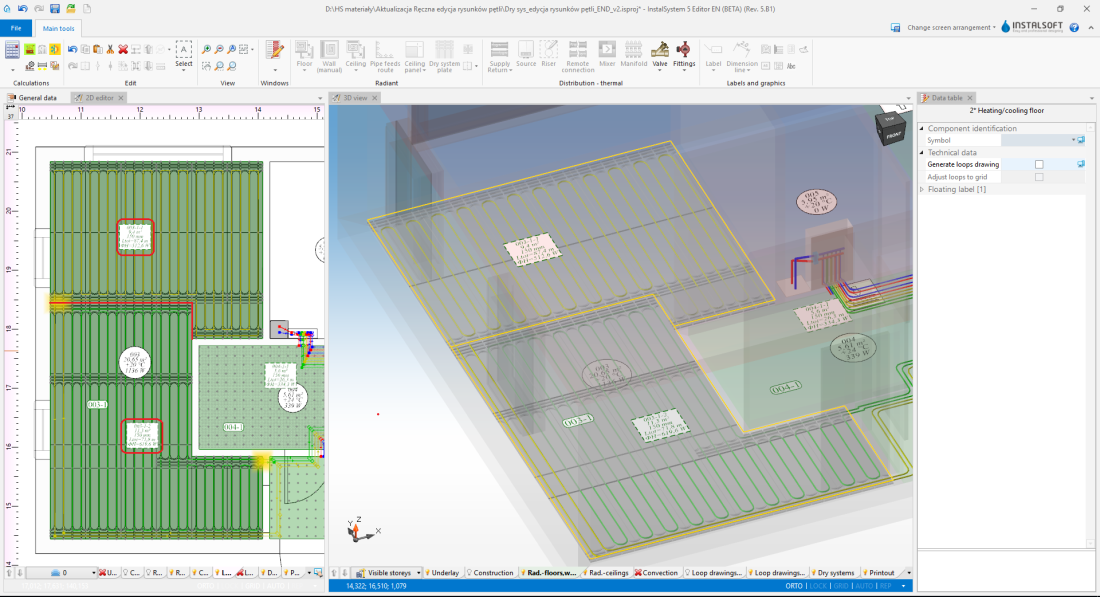
3. Adjustment of the dividing line

Inserting loop drawings
After proper arrangement of the dry system plates it is necessary to manually lay out the loops in accordance with For more information, see: Manual editing of loop drawings in dry systems with guide plates
Additional information
Podczas wstawiania oraz kopiowania/wklejania elementu Dry system plate istnieje możliwość przełączania się pomiędzy aktywnymi krawędziami/punktami snapowania:
TAB - kursor przesuwa się zgodnie z ruchem wskazówek zegara
Shift+TAB - kursor przesuwa się przeciwnie do ruchu wskazówek zegara
- Jeżeli aktywna jest krawędź na wstawianym elemencie typu Dry system plate (kursor jest na środku krawędzi) - program aktywuje 3 punkty: 1 na środku i 2 w narożnikach.
- Jeżeli aktywne są pojedyncze punkty na wstawianym elemencie typu Dry system plate - program przełącza się pomiędzy brzegowymi punktami siatki elementu i snapuje do punktów siatki innych elementów typu Dry system plate.
- Kopiowanie kilku elementów typu Dry system plate - program przełącza się sekwencyjnie pomiędzy punktami snapowania poszczególnych elementów typu Dry system plate stanowiących kopiowany blok.
- Przesuwanie elementu typu Dry system plate - aktywna krawędz lub punkt wybierany jest na podstawie miejsca "złapania" elementu i nie ma możliwości zmiany klawiszem "Tab"
.