How to make the program run faster
| Product | InstalSystem 5 |
| Type of article | TIP&TRICK |
| Source for translation | 2025-10-09 |
Problem description
InstalSystem 5 requires hardware of relatively high computing performance. The software tends to be slower on lower end machines. This is particularly apparent when large files are processed or when other applications run simultaneously. The scale of the problem also depends on the program functions and windows used.
Solution
Hardware recommendations
- Verify that the computer meets Hardware requirements.
- In the case of using laptop:
- It is important to remember that since mobility and energy efficiency are priorities in laptops, the TDP coefficients are significantly lower than in desktop computers. The result is a clock speed reduction of processors or graphics cards when a certain temperature is exceeded, thus limiting the performance of the laptop and, accordingly, reducing the performance of the software.
- Pay attention to the energy saving plan set in Windows, because by default it is usually set to balanced or energy saving mode. This can also significantly decrease the productivity.
- When running on battery power alone, the default energy saving plan will almost certainly use only the integrated graphics card, which has much lower performance and reduces the clock speed.
Software recommendations
Underlay files
Aspects that can considerably affect the productivity of the program:
- Using very large Underlay files,
- Using Underlay files with a wide area (the building itself sometimes occupies only a a fragment of the Underlay area),
- Using Underlay files with a very large number of objects (e.g., hatching).
To deal with this, we recommend to execute the following steps before performing the operation Import underlay to InstalSystem 5:
- Trim the project file to the area that is needed for the work,
- Clean the file of objects that negatively affect the performance of the program.
Settings and configuration
Underlay
- Disable layers that are not required to be used in AUTO mode:
- In the Data table / Layers for AUTO mode field,

1. Layers for AUTO mode. - Using the right mouse button, click on the layout element and choose Disable AUTO for layer: %s,

2. Disable AUTO for layer: %s. - In the right mouse button menu select Disable AUTO for all layers.

3. Disable AUTO for all layers.
- In the Data table / Layers for AUTO mode field,
- Disable the visibility of unnecessary layers:
- In the Data table / Visible layers field,

4. Visible layers. - With the right mouse button, click on the layout element and choose Hide layer: %s,

5. Hide layer: %s. - In the right mouse button menu select Hide all layers.

6. Hide all layers.
- In the Data table / Visible layers field,
- Limit the visibility of the Underlay using the function Visible underlay area. For more information, see: Import underlay files


Reference point
Reference point on each Storey should be located close to the relevant object. For more information, see: Obtaining the correct mutual alignment of underlays on the individual storeys.
This option can be switched off in the program Settings (after switching it off, close and restart the program to see the effect).

3D view
The 3D view can be configured in different ways in the status bar, which also affects the program's efficiency. For more information, see: Navigating in 3D view - status bar.
Project browser and Search window
We recommend disabling these windows during graphic editing, because when enabled, the tree of edited or inserted into the 2D editor objects is constantly updated.
Adjust flow rates
In some cases involving the design of Heating systems, when the function Adjust flow rates is checked ON, the number of iterations required to perform this function practically takes up the total Heating and cooling systems calculation time.

For more information, see:Adjust flow rates
However, we do not recommend disabling it. The solution is to adjust the Δθrad,min - minimum temperature drop on radiator. This parameter influences on the quantity of such calculations. By default, it is set to 5 K. Changing it can significantly affect the calculation time.
Screen configuration
- Close all windows that are not needed at the particular moment.
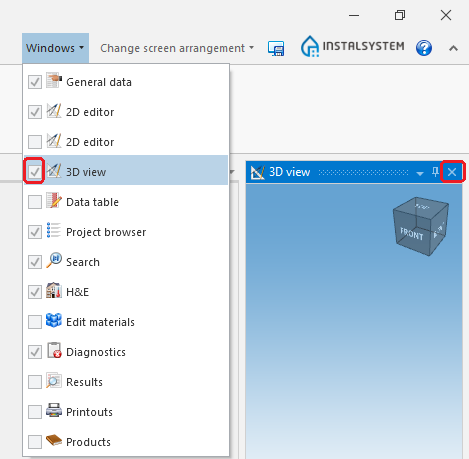
9. 3D Editor. - Hide editing scopes that are not used.
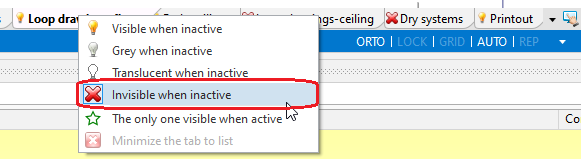
10. Hide edit scopes.


General recommendations
- We recommend to exit all applications and services running in the background that are not used at the moment.
- It is not advisable to work remotely with large project files, as data transfer incurs very high overhead costs, and this has no relation to the program itself.