How to make the program run faster: Difference between revisions
Jump to navigation
Jump to search
Klintsevicho (talk | contribs) No edit summary |
Klintsevicho (talk | contribs) No edit summary |
||
| Line 46: | Line 46: | ||
** In the ''<IS_TS id=DataEditorTable/>'' / ''<IS_TS id=strpnDWGBackgroundAUTOLayers/>'' field,<br/>[[File:How to make the program run faster Layers for auto mode.png |900 px|left|thumb|1. <IS_TS id=strpnDWGBackgroundAUTOLayers/>.]]<br clear="all"/> | ** In the ''<IS_TS id=DataEditorTable/>'' / ''<IS_TS id=strpnDWGBackgroundAUTOLayers/>'' field,<br/>[[File:How to make the program run faster Layers for auto mode.png |900 px|left|thumb|1. <IS_TS id=strpnDWGBackgroundAUTOLayers/>.]]<br clear="all"/> | ||
** With the right mouse button, click on the layout element and choose ''<IS_TS id=dwgmiDisableAUTOForLayer/>'',<br/>[[File:How to make the program run faster Enable auto for Layer.png |900 px|left|thumb|2. <IS_TS id=dwgmiDisableAUTOForLayer/>.]]<br clear="all"/> | ** With the right mouse button, click on the layout element and choose ''<IS_TS id=dwgmiDisableAUTOForLayer/>'',<br/>[[File:How to make the program run faster Enable auto for Layer.png |900 px|left|thumb|2. <IS_TS id=dwgmiDisableAUTOForLayer/>.]]<br clear="all"/> | ||
** | ** In the right mouse button menu select ''<IS_TS id=dwgmiDisableAUTOForAll/>''.<br/>[[File:How to make the program run faster Disable auto for all Layers.png |900 px|left|thumb|3. <IS_TS id=dwgmiDisableAUTOForAll/>.]]<br clear="all"/> | ||
* Disable the visibility of unnecessary layers: | |||
** In the ''<IS_TS id=DataEditorTable/>'' / ''<IS_TS id=strpnDWGBackgroundVisibleLayers/>'' field,<br/>[[File:How to make the program run faster Visible Layers.png|900 px|left|thumb|4. <IS_TS id=strpnDWGBackgroundVisibleLayers/>.]]<br clear="all"/> | |||
** With the right mouse button, click on the layout element and choose ''<IS_TS id=dwgmiHideLayer/>'',<br/>[[File:How to make the program run faster Hide Layer.png|900 px|left|thumb|5. <IS_TS id=dwgmiHideLayer/>.]]<br clear="all"/> | |||
** In the right mouse button menu select ''<IS_TS id=dwgmiHideAllLayers/>''.<br/>[[File:How to make the program run faster Hide all Layers.png |900 px|left|thumb|6. <IS_TS id=dwgmiHideAllLayers/>.]]<br clear="all"/> | |||
* Close all windows that are not needed (particularly the resource-intensive module ''<IS_TS id=View3D/>'').<br/>[[File:Hide 3D view.png|700 px|left|thumb|1. 3D Editor]]<br clear="all"/> | * Close all windows that are not needed (particularly the resource-intensive module ''<IS_TS id=View3D/>'').<br/>[[File:Hide 3D view.png|700 px|left|thumb|1. 3D Editor]]<br clear="all"/> | ||
* Hide editing scopes that are not used.<br/>[[File:Invisible when inactive.png|700 px|left|thumb|2.Hide edit scopes.]]<br clear="all"/> | * Hide editing scopes that are not used.<br/>[[File:Invisible when inactive.png|700 px|left|thumb|2.Hide edit scopes.]]<br clear="all"/> | ||
Revision as of 10:29, 14 October 2025
| Product | InstalSystem 5 |
| Type of article | TIP&TRICK |
| Source for translation | 2025-10-09 |
Problem description
InstalSystem version 5 requires hardware of relatively high computing performance. The software tends to be slower on lower end machines. This is particularly apparent when large files are processed or when other applications run simultaneously. The scale of the problem also depends on the program functions and windows used.
A particular case in which the program may slow down is usage of complex DWG underlays containing a great number of layers and/or a lot of elements, and/or with large drawing dimensions.
Solution
Hardware recommendations
- Verify that the computer meets Hardware requirements.
- In the case of using laptop:
- It is important to remember that since mobility and energy efficiency are priorities in laptops, the TDP coefficients are significantly lower than in desktop computers. The result is a clock speed reduction of processors or graphics cards when a certain temperature is exceeded, thus limiting the performance of the laptop and, accordingly, reducing the performance of the software.
- Pay attention to the energy saving plan set in Windows, because by default it is usually set to balanced or energy saving mode. This can also significantly decrease the productivity.
- When running on battery power alone, the default energy saving plan will almost certainly use only the integrated graphics card, which has much lower performance and reduces the clock speed.
Software recommendations
Underlay files
Aspects that can considerably affect the productivity of the program:
- Using very large Underlay files,
- Using Underlay files with a wide area (the building itself sometimes occupies only a a fragment of the Underlay area),
- Using Underlay files with a very large number of objects (e.g., hatching).
To deal with this, we recommend to execute the following steps before performing the operation Import underlay to InstalSystem 5:
- Trim the project file to the area that is needed for the work,
- Clean the file of objects that negatively affect the performance of the program.
Settings and configuration
Underlay
- Disable layers that are not required to be used in AUTO mode:
- In the Data table / Layers for AUTO mode field,

1. Layers for AUTO mode. - With the right mouse button, click on the layout element and choose Disable AUTO for layer: %s,

2. Disable AUTO for layer: %s. - In the right mouse button menu select Disable AUTO for all layers.

3. Disable AUTO for all layers.
- In the Data table / Layers for AUTO mode field,
- Disable the visibility of unnecessary layers:
- In the Data table / Visible layers field,

4. Visible layers. - With the right mouse button, click on the layout element and choose Hide layer: %s,

5. Hide layer: %s. - In the right mouse button menu select Hide all layers.

6. Hide all layers.
- In the Data table / Visible layers field,
- Close all windows that are not needed (particularly the resource-intensive module 3D view).
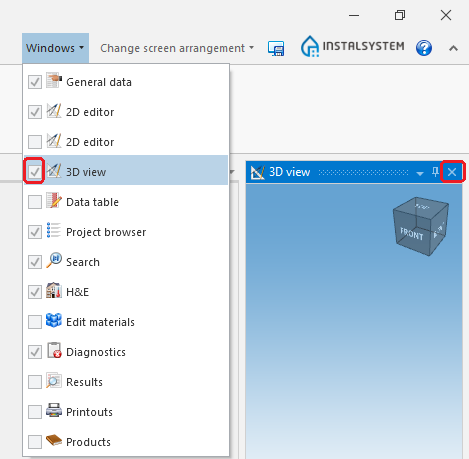
1. 3D Editor - Hide editing scopes that are not used.
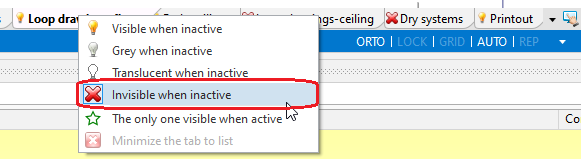
2.Hide edit scopes. - Exit all applications and services running in the background that are not used at the moment.


