How to make the program run faster: Difference between revisions
Jump to navigation
Jump to search
No edit summary |
No edit summary |
||
| Line 42: | Line 42: | ||
<!-- Do not write text below this tag --> | <!-- Do not write text below this tag --> | ||
<br class="iwlinks"/>[[pl:Jak przyspieszyć pracę programu|Jak przyspieszyć pracę programu]][[zh-cn:如何使软件运行得更快|如何使软件运行得更快]][[it:Come accelerare il programma|Come accelerare il programma]][[lt:Kaip pagreitinti programos darbą|Kaip pagreitinti programos darbą]][[pt:Como fazer o programa correr mais rápido|Como fazer o programa correr mais rápido]] | <br class="iwlinks"/>[[pl:Jak przyspieszyć pracę programu|Jak przyspieszyć pracę programu]][[bg:Как да накарате програмата да работи по - бързо?|Как да накарате програмата да работи по - бързо?]][[zh-cn:如何使软件运行得更快|如何使软件运行得更快]][[it:Come accelerare il programma|Come accelerare il programma]][[lt:Kaip pagreitinti programos darbą|Kaip pagreitinti programos darbą]][[pt:Como fazer o programa correr mais rápido|Como fazer o programa correr mais rápido]] | ||
Revision as of 03:29, 23 January 2024
| Product | InstalSystem 5 |
| Type of article | TIP&TRICK |
| Source for translation | 2019-12-06 |
Problem description
InstalSystem version 5 requires hardware of relatively high computing performance. The software tends to be slower on lower end machines. This is particularly apparent when large files are processed or when other applications run simultaneously. The scale of the problem also depends on the program functions and windows used.
A particular case in which the program may slow down is usage of complex DWG underlays containing a great number of layers and/or a lot of elements, and/or with large drawing dimensions.
Solution
General recommendations
- Close all windows that are not needed (particularly the resource-intensive module 3D view).
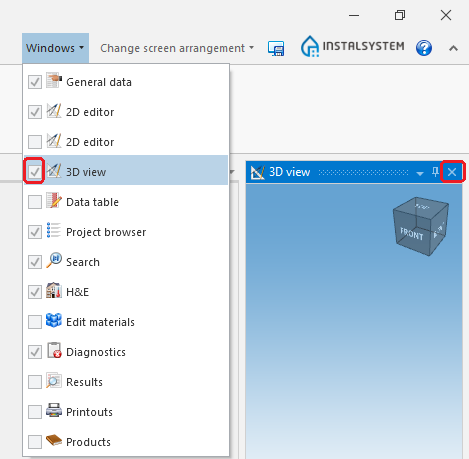
1. 3D Editor - Hide editing scopes that are not used.
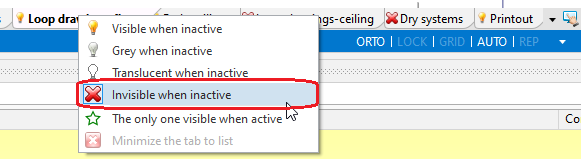
2.Hide edit scopes. - Exit all applications and services running in the background that are not used at the moment.
- Verify that the computer meets Hardware requirements.


Complex DWG layouts
Having selected the DWG file, (in Underlay) for the layer on which the AUTO mode should not be working, it ios necessary to:
- deselect, in the Layers for AUTO mode field, a chosen position or
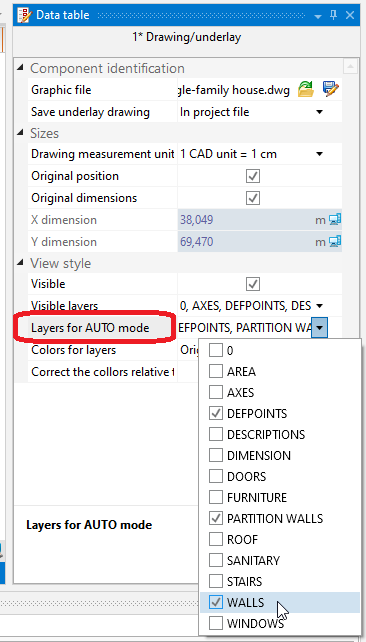
3. Layers for AUTO mode - with the right mouse button, click on the layout element and choose Disable AUTO for layer: %s.
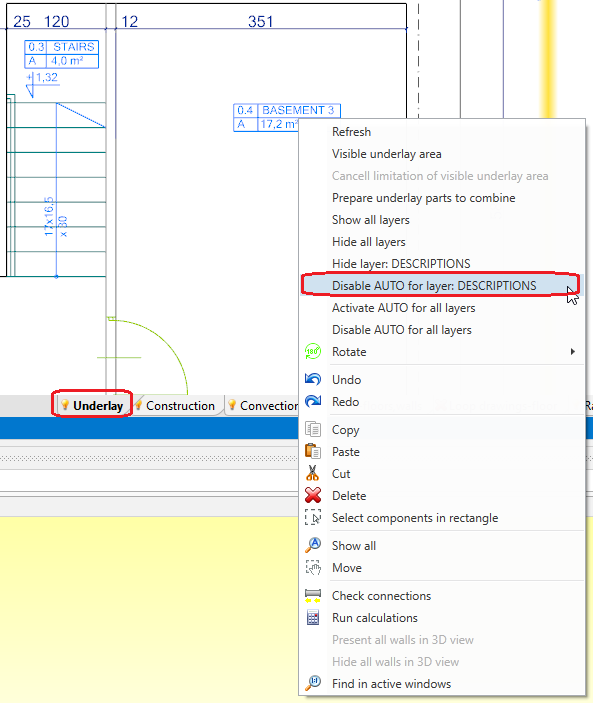
4. Disable AUTO for layer: %s


In the same way, you can chooseDisable AUTO for all layers.
