How to draw a building with patio: Difference between revisions
Jump to navigation
Jump to search
| Line 46: | Line 46: | ||
# Run ''<IS_TS id=BuildingStructureCalculation/>'' again.</br>{{#ev:youtube|J-Ycllkbakc|900||||rel=0}} <br clear="all"/> | # Run ''<IS_TS id=BuildingStructureCalculation/>'' again.</br>{{#ev:youtube|J-Ycllkbakc|900||||rel=0}} <br clear="all"/> | ||
=== | ===Using manually drawn walls=== | ||
Information on creating a building structure using the ''<IS_TS id=iNameKonstrSciana/>'', ''<IS_TS id=Roof/>'' and ''<IS_TS id=Slab/>'' components is provided in the article: [[Preparation of building structure - Complete building structure]]. | |||
</br> | </br> | ||
# | # Outline the shape of the room and patio using the ''<IS_TS id=iNameKonstrSciana/>'' components. | ||
# | # Add ''<IS_TS id=Roof/>'' and ''<IS_TS id=Slab/>'' components to the design. | ||
# | # Launch ''<IS_TS id=BuildingStructureCalculation/>''. | ||
# | # Over the patio area cut out an ''<IS_TS id=rpOtworWdachu/>'' and connect it using any two edges with the outer edge of the ''<IS_TS id=Roof/>''. | ||
# | # Optioanlly cut out an ''<IS_TS id=rpOtworWstropie/>'' that covers the patio area. | ||
# | # Run ''<IS_TS id=BuildingStructureCalculation/>'' again.</br>{{#ev:youtube|Kee7bzXkspw|900||||rel=0}} <br clear="all"/> | ||
*''' | *'''Attention!''' It is also possible to leave an empty space above the patio and draw a ''<IS_TS id=Roof/>'' in the form of two perfectly abutting roof slopes. </br>[[File:Roof_patio.png|900 px|left|thumb|2. Roof slopes in a building with a patio.]]<br clear="all"/> | ||
[[Category:TIP&TRICK]] | [[Category:TIP&TRICK]] | ||
[[Category:InstalSystem 5]] | [[Category:InstalSystem 5]] | ||
Revision as of 20:24, 10 July 2022
| Product | InstalSystem 5 |
| Type of article | TIP&TRICK |
| Source for translation | 2022-06-24 |
Problem description
In InstalSystem 5 there are several ways to design a building with a patio, allowing for optimal adaptation to the method of creating the building structure chosen in the project. Steps leading to create a building with a patio are described in detail further on in this article.
Solution
Using the Room and Building contour components
Information on creating the building structure with the use of Room Manual and Building contour components is provided in the article: Preparation of building structure - Rooms layout.
Method 1: using a closed C-shaped Room component
- Insert a closed C-shaped Room surrounding an interior patio in a building so that the edges of the room do not overlap.
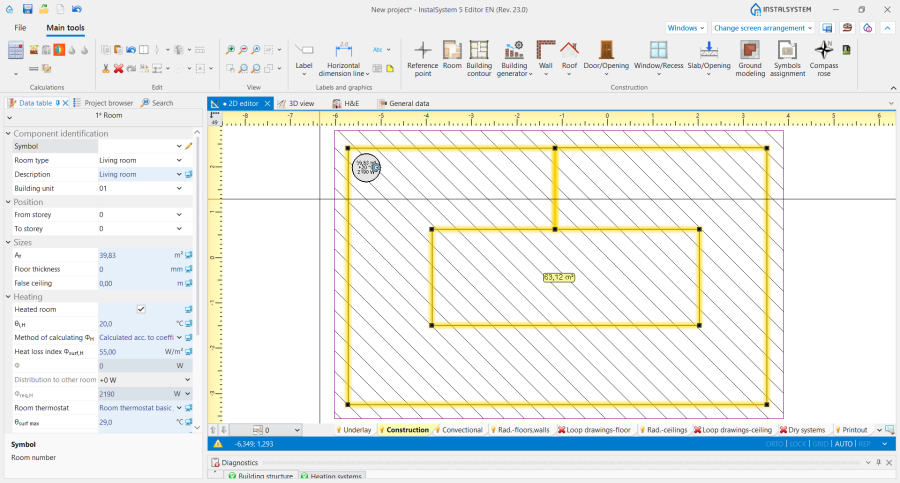
1. Closed C-shaped Room. - Add a Building contour component to the design.
- In order to verify whether the edges of the Room do not overlap, launch Computation of building structure .
- Insert a Room Manual component to cover the area of the patio in the building.
- Launch Automatic walls, slabs and roofs.
- Remove the Wall component left over after the manual C-shaped room.
- Over the patio area cut out an Opening in roof and connect it using any two edges with the outer edge of the Roof.
- Optionally cut out an Opening in slab that covers the patio area.
- Run Computation of building structure again.

Method 2: outline the patio using manually placed walls
- Insert a Room.
- Add a Building contour component to the design.
- Launch Automatic walls, slabs and roofs.
- Launch Computation of building structure .
- Using the Wall components, draw the patio into the existing Room and launch Computation of building structure again.
- Over the patio area cut out an Opening in roof and connect it using any two edges with the outer edge of the Roof.
- Optionally cut out an Opening in slab that covers the patio area.
- Run Computation of building structure again.
Using manually drawn walls
Information on creating a building structure using the Wall, Roof and Slab components is provided in the article: Preparation of building structure - Complete building structure.
- Outline the shape of the room and patio using the Wall components.
- Add Roof and Slab components to the design.
- Launch Computation of building structure .
- Over the patio area cut out an Opening in roof and connect it using any two edges with the outer edge of the Roof.
- Optioanlly cut out an Opening in slab that covers the patio area.
- Run Computation of building structure again.
- Attention! It is also possible to leave an empty space above the patio and draw a Roof in the form of two perfectly abutting roof slopes.
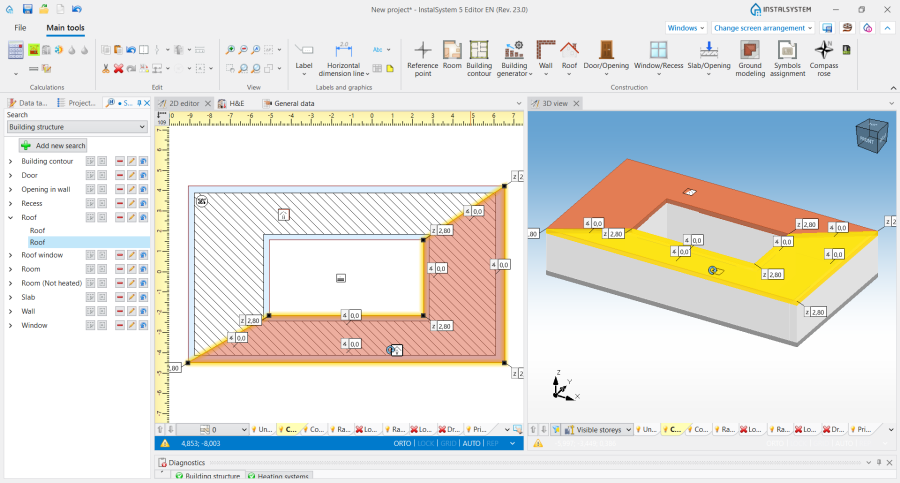
2. Roof slopes in a building with a patio.
