How to make the program run faster: Difference between revisions
Jump to navigation
Jump to search
Muskietorzj (talk | contribs) No edit summary |
Muskietorzj (talk | contribs) No edit summary |
||
| Line 1: | Line 1: | ||
{{Article table | {{Article table | ||
|commercial_product1=InstalSystem 5 | |commercial_product1=InstalSystem 5 | ||
| Line 11: | Line 10: | ||
|c3 = | |c3 = | ||
|category_name3 = | |category_name3 = | ||
|version1 =[[Release notes InstalSystem 5#Version | |version1 =[[Release notes InstalSystem 5#Version GOLD Rev. 17.0|GOLD Rev. 17.0]] | ||
|v2 = | |v2 = | ||
|v3 = | |v3 = | ||
| Line 19: | Line 18: | ||
==Problem description== | ==Problem description== | ||
InstalSystem version 5 requires hardware of relatively high computing performance. The software tends to be slower on lower end machines. This is particularly apparent when large files are processed or when other applications run simultaneously. The scale of the problem also depends on the program functions and windows used. | InstalSystem version 5 requires hardware of relatively high computing performance. The software tends to be slower on lower end machines. This is particularly apparent when large files are processed or when other applications run simultaneously. The scale of the problem also depends on the program functions and windows used. | ||
Szczególnym przypadkiem powodującym spowolnienie pracy programu są rozbudowane podkłady DWG zawierające dużą liczbę warstw i/lub cechujące się dużą szczegółowością elementów, i/lub charakteryzujące się dużą wielkością rysunku. | |||
==Solution== | ==Solution== | ||
* Close all windows that are not needed (particularly the resource-intensive module ''<IS_TS id=View3D/>'').<br/>[[File:3D.png|700 px|left|thumb|1. 3D Editor]]<br clear="all"/> | ===Ogólne zalecenia=== | ||
* Hide editing scopes that are not used.<br/>[[File: | * Close all windows that are not needed (particularly the resource-intensive module ''<IS_TS id=View3D/>'').<br/>[[File:Hide 3D view.png|700 px|left|thumb|1. 3D Editor]]<br clear="all"/> | ||
* Hide editing scopes that are not used.<br/>[[File:Invisible when inactive.png|700 px|left|thumb|2.Hide edit scopes.]]<br clear="all"/> | |||
* Exit all applications and services running in the background that are not used at the moment. | * Exit all applications and services running in the background that are not used at the moment. | ||
* Verify that the computer meets [[Technical specifications of InstalSystem 5 package|Hardware requirements]]. | * Verify that the computer meets [[Technical specifications of InstalSystem 5 package|Hardware requirements]]. | ||
===Rozbudowane podkłady DWG=== | |||
Po zaznaczeniu pliku DWG (na zakresie edycji '''<IS_TS id=lystrGraphicBackground/>''') dla warstwy dla której tryb AUTO nie powinien działać należy: | |||
* odznaczyć w polu ''<IS_TS id=strpnDWGBackgroundAUTOLayers/>'' odpowiednią pozycję lub<br/>[[File:Layers for AUTO mode.png|700 px|left|thumb|3. ''<IS_TS id=strpnDWGBackgroundAUTOLayers/>'']]<br clear="all"/> | |||
* kliknąć prawym przyciskiem myszy na element podkładu i wybrać polecenie ''<IS_TS id=dwgmiDisableAUTOForLayer/>''. <br/>[[File:Disable auto for layer.png|700 px|left|thumb|4. ''<IS_TS id=dwgmiDisableAUTOForLayer/>'']]<br clear="all"/> | |||
Tym samym sposobem można wybrać polecenie ''<IS_TS id=dwgmiDisableAUTOForAll/>''. <br/>[[File:Disable auto for all layers.png|700 px|left|thumb|5. ''<IS_TS id=dwgmiDisableAUTOForAll/>'']]<br clear="all"/> | |||
[[bg:Как да накарате програмата да работи по - бързо?]] | [[bg:Как да накарате програмата да работи по - бързо?]] | ||
Revision as of 15:00, 22 November 2019
| Product | InstalSystem 5 |
| Type of article | TYPICAL PROBLEM |
| Source for translation | GOLD Rev. 17.0 |
Problem description
InstalSystem version 5 requires hardware of relatively high computing performance. The software tends to be slower on lower end machines. This is particularly apparent when large files are processed or when other applications run simultaneously. The scale of the problem also depends on the program functions and windows used.
Szczególnym przypadkiem powodującym spowolnienie pracy programu są rozbudowane podkłady DWG zawierające dużą liczbę warstw i/lub cechujące się dużą szczegółowością elementów, i/lub charakteryzujące się dużą wielkością rysunku.
Solution
Ogólne zalecenia
- Close all windows that are not needed (particularly the resource-intensive module 3D view).
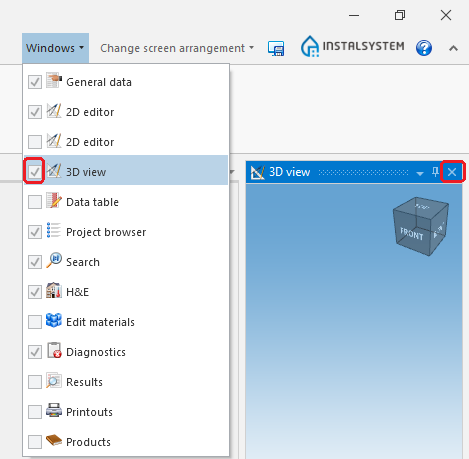
1. 3D Editor - Hide editing scopes that are not used.
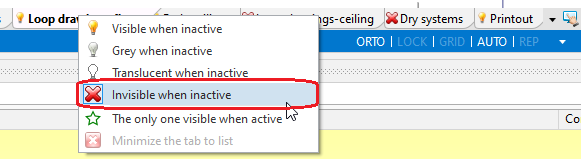
2.Hide edit scopes. - Exit all applications and services running in the background that are not used at the moment.
- Verify that the computer meets Hardware requirements.


Rozbudowane podkłady DWG
Po zaznaczeniu pliku DWG (na zakresie edycji Underlay) dla warstwy dla której tryb AUTO nie powinien działać należy:
- odznaczyć w polu Layers for AUTO mode odpowiednią pozycję lub
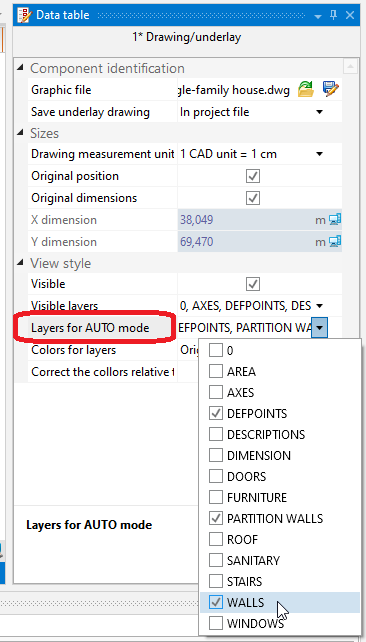
3. Layers for AUTO mode - kliknąć prawym przyciskiem myszy na element podkładu i wybrać polecenie Disable AUTO for layer: %s.
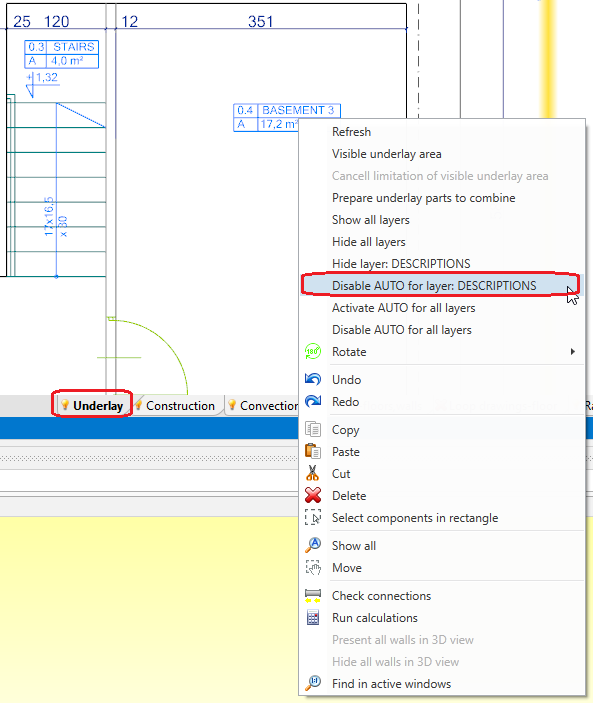
4. Disable AUTO for layer: %s


Tym samym sposobem można wybrać polecenie Disable AUTO for all layers.
