Drawing chart: Difference between revisions
Jump to navigation
Jump to search
Kowalczykr (talk | contribs) |
Kowalczykr (talk | contribs) No edit summary |
||
| Line 41: | Line 41: | ||
==Location in the program== | ==Location in the program== | ||
===Selection of | ===Selection of default template ''Drawing chart'' for program=== | ||
* Settings of ''<IS_TS id=DomyslnySzablonTP/>'' is available in window ''<IS_TS id=btUstawienia/>'' in section ''<IS_TS id=OtherSettings/>''.<br/>[[File:Drawing-chart-default.png|900 px|left|thumb|1. Selection of the default template ''Drawing chart'' for program]]<br clear="all"/> | * Settings of ''<IS_TS id=DomyslnySzablonTP/>'' is available in window ''<IS_TS id=btUstawienia/>'' in section ''<IS_TS id=OtherSettings/>''.<br/>[[File:Drawing-chart-default.png|900 px|left|thumb|1. Selection of the default template ''Drawing chart'' for program]]<br clear="all"/> | ||
=== | ===Selection of predefined template ''Drawing chart'' for project=== | ||
* | * Template selection is available in window ''Data table'' in field ''<IS_TS id=SzablonTabelkiCaption/>''.<br/>[[File:Drawing-chart-choose.png|900 px|left|thumb|2. Selection of the default template ''Drawing chart'' for project]]<br clear="all"/> | ||
=== | ===Selection of own template ''Drawing chart'' for project=== | ||
* | * Selection of own template is available in window ''Data table'' from list in field ''<IS_TS id=SzablonTabelkiCaption/>''.<br/>[[File:Drawing-chart-choose-from-file.png|900 px|left|thumb|3. Selection of own template ''Drawing chart'' for project]]<br clear="all"/> | ||
== | ==Example of use== | ||
=== | ===Creating own element template '''''<IS_TS id=iNameTabelkaProjektu/>'''''.=== | ||
* | * Creating general appearance with division into individual fields with selection of external and internal edge tables.<br/>The goal is define a table template with such layout of fields:<br/>[[File:Drawing-chart-XLSX-project.png|900 px|left|thumb|2. Selection of predefined template ''Drawing chart'' for project]]<br clear="all"/><br/>{{#ev:youtube|dNVzaA87DNE|900||||rel=0}} | ||
* | * Define text boxes for element '''''<IS_TS id=iNameTabelkaProjektu/>'''''. | ||
** | ** Single field in '''''<IS_TS id=iNameTabelkaProjektu/>''''' should be made from two cells in '''*.xlsx''' file: | ||
*** | *** field title in '''''<IS_TS id=iNameTabelkaProjektu/>''''' - here should be enter text in cell directly, | ||
*** | *** content of field filled in '''''<IS_TS id=iNameTabelkaProjektu/>''''' - here should be enter text, but as a comment to cell.<br/>{{#ev:youtube|Fc8HkV3wJSk|900||||rel=0}} | ||
* | * Defining element fields of '''''<IS_TS id=iNameTabelkaProjektu/>''''' downloading information automatically from '''''<IS_TS id=rsDanogi/>'''''.<br/>Defining these fields looks like in movie above, but with difference that in title field should be entered strictly specified '''''ID field''''' from field '''''General data'''''.<br/>List of IDs and their form is below the movie and to avoid confusion, it is recommended to paste ID fields into cells using this list below.<br/>{{#ev:youtube|JDqf-YXR0Ng|900||||rel=0}} | ||
* Składnia znaczników: | * Składnia znaczników: | ||
Revision as of 15:46, 8 May 2019
| Product | InstalSystem 5 |
| Type of article | FUNCTION AND TOOL |
| Source for translation | GOLD Rev. 14.2 |
Description
Element content Drawing chart:
- Content can come from:
- selected window fields from General data, e.g.:
- Project,
- Investor,
- Designer/specialist.
- from Tabeli danych element Drawing chart, e.g.:
- Scale,
- Designer,
- Drawn by,
- Verified by,
- from an external source, e.g:
- graphic file - logo.
- selected window fields from General data, e.g.:
Layout table comes from one of available templates in the program. Template selection is made in Data table.
User can create his own template and save it in program templates (example location: C:\Users\<user>\Documents\InstalSystem 5 EN\AppWindowSettings\Templates).
Base file for creating your own template for Drawing chart is standard Microsoft Excel file: *.xlsx (xls format is not supported).
Range of data include when converting to Data table:
- external and internal edges of table,
- text style,
- cell formatting.
Location in the program
Selection of default template Drawing chart for program
- Settings of Default project table template is available in window Settings in section Other settings.
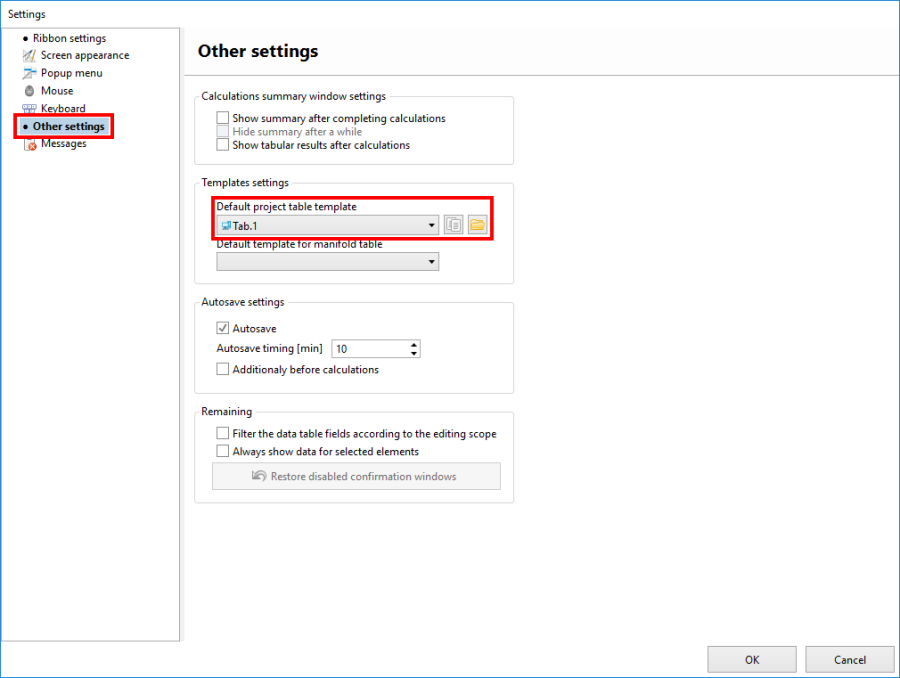
1. Selection of the default template Drawing chart for program

Selection of predefined template Drawing chart for project
- Template selection is available in window Data table in field Table template.
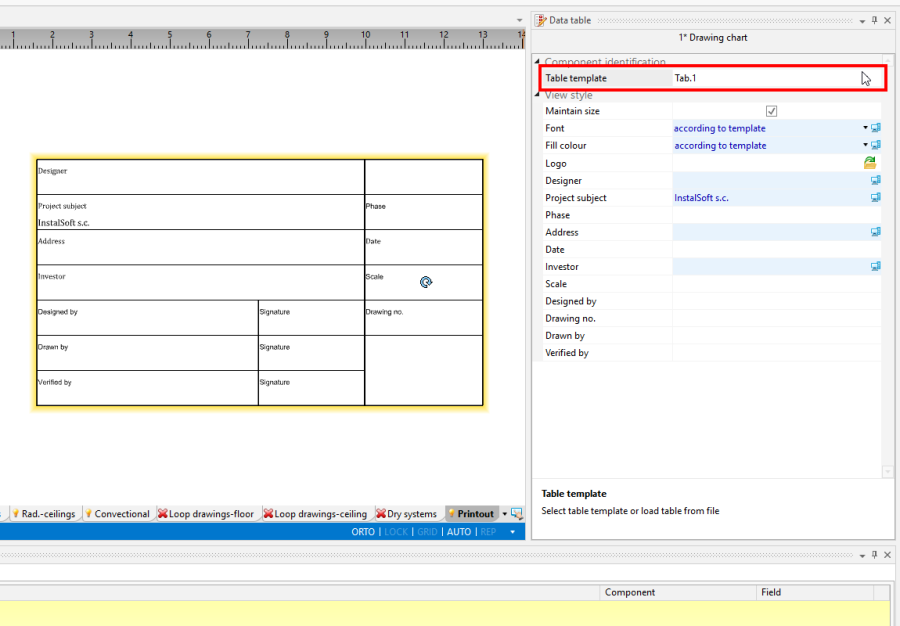
2. Selection of the default template Drawing chart for project

Selection of own template Drawing chart for project
- Selection of own template is available in window Data table from list in field Table template.
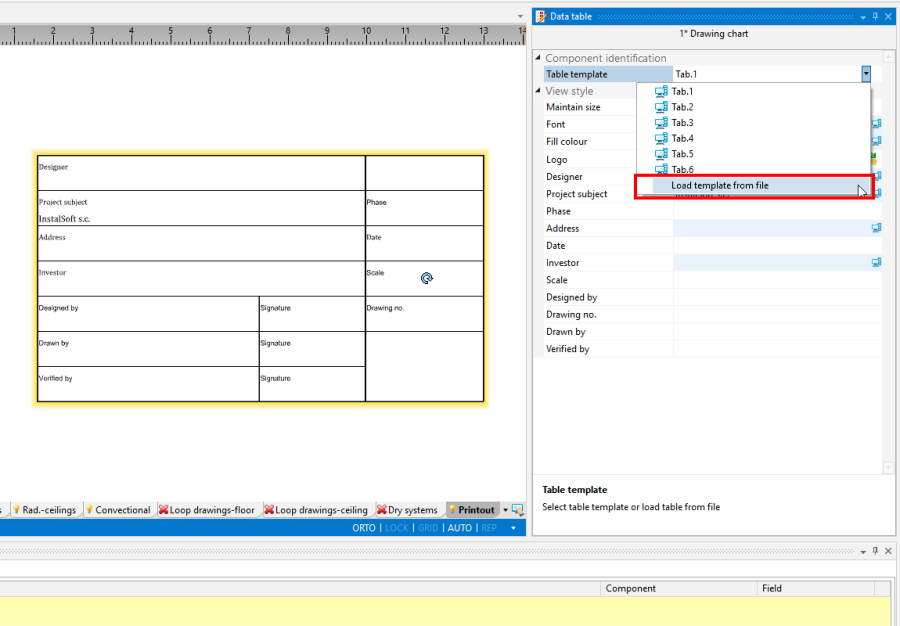
3. Selection of own template Drawing chart for project

Example of use
Creating own element template Drawing chart.
- Creating general appearance with division into individual fields with selection of external and internal edge tables.
The goal is define a table template with such layout of fields: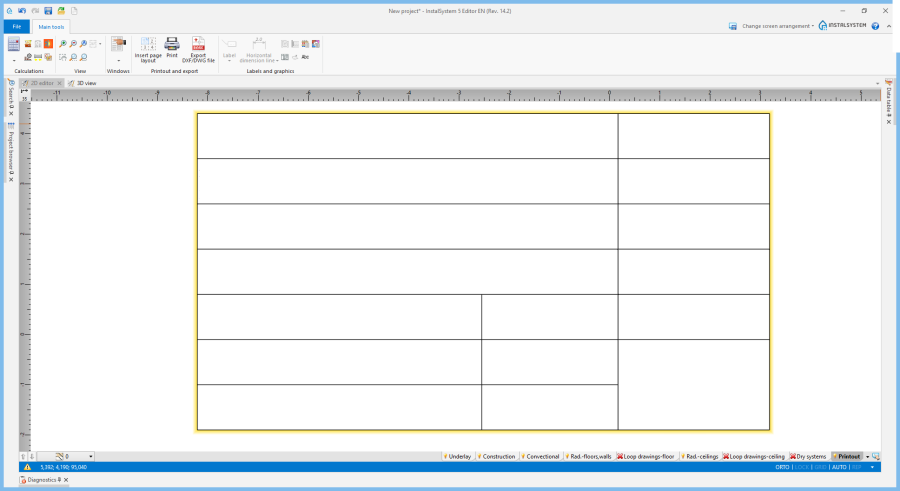
2. Selection of predefined template Drawing chart for project - Define text boxes for element Drawing chart.
- Single field in Drawing chart should be made from two cells in *.xlsx file:
- field title in Drawing chart - here should be enter text in cell directly,
- content of field filled in Drawing chart - here should be enter text, but as a comment to cell.
- Single field in Drawing chart should be made from two cells in *.xlsx file:
- Defining element fields of Drawing chart downloading information automatically from General data.
Defining these fields looks like in movie above, but with difference that in title field should be entered strictly specified ID field from field General data.
List of IDs and their form is below the movie and to avoid confusion, it is recommended to paste ID fields into cells using this list below.

- Składnia znaczników:
- #<znacznik pola pojedynczego>#
- #<znacznik formatki>.<znacznik pola>#
- Znaczniki pól z General data:
- Znacznik pola pojedynczego - określający pole pojedyncze (występują tylko dla projektu):
- NumerProjektu
- WersjaProjektu
- Znacznik formatki - określający, z jakiej formatki mają być pobierane dane:
- Projekt
- Inwestor
- Projektant
- Znacznik pola - określający pole z konkretnej formatki (dla projektu, inwestora lub projektanta):
- Opis
- Ulica
- Kod
- Miasto
- StanRegion
- Kraj
- Tel
- Fax
- WWW
- NIP
- Komentarz
- Przykłady definicji pól szablonu w pliku *.xlsx:
- #NumerProjektu#
- #Projektant.Opis#
- #Inwestor.Opis#
- #Inwestor.Fax#
- #Projektant.Email#
- Znacznik pola pojedynczego - określający pole pojedyncze (występują tylko dla projektu):
Zmiana wyglądu i formatowanie pól tabelki w szablonie.
- Czcionki oraz formatowanie pól w tabelce projektu można zmieniać z poziomu Tabeli danych.
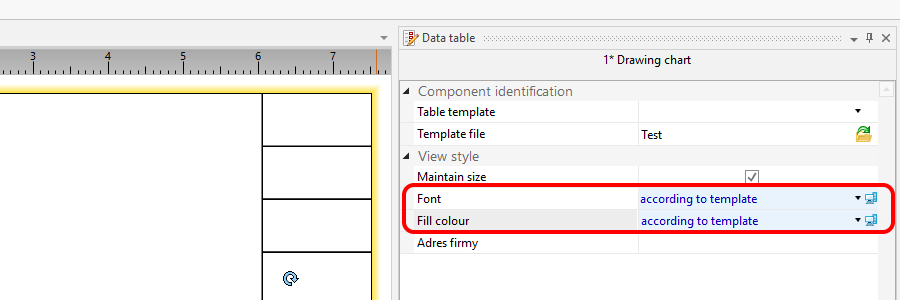
4. Zmiana wyglądu i formatowanie pól tabelki w szablonie

Ustawienie własnego szablonu elementu Drawing chart jako domyślnego dla programu.
Wstawienie własnego szablonu elementu Drawing chart do projektu.
Dodatkowe informacje
- Niepoprawnie wykonany szablon elementu Drawing chart lub próba wczytania niepoprawnego formatu jest sygnalizowana przez program komunikatem diagnostyki:
- Error reading file %s - wrong format or content.