Presentation of the calculations result: Difference between revisions
Jump to navigation
Jump to search
| Line 61: | Line 61: | ||
*** ''<IS_TS id=PrintoutsAreOutdate/>''<br/>[[File:Status-non-calc-results.png|900 px|left|thumb|7. Project not calculated]]<br clear="all"/> | *** ''<IS_TS id=PrintoutsAreOutdate/>''<br/>[[File:Status-non-calc-results.png|900 px|left|thumb|7. Project not calculated]]<br clear="all"/> | ||
=== | ===viewing calculation results as hints=== | ||
* | * The program enables convenient viewing of component data and calculation results in the form of hints. To display a hint with component data and results, position the mouse cursor over the component and wait for a moment. For some components, e.g. a radiator with integrated valve or a manifold with a manifold set, hints of differing content can be displayed depending on the place the cursor is positioned. When the cursor is positioned over a junction (point of connection of pipe-runs), the hint contains information on the manner of constructing the junction (selected and sized pipe fittings and accessories) using components available in catalogs.<br/>{{#ev:youtube|qr3KjtUUORI|900||||rel=0}} <br clear="all"/> | ||
===Przeglądanie wyników obliczeń w tabelach=== | ===Przeglądanie wyników obliczeń w tabelach=== | ||
Revision as of 00:34, 27 March 2017
| Product | InstalSystem 5 |
| Type of article | FUNCTIONALITY |
| Source for translation | BETA REV. 0.0.B37 |
Description
The article describes the presentation of project calculation results in tabular and graphic form in terms of:
- viewing and handling diagnostic messages,
- viewing calculation results as hints,
- viewing calculation results in tables,
- preparing tabular part of calculation results for printing,
- preparing graphic part of calculation results for printing.
Location in program
Viewing and handling diagnostic messages
- Viewing and handling diagnostic messages can be launched from the Diagnostics window.
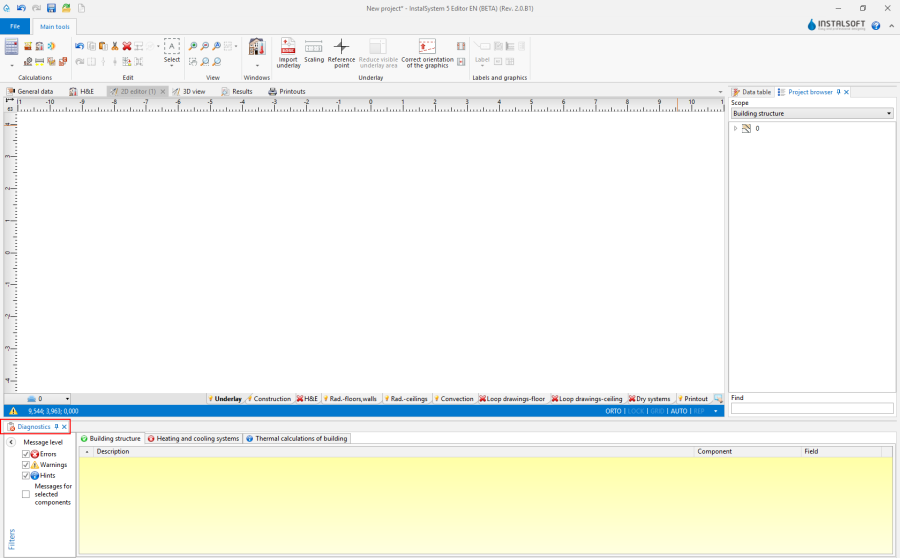
1. Diagnostics

viewing calculation results in tables
- Viewing calculation results in tables can be launched from the Results window.
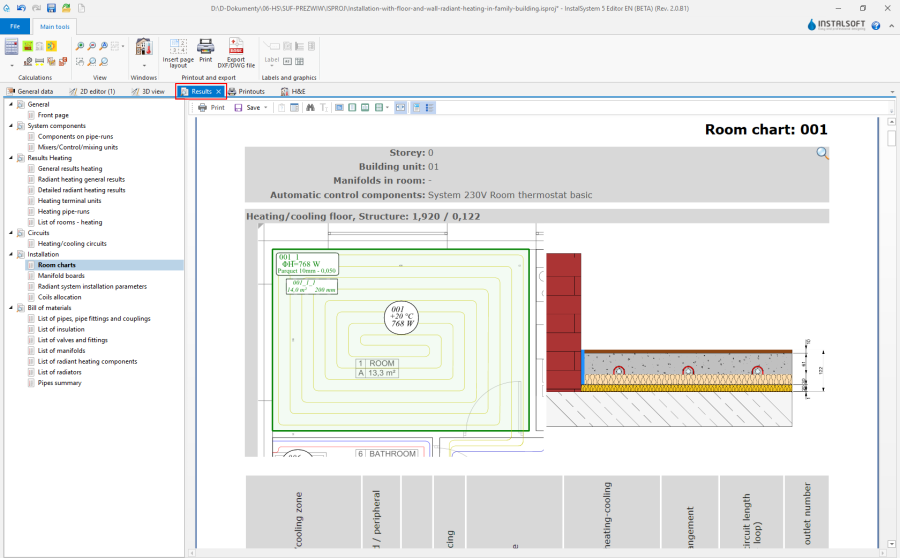
2. Results

Printing the tabular and graphic parts of the project
- Printing of the tabular and graphic parts of the project can be launched from the Printouts window.
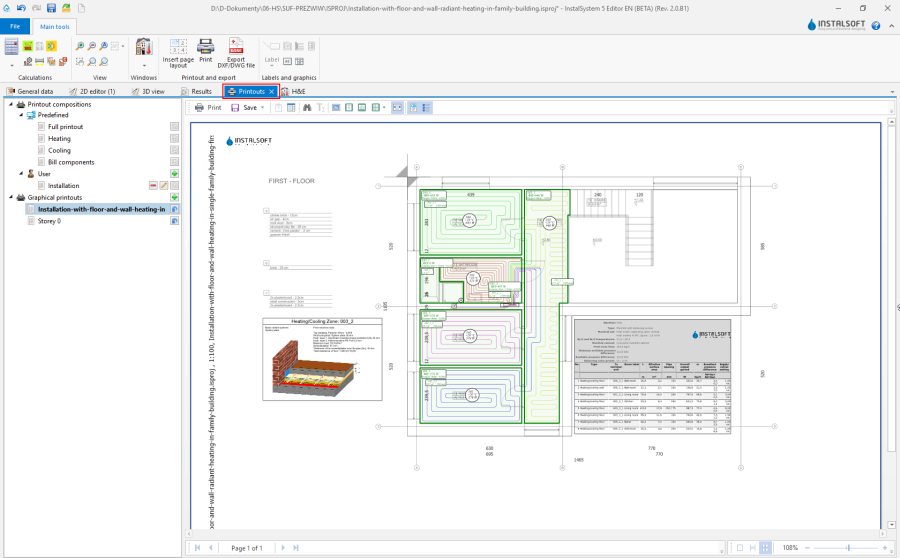
3. Printouts

Examples of use
Viewing and handling diagnostic messages
- Message levels:
- Errors
 - messages of the highest importance. All errors that occur during project development must be eliminated, otherwise the results may not be complete. There are two types of errors: critical errors, which halt calculations, and errors that do not interrupt calculations, their occurrence, however, may lead to unreliable results.
 - Warnings
 - messages of lesser importance than errors. Warnings do not stop calculations or display of results. Warnings are usually associated with data or results that are presumably incorrect and should always be checked.
 - Hints
 - messages that only remind or draw attention to some data or results. Like warnings, hints do not block further calculations or display of results.
- Errors
- Diagnostic window tabs.
These group messages from a selected range of calculations and provide information on the levels of messages that have occurred during calculations of the selected range.
4. Diagnostic window tabs - Message filtering.
Enables turning off complete levels of messages. Very useful for systematizing the handling of diagnostic messages.
- Message grouping for selected components.
This function enables gathering all diagnostic messages that apply to a selected component in the project and eliminating them at once in a single data editing operation.
- Selective marking of components to which a message applies.
Marking of individual components may be effected by left double clicking the message or by selecting from a list of components to which a collective message applies.
- Group marking of components to which a message applies.
Marking of multiple components may be effected by left double clicking the message or by selecting the Mark all components where the error has occurred function in the menu.
- Extended information on diagnostic messages.
- Diagnostic messages that require wider explanation in order to eliminate them may refer to the extended HelpSystem. It can be accessed by clicking the
 button at the end of the message line.
- Selected diagnostic messages in the Field column indicate to which specific fields in the Data table or in dedicated editors the diagnosed values apply.
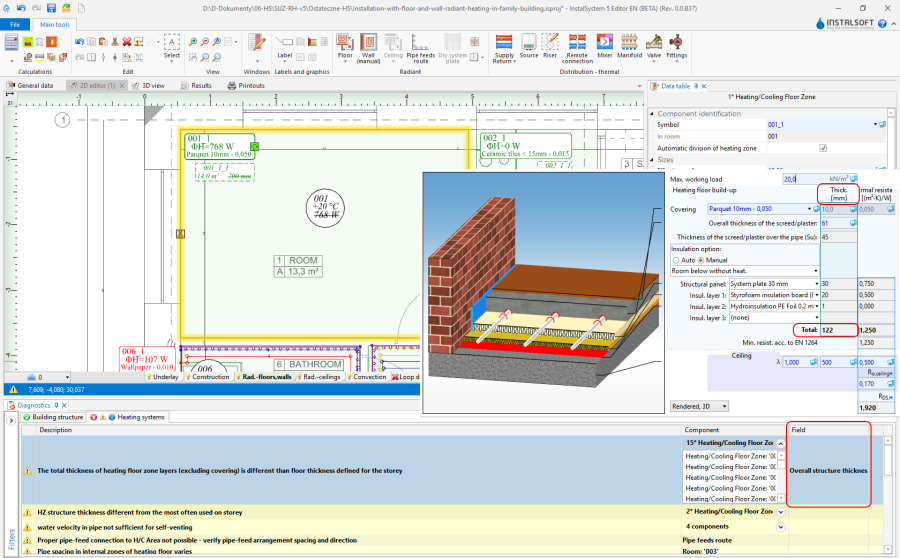
5. Extended information on diagnostic messages
- Diagnostic messages that require wider explanation in order to eliminate them may refer to the extended HelpSystem. It can be accessed by clicking the


Presentation of calculation results of a project that has a Not Calculated status
- The invalid or not calculated status of a project is indicated by a warning symbol displayed on the status bar.

6. Project not calculated - status bar - Invalid or not calculated results are indicated by:
- crossed out values in labels,
- question marks in hints,
- appropriate messages on invalid calculation results:
- Attention! The project has not been calculated or data have been modifed since last calculation.
- ATTENTION! Data in project have been changed and printouts may be outdated. Recalculate.
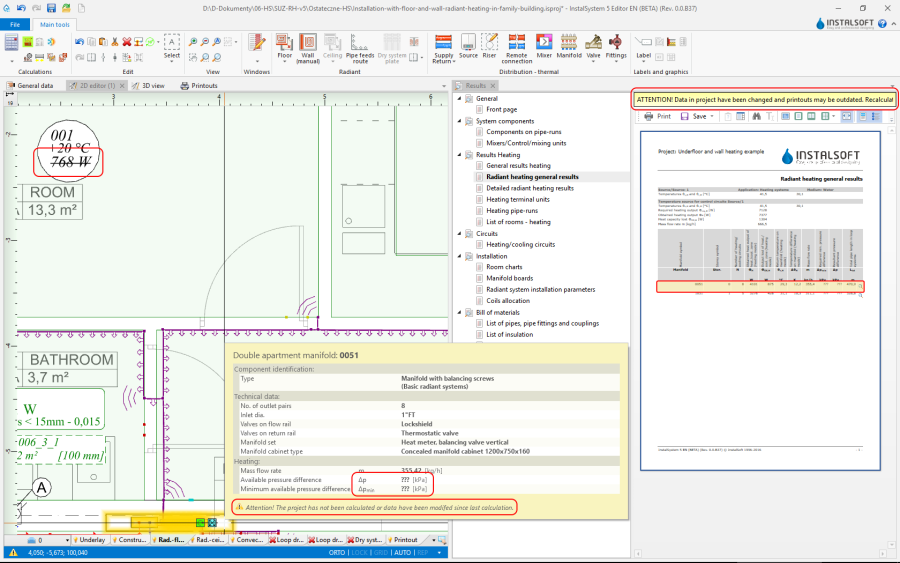
7. Project not calculated


viewing calculation results as hints
- The program enables convenient viewing of component data and calculation results in the form of hints. To display a hint with component data and results, position the mouse cursor over the component and wait for a moment. For some components, e.g. a radiator with integrated valve or a manifold with a manifold set, hints of differing content can be displayed depending on the place the cursor is positioned. When the cursor is positioned over a junction (point of connection of pipe-runs), the hint contains information on the manner of constructing the junction (selected and sized pipe fittings and accessories) using components available in catalogs.
Przeglądanie wyników obliczeń w tabelach
- Tabelaryczne wyniki obliczeń są prezentowane w strukturze drzewiastej podzielonej na sekcje. Ilość oraz zawartość sekcji odpowiada zakresowi (lub zakresom) projektu i we właściwej sekcji należy szukać właściwego wyniku. Przeglądanie wyników wspomagane jest przez szereg dostępnych funkcji sterujących widokiem: przeglądanie pojedynczych stron, wielu stron, nawigacja za pośrednictwem miniatur. Tabele z wynikami mogą mieć wyłączane opisowe nagłówki kolumn, a zestawienia materiałów mogą mieć włączane dodatkowe informacje graficzne i opisowe produktów.
For more information, see: Using catalogs and catalogs data in the project
Przygotowanie części tabelarycznej wyników obliczeń do wydruku
- W programie możliwy jest wydruk:
- kompozycji (predefiniowanej lub własnej) - z poziomu modułu Printouts.
- pojedynczej tabeli - z poziomu modułu Results.
W oknie podglądu wyników obliczeń, dla poszczególnych sekcji w drzewie, można wykonać operację Drukuj.
- kompozycji (predefiniowanej lub własnej) - z poziomu modułu Printouts.
Przygotowanie części graficznej wyników obliczeń do wydruku
- Insert page layout.
For more information, see: Export / print results and drawings - Label.
- Manifold table.
- RHC loop.
For more information, see: Appending drawings with radiant system loops - Structure cross section drawing.
- Drawing frame.
- Drawing chart.