Radiant steel ceiling panels: Difference between revisions
Jump to navigation
Jump to search
| Line 117: | Line 117: | ||
# ''<IS_TS id=SystemyPlaszczyznowe/>''/''<IS_TS id=Panele/>'' tab – specify default types and sizes of radiant panels and adjust minimum (''<IS_TS id=stringRTMin/>'') and maximum (''<IS_TS id=stringRTMax/>'') permissible drop of temperature of the medium. The program will determine an optimum value within that interval for each radiant panel in order to attain the required output.<br/>{{#ev:youtube|-HQHn17_CFk|900||||rel=0}}<br/>{{Info}} [[Introduction_to_the_work_with_the_package_InstalSystem_5#General_data|General data]]<br clear="all"/> | # ''<IS_TS id=SystemyPlaszczyznowe/>''/''<IS_TS id=Panele/>'' tab – specify default types and sizes of radiant panels and adjust minimum (''<IS_TS id=stringRTMin/>'') and maximum (''<IS_TS id=stringRTMax/>'') permissible drop of temperature of the medium. The program will determine an optimum value within that interval for each radiant panel in order to attain the required output.<br/>{{#ev:youtube|-HQHn17_CFk|900||||rel=0}}<br/>{{Info}} [[Introduction_to_the_work_with_the_package_InstalSystem_5#General_data|General data]]<br clear="all"/> | ||
=== | ===Edit installation - radiant ceiling panels=== | ||
==== | ====Insert radiant panels and edit graphically==== | ||
''''' | '''''Verify the arrangement of radiant panels, i.e. distances between panels, distances to top slab and external walls, with manufacturer's guidelines.''''' | ||
# | # Select ''<IS_TS id=ScopeInstalacjeSufitoweShort/>''. | ||
# | # Using the ''<IS_TS id=strAUTOModeName/>'' mode settings specify the desired distance between radiant panel and external wall.<br/>[[File:Radiant-ceiling-steel-panel-AUTO-mode1.PNG|900 px|left|thumb|1. Radiant ceiling panel]]<br clear="all"/> | ||
# | # Insert the radiant panel using the icon ''<IS_TS id=iNameCOPanelSufitowy/>'' in group ''<IS_TS id=NazwaZakladkiOP/>'' | ||
# | # Adjust the length of the radiant panel to the dimensions of the room by dragging terminal points of the panel and expanding it.<br/>'''''The length of the panel in the drawing does not have to correspond to the real length of a single panel. Based on the required length, the program will assemble a set of base panels and connection headers connected in series with its total length coresponding to the required length.''''' | ||
# | # Insert subsequent radiant panels by clicking again the ''<IS_TS id=iNameCOPanelSufitowy/>'' icon or by copying panels already inserted. When necessary modify the settings of the ''<IS_TS id=strAUTOModeName/>'' mode.<br/>{{#ev:youtube|kxYadH1r4UQ|900||||rel=0}} | ||
===Obliczenia wstępne - diagnostyka pokrycia potrzeb cieplnych pomieszczenia=== | ===Obliczenia wstępne - diagnostyka pokrycia potrzeb cieplnych pomieszczenia=== | ||
Revision as of 02:26, 26 September 2016
| Product | InstalSystem 5 |
| Type of article | SOFTWARE APPLICATION |
| Source for translation | IS 5.0 Beta 33 |
Range of lesson
This article describes designing heating systems with radiant ceiling panels.
Modules and program configuration
- InstalSystem 5 package with the following module:
- Radiant heating&cooling systems with ceiling/wall panels
Inital state
Building structure (storeys, rooms) is defined and storey plan drawing is provided. Design heat load values have been specified.
Steps to perform
Load catalogues and set default data for the project
General data window
| Project files
|
Initial state, isproj System with radiant ceiling panels in a public building, isproj |
| Designed with | InstalSystem 5 Rev. Beta 33 |
| Required modules | InstalSystem basis Radiant heating system 5 Radiant panel systems 5 {{{module5}}} |
| Project range | Radiant heating |
| Used catalogues |
Basic radiant systems |
| Type of building | public facility with basement 2-storey |
| Building structure | Ground floor base drawing, dwg First floor base drawing, dwg |
| Drawings range | Plan drawings |
| Prepared by |  www.instalsoft.com |
| Legal disclaimer | Copy all or fragments allowed |
| Calculation results | Complete range of calculation results, xls Complete range of available printouts, pdf Heating calculation results, pdf Bill of materials, pdf |
| Drawing results | Ground floor, dwg |
- Project scope tab - set the scope of project: Heating systems.
- Catalogues tab – load product catalogues required for the project.
- Thermal systems/Sources tab – verify the parameters: Default source use and supply temperature (θs,H).
- Thermal systems/Distribution system/Virtual connections of radiant systems tab - select Allow system with no manifolds.
- Thermal systems/Distribution system/Pipes and insulation - default types and data tab – specify default pipe and insulation type, verify other data.
- Storeys management tab – verify and specify basic parameters:
- Storey height
- Default distance between ceiling and distribution pipe-runs to radiant panel system (ΔHpipe-run,pan.)
- Default distance between ceiling and radiant panels by entering the value in field (Thickness of false ceiling)
- Radiant systems/Panels tab – specify default types and sizes of radiant panels and adjust minimum (Δθ min) and maximum (Δθ max) permissible drop of temperature of the medium. The program will determine an optimum value within that interval for each radiant panel in order to attain the required output.
For more information, see: General data
Edit installation - radiant ceiling panels
Insert radiant panels and edit graphically
Verify the arrangement of radiant panels, i.e. distances between panels, distances to top slab and external walls, with manufacturer's guidelines.
- Select Rad.-ceilings.
- Using the AUTO mode settings specify the desired distance between radiant panel and external wall.
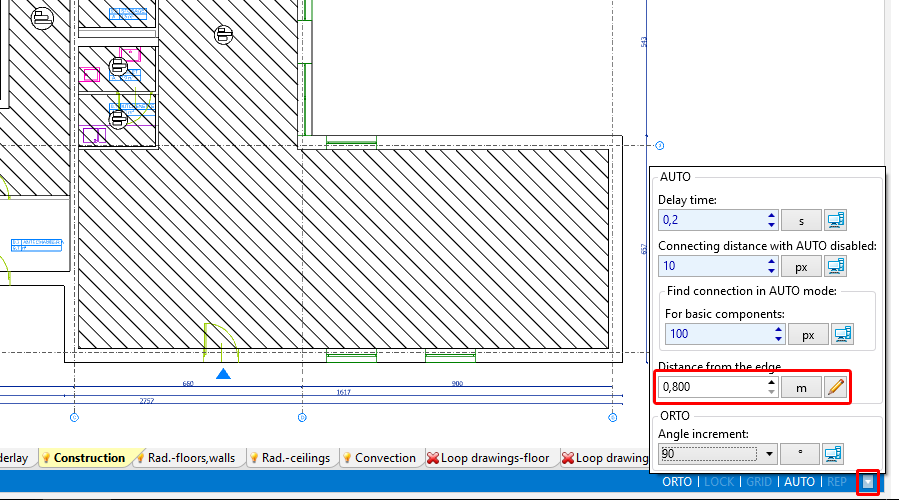
1. Radiant ceiling panel - Insert the radiant panel using the icon Ceiling panel in group Radiant
- Adjust the length of the radiant panel to the dimensions of the room by dragging terminal points of the panel and expanding it.
The length of the panel in the drawing does not have to correspond to the real length of a single panel. Based on the required length, the program will assemble a set of base panels and connection headers connected in series with its total length coresponding to the required length. - Insert subsequent radiant panels by clicking again the Ceiling panel icon or by copying panels already inserted. When necessary modify the settings of the AUTO mode.

Obliczenia wstępne - diagnostyka pokrycia potrzeb cieplnych pomieszczenia
- Wykonać obliczenia dla zakresu ogrzewania płaszczyznowego za pomocą ikony
 znajdującej się w grupie Calculations.
 - Zweryfikować pokrycie potrzeb cieplnych pomieszczenia w:
- oknie Diagnostics przeglądając listę ostrzeżeń
- oknie Results na zakładkach List of rooms - heating
- chmurce podpowiedzi wyświetlanej po ustawieniu kursora myszy w obszarze panelu

Korekta danych w celu dostosowania mocy uzyskanej do wymaganej
- Skorygować dane i parametry instalacji:
- temperaturę zasilania w danych ogólnych dla źródła (θs,H)
- wymagane wychłodzenie czynnika w promienniku (Δθreq,H).
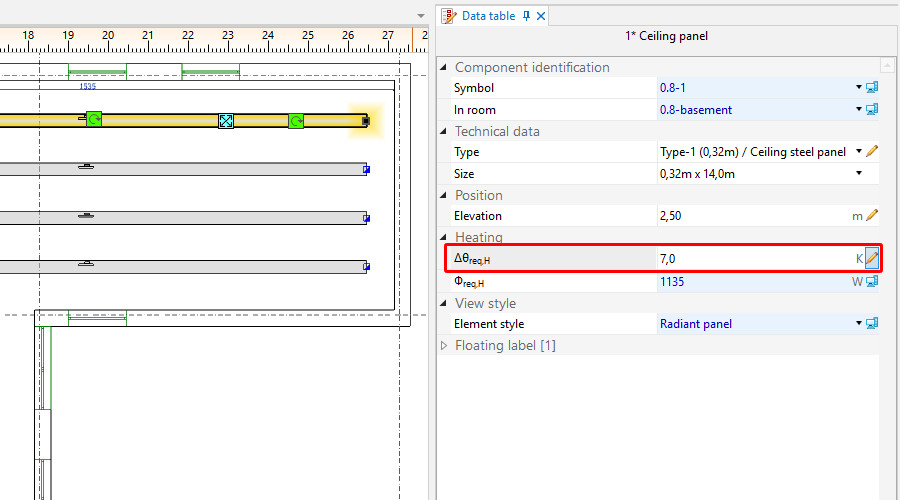
2. Korekta wychłodzenia czynnika w promienniku (Δθwym,H) - ilość/wielkość promienników
- Ponownie przeliczyć projekt – zweryfikować wpływ wprowadzonych zmian na uzyskaną wydajność cieplną.

Edycja instalacji - uzupełnienie rysunków o instalację rozprowadzenia czynnika roboczego
- Po uzyskaniu zadowalających wyników pokrycia potrzeb cieplnych pomieszczeń wprowadzić pozostałe elementy instalacji (źródło, działki, armaturę) i połączyć z promiennikami.
Wykonanie kompletnych obliczeń wraz z równoważeniem instalacji i zestawieniem
- Wykonać obliczenia dla zakresu ogrzewania płaszczyznowego za pomocą ikony znajdującej się w grupie Calculations.
- Zweryfikować diagnostykę i wyniki obliczeń, w szczególności:
- Wymagane parametry źródła - okno Results – zakładka Results Heating/General results heating
- Zrównoważenie hydrauliczne instalacji – okno Results – zakładka Circuits
- Zestawienie materiałów - okno Results – zakładka Bill of materials - heating / cooling
For more information, see: Calculations and diagnostics
Weryfikacja wizualna poprawności przebiegu instalacji w widoku 3D
- Otworzyć okno 3D view i zweryfikować przebieg instalacji, w razie konieczności zmodyfikować rzędne elementów i położenie punktów podłączeń. Po wprowadzonych korektach należy ponownie przeliczyć projekt.
For more information, see: Verification of the correctness of installation structure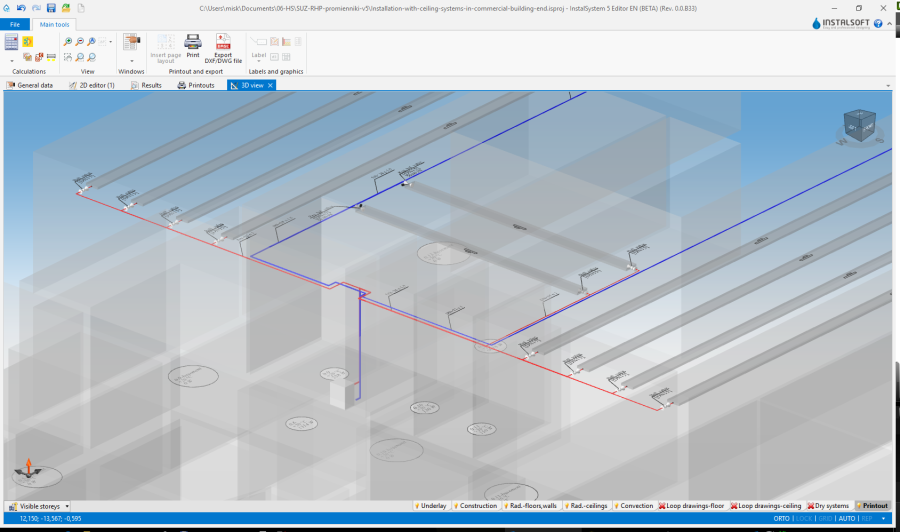
3. Widok 3D

Przygotowanie rysunków do wydruku/eksportu
- Zweryfikować styl rysunkowy panelu w 2D i 3D i szczegółowość informacji prezentowanych w etykiecie. Konfiguracja dostępna jest w oknie General data.
- Wstawić i skonfigurować etykiety innych elementów instalacji (źródła, działek, armatury).
For more information, see: Preparation of drawings for export/printing