Import underlay files: Difference between revisions
Jump to navigation
Jump to search
Klintsevicho (talk | contribs) |
No edit summary |
||
| Line 12: | Line 12: | ||
|c3 =<!--Jest kategoria -> zamienić na: "category3=" i uzupełnić link do sekcji kategorii na stronie głównej produktu--> | |c3 =<!--Jest kategoria -> zamienić na: "category3=" i uzupełnić link do sekcji kategorii na stronie głównej produktu--> | ||
|category_name3 =<!--podać nazwę kategorii "ZASTOSOWANIE"/"FUNKCJONALNOŚĆ"/...--> | |category_name3 =<!--podać nazwę kategorii "ZASTOSOWANIE"/"FUNKCJONALNOŚĆ"/...--> | ||
|version1 = | |version1 =2017-11-18 | ||
|v2 =<!--Jest wersja -> zamienić na: "version2=" i uzupełnić link do sekcji RN danego produktu--> | |v2 =<!--Jest wersja -> zamienić na: "version2=" i uzupełnić link do sekcji RN danego produktu--> | ||
|v3 =<!--Jest wersja -> zamienić na: "version2=" i uzupełnić link do sekcji RN danego produktu--> | |v3 =<!--Jest wersja -> zamienić na: "version2=" i uzupełnić link do sekcji RN danego produktu--> | ||
| Line 20: | Line 20: | ||
The article describes the functionality of using design underlays (base drawings) by launching underlay import, selecting an external file to be imported, inserting the underlay in the project and appropriate scaling and positioning thereof.<br/> | The article describes the functionality of using design underlays (base drawings) by launching underlay import, selecting an external file to be imported, inserting the underlay in the project and appropriate scaling and positioning thereof.<br/> | ||
Compatible underlay file formats: | Compatible underlay file formats: | ||
:- '''DWG''' | * Vector formats | ||
:- '''DXF''' | *:- '''DWG''' | ||
:- '''PDF''' | *:- '''DXF''' | ||
:- '''BMP''' | * Raster formats | ||
:- '''PNG''' | *:- '''PDF''' | ||
:- '''JPG''' | *:- '''BMP''' | ||
:- '''GIF''' | *:- '''PNG''' | ||
*:- '''JPG''' | |||
*:- '''GIF''' | |||
==Location in the program== | ==Location in the program== | ||
* Icons of the components and functions related to importing an underlay are available in the ''2D Editor'' window in the ''<IS_TS id=NarzedziaGlowne/>'' toolbar, section ''<IS_TS id=lystrGraphicBackground/>'', when the ''<IS_TS id=lystrGraphicBackground/>'' editing scope is enabled.<br/>[[File: | * Icons of the components and functions related to importing an underlay are available in the ''2D Editor'' window in the ''<IS_TS id=NarzedziaGlowne/>'' toolbar, section ''<IS_TS id=lystrGraphicBackground/>'', when the ''<IS_TS id=lystrGraphicBackground/>'' editing scope is enabled.<br/>[[File:TB-underlay-import-location.png|900 px|left|thumb|1. Import underlay]]<br clear="all"/> | ||
==Example of use== | ==Example of use== | ||
===Import underlay | ===Import underlay in vector format=== | ||
# Select ''<IS_TS id=btImportujPodkladZPlikuDXF/>''. | # Select ''<IS_TS id=btImportujPodkladZPlikuDXF/>''. | ||
# Select the underlay file to be imported. | # Select the underlay file to be imported. | ||
# Verify that the dimensions of the underlay are adequate. | # Verify that the dimensions of the underlay are adequate. | ||
#* The size of the underlay can be changed in the component data table or using the ''<IS_TS id=strTabSkalowanieCaption/>'' tool. Additionally, in the case of a DWF/DXF file, a conversion factor between a CAD unit and a multiple or sub-multiple of a meter can be selected in the data table. This feature is especially convenient for changing dimensions of vector graphic base drawing. | #* The size of the underlay can be changed in the component data table or using the ''<IS_TS id=strTabSkalowanieCaption/>'' tool. Additionally, in the case of a DWF/DXF file, a conversion factor between a CAD unit and a multiple or sub-multiple of a meter can be selected in the data table. This feature is especially convenient for changing dimensions of vector graphic base drawing. | ||
#* Conversion between CAD units and unit of length used in program (''<IS_TS id=DataEditorTable/>'' -> ''<IS_TS id=Underlay_ScaleUnitCaption/>'') | #* Conversion between CAD units and unit of length used in program (''<IS_TS id=DataEditorTable/>'' -> ''<IS_TS id=Underlay_ScaleUnitCaption/>'') {{#ev:youtube|Sdv5MSt_Ymo|900||||rel=0}} | ||
===Import underlay in raster format=== | |||
===Import underlay | |||
# Select ''<IS_TS id=btImportujPodkladZPlikuDXF/>''. | # Select ''<IS_TS id=btImportujPodkladZPlikuDXF/>''. | ||
# Select the underlay file to be imported. | # Select the underlay file to be imported. | ||
# | # Indicate the position of the underlay in the ''<IS_TS id=lystrGraphicBackground/>'' editing scope. | ||
# | # Verify that the dimensions of the underlay are adequate. | ||
# | #* The size of the underlay can be changed in the component data table or using the ''<IS_TS id=strTabSkalowanieCaption/>'' tool. | ||
#* ''<IS_TS id=strTabSkalowanieCaption/>'' of raster graphic base drawings (using ''<IS_TS id=strAUTOModeName/>'' mode is not applicable, due to the raster graphic specification) {{#ev:youtube|3D-tLiFTLGo|900||||rel=0}} | |||
===Obtaining the correct mutual alignment of underlays on the individual storeys=== | ===Obtaining the correct mutual alignment of underlays on the individual storeys=== | ||
# In order to get proper structure of a multi-storey building it is advisable to use a ''<IS_TS id=iNameReferencePoint/>''[[File:Reference-point.png|40 px|]], wherein one reference point is placed in each worksheet at a location having identical real coordinates X,Y. Placing procedure is the same for both base drawing formats (vector and raster). <br/>{{#ev:youtube|So_4l7ZUirY|900||||rel=0}} <br clear="all"/> | # In order to get proper structure of a multi-storey building it is advisable to use a ''<IS_TS id=iNameReferencePoint/>''[[File:Reference-point.png|40 px|]], wherein one reference point is placed in each worksheet at a location having identical real coordinates X,Y. Placing procedure is the same for both base drawing formats (vector and raster). <br/>{{#ev:youtube|So_4l7ZUirY|900||||rel=0}} <br clear="all"/> | ||
==Additional information== | ==Additional information== | ||
# It is particularly advantageous to import an underlay in the ''' | # It is particularly advantageous to import an underlay in the '''DWG''' format, which enables, when editing the structure, attracting the cursor to components located in the indicated layers of the underlay (snap function). | ||
# If necessary, it is possible to confine (reduce) the visible area for underlays, e.g. underlays that include plans of several storeys on one sheet. The operation of confining the visible area may be cancelled at any stage of project creation.<br/>{{#ev:youtube|jsGTp13ULAc|900||||rel=0}} <br clear="all"/> | |||
# If necessary, it is possible to confine (reduce) the visible area for underlays | |||
# If an underlay is divided into several parts (which may, for instance, result from scanning operations), these individual parts can be imported separately and subsequently combined using the [[Combine base files]] functionality. | # If an underlay is divided into several parts (which may, for instance, result from scanning operations), these individual parts can be imported separately and subsequently combined using the [[Combine base files]] functionality. | ||
# The underlay may be stored in the project file *.ISPROJ, in which case the size of that file is increased (identical underlay files placed on multiple worksheets do not inflate the project file in proportion to the number of times the underlay is used), or it may remain in a separate (original) file to which the project will refer. The latter solution requires, when the project file is handed over to another person, that the underlay files are also turned over and the access paths to the files in the computer are specified. Underlay storage options and its access path can be verified in ''<IS_TS id=DataEditorTable/>'' in ''<IS_TS id=pcstrSymbol/>'' section. <br>[[File:Underlay_-_localization_and_saving_options.jpg|900 px|left|thumb|2. Underlay storage options]] | # The underlay may be stored in the project file *.ISPROJ, in which case the size of that file is increased (identical underlay files placed on multiple worksheets do not inflate the project file in proportion to the number of times the underlay is used), or it may remain in a separate (original) file to which the project will refer. The latter solution requires, when the project file is handed over to another person, that the underlay files are also turned over and the access paths to the files in the computer are specified. Underlay storage options and its access path can be verified in ''<IS_TS id=DataEditorTable/>'' in ''<IS_TS id=pcstrSymbol/>'' section. <br>[[File:Underlay_-_localization_and_saving_options.jpg|900 px|left|thumb|2. Underlay storage options]] | ||
| Line 61: | Line 60: | ||
<!-- Do not write text below this tag --> | <!-- Do not write text below this tag --> | ||
<br class="iwlinks"/>[[pl:Import plików podkładów|Import plików podkładów | <br class="iwlinks"/>[[pl:Import plików podkładów|Import plików podkładów]][[it:Importazione dei file|Importazione dei file]][[lt:Bylų importavimas|Bylų importavimas]] | ||
Revision as of 14:35, 10 April 2023
| Product | InstalSystem 5 |
| Type of article | FUNCTION AND TOOL |
| Source for translation | 2017-11-18 |
Description
The article describes the functionality of using design underlays (base drawings) by launching underlay import, selecting an external file to be imported, inserting the underlay in the project and appropriate scaling and positioning thereof.
Compatible underlay file formats:
- Vector formats
- - DWG
- - DXF
- Raster formats
- - BMP
- - PNG
- - JPG
- - GIF
Location in the program
- Icons of the components and functions related to importing an underlay are available in the 2D Editor window in the Main tools toolbar, section Underlay, when the Underlay editing scope is enabled.
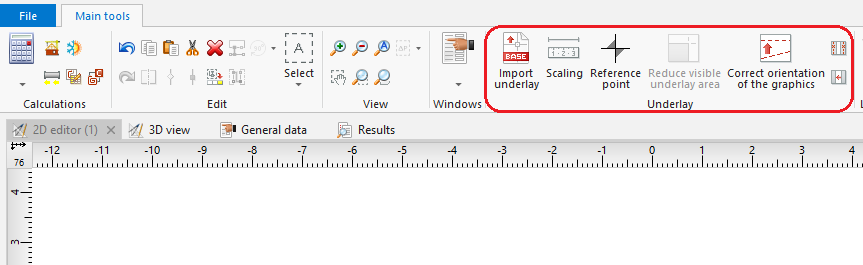
1. Import underlay

Example of use
Import underlay in vector format
- Select Import underlay.
- Select the underlay file to be imported.
- Verify that the dimensions of the underlay are adequate.
- The size of the underlay can be changed in the component data table or using the Scaling tool. Additionally, in the case of a DWF/DXF file, a conversion factor between a CAD unit and a multiple or sub-multiple of a meter can be selected in the data table. This feature is especially convenient for changing dimensions of vector graphic base drawing.
- Conversion between CAD units and unit of length used in program (Data table -> Drawing measurement unit)
Import underlay in raster format
- Select Import underlay.
- Select the underlay file to be imported.
- Indicate the position of the underlay in the Underlay editing scope.
- Verify that the dimensions of the underlay are adequate.
- The size of the underlay can be changed in the component data table or using the Scaling tool.
- Scaling of raster graphic base drawings (using AUTO mode is not applicable, due to the raster graphic specification)
Obtaining the correct mutual alignment of underlays on the individual storeys
- In order to get proper structure of a multi-storey building it is advisable to use a Reference point
 , wherein one reference point is placed in each worksheet at a location having identical real coordinates X,Y. Placing procedure is the same for both base drawing formats (vector and raster).

Additional information
- It is particularly advantageous to import an underlay in the DWG format, which enables, when editing the structure, attracting the cursor to components located in the indicated layers of the underlay (snap function).
- If necessary, it is possible to confine (reduce) the visible area for underlays, e.g. underlays that include plans of several storeys on one sheet. The operation of confining the visible area may be cancelled at any stage of project creation.
- If an underlay is divided into several parts (which may, for instance, result from scanning operations), these individual parts can be imported separately and subsequently combined using the Combine base files functionality.
- The underlay may be stored in the project file *.ISPROJ, in which case the size of that file is increased (identical underlay files placed on multiple worksheets do not inflate the project file in proportion to the number of times the underlay is used), or it may remain in a separate (original) file to which the project will refer. The latter solution requires, when the project file is handed over to another person, that the underlay files are also turned over and the access paths to the files in the computer are specified. Underlay storage options and its access path can be verified in Data table in Component identification section.
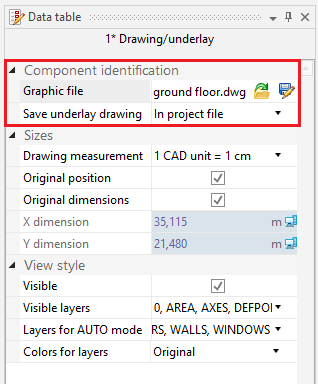
2. Underlay storage options
