Inserting plates in dry floor heating system: Difference between revisions
No edit summary |
Pszczolkam (talk | contribs) No edit summary |
||
| Line 1: | Line 1: | ||
<!--case 159349="--> | <!--case 159349="--> | ||
<IS_HELP id="HS92"/> | <IS_HELP id="HS92"/> | ||
<!--case 280373 - aktualizacja--> | |||
{{Article table | {{Article table | ||
|commercial_product1=InstalSystem 5 | |commercial_product1=InstalSystem 5 | ||
| Line 12: | Line 13: | ||
|c3 =<!--Jest kategoria -> zamienić na: "category3=" i uzupełnić link do sekcji kategorii na stronie głównej produktu--> | |c3 =<!--Jest kategoria -> zamienić na: "category3=" i uzupełnić link do sekcji kategorii na stronie głównej produktu--> | ||
|category_name3 =<!--podać nazwę kategorii "ZASTOSOWANIE"/"FUNKCJONALNOŚĆ"/...--> | |category_name3 =<!--podać nazwę kategorii "ZASTOSOWANIE"/"FUNKCJONALNOŚĆ"/...--> | ||
|version1 = | |version1 =2022-07-27 | ||
|v2 =<!--Jest wersja -> zamienić na: "version2=" i uzupełnić link do sekcji RN danego produktu--> | |v2 =<!--Jest wersja -> zamienić na: "version2=" i uzupełnić link do sekcji RN danego produktu--> | ||
|v3 =<!--Jest wersja -> zamienić na: "version2=" i uzupełnić link do sekcji RN danego produktu--> | |v3 =<!--Jest wersja -> zamienić na: "version2=" i uzupełnić link do sekcji RN danego produktu--> | ||
| Line 25: | Line 26: | ||
<!--''W sekcji można dodać screeny. Powinny one w jednoznaczny sposób przestawiać wybrany element, np. poprzez zaznaczenie elipsą.''--> | <!--''W sekcji można dodać screeny. Powinny one w jednoznaczny sposób przestawiać wybrany element, np. poprzez zaznaczenie elipsą.''--> | ||
This functionality enables inserting '' <IS_TS id=KlocekDrySysName/>'' components to form a base for pipes in dry underfloor heating systems with guide plates.<br>'' <IS_TS id=KlocekDrySysName/>'' components can be arranged in any configuration and cut to fit the edge of the room, while the cut away pieces can still be used.<br>After completing calculations a ''<IS_TS id=sZestawienieElementowOP/>'' is generated specifying the number of plates used in the project.<br> | This functionality enables inserting '' <IS_TS id=KlocekDrySysName/>'' components to form a base for pipes in dry underfloor heating systems with guide plates.<br>'' <IS_TS id=KlocekDrySysName/>'' components can be arranged in any configuration and cut to fit the edge of the room, while the cut away pieces can still be used.</br> Program dostarcza wiele narzędzi ułatwiających szybkie układanie elementów w projekcie, m.in.: możliwy jest obrót elementu jeszcze przed jego wstawieniem, zmiana punktów snapowania oraz automatyczne wypełnienie wskazanego obszaru pomieszczenia płytami.<br> After completing calculations a ''<IS_TS id=sZestawienieElementowOP/>'' is generated specifying the number of plates used in the project.<br> | ||
[[File:Dry-Systems-2D-3D-view.PNG| | [[File:Dry-Systems-2D-3D-view.PNG|900px|left|thumb|1. Dry system plate - view]]<br clear="all"/> | ||
==Location in the program== | ==Location in the program== | ||
Revision as of 12:08, 17 August 2022
| Product | InstalSystem 5 |
| Type of article | FUNCTION AND TOOL |
| Source for translation | 2022-07-27 |
Description
This functionality enables inserting Dry system plate components to form a base for pipes in dry underfloor heating systems with guide plates.
Dry system plate components can be arranged in any configuration and cut to fit the edge of the room, while the cut away pieces can still be used.
Program dostarcza wiele narzędzi ułatwiających szybkie układanie elementów w projekcie, m.in.: możliwy jest obrót elementu jeszcze przed jego wstawieniem, zmiana punktów snapowania oraz automatyczne wypełnienie wskazanego obszaru pomieszczenia płytami.
After completing calculations a List of radiant heating components is generated specifying the number of plates used in the project.

Location in the program
- Icon: Dry system plate - available in the active scope of editing: Dry systems (Main tools tab, Radiant group)

- Additional dedicated tab with icons of plates with assigned types, depending on the configuration of the package.
Example of use
Manual inserting plates in dry floor heating system
- Dry system plate is inserted within the Heating/Cooling Floor Zone area.
For more information, see: Heating/cooling zone
Therefore this step has to be preceded by necessary design operations. For more information, see: Design of radiant heating floor and wall installation and selection in General data in the Floor systems section of "Dry system" in the Default system / fastening method field. - When inserting Dry system plate appropriate catalog type should be selected in the Data table window, to take into account the pipe spacing distance determined or specified for the zone.
When the program configuration includes a dedicated toolbar it is possible to select an icon of a plate of defined type. - Inserting Dry system plate components is supported by the AUTO mode, both with regard to room outline, as well as to the plates themselves. For more information, see: Additional information
- Using cut off pieces of Dry system plate components.
The portion of Dry system plate component being inserted that extends beyond Room or overlaps the Dry system plate inserted before is automatically cut off. The cut off piece can be used in the project and the corresponding number of Dry system plate components used is included in the bill of materials. The cut off pieces can be pasted outside of the drawing and reinserted elsewhere within the Heating/Cooling Floor Zone cut to fit the edge provided that Cut and Paste functions are used.
Adjusting the line dividing the Heating/Cooling Floor Zone into Heating/cooling floor components
- The lines dividing the Heating/Cooling Floor Zone into Heating/cooling floor components determined automatically may not match the edges of Dry system plate components inserted manually. In order to match these the dividing line has to be adjusted.
For more information, see: Manual indication of the dividing line
For more information, see: Modifying the dividing line after automatic division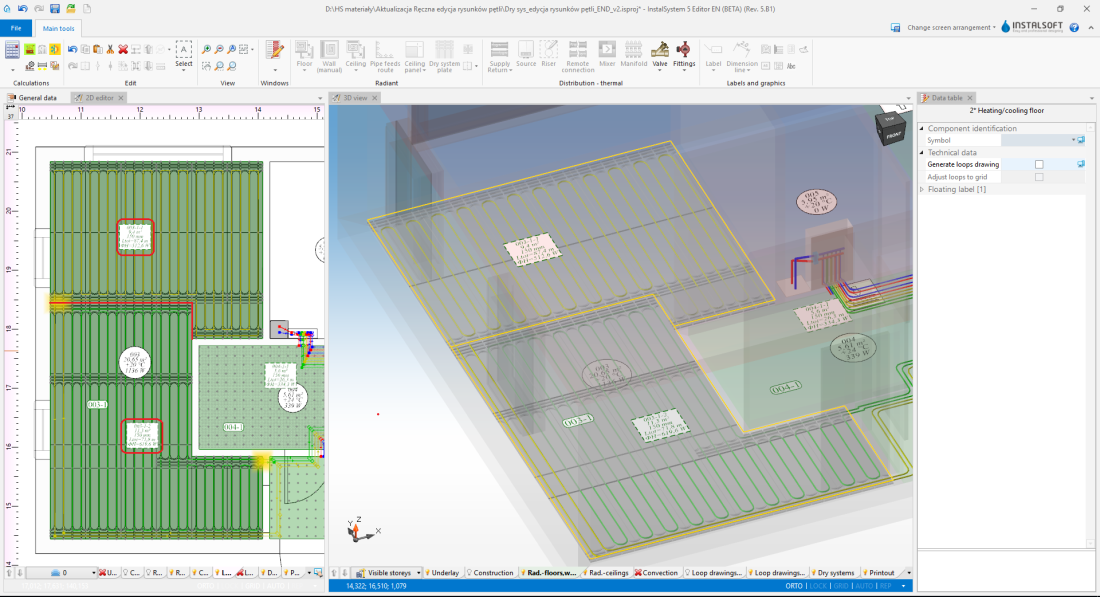
3. Adjustment of the dividing line

Inserting loop drawings
After proper arrangement of the dry system plates it is necessary to manually lay out the loops in accordance with For more information, see: Manual editing of loop drawings in dry systems with guide plates
Additional information
When inserting and copying/pasting a Dry system plate component it is possible to switch between active edges/snap points:
TAB - cursor moves clockwise
Shift+TAB - cursor moves anticlockwise
- If an edge is active on a Dry system plate component being inserted (cursor in the centre of the edge) - then 3 points are activated: 1 in the centre and 2 in corners.
- If individual points are active on a Dry system plate component being inserted, the program switches between edge points of the component grid and snaps onto the grid points of other Dry system plate components.
- Copying of several Dry system plate components: the program switches between subsequent snap points of Dry system plate components that make up the block being copied.
- Moving a Dry system plate component: the active edge or point is selected based on the "grab" location of the component, and changing with the "Tab" key is disabled.