Defining your own search criteria: Difference between revisions
Jump to navigation
Jump to search
No edit summary |
Muskietorzj (talk | contribs) No edit summary |
||
| Line 13: | Line 13: | ||
|version1 =2017-11-18 | |version1 =2017-11-18 | ||
|v2 =<!--Jest wersja -> zamienić na: "version2=" i uzupełnić link: | |v2 =<!--Jest wersja -> zamienić na: "version2=" i uzupełnić link: | ||
IS4 -> "[ | IS4 -> "[https://instalsoft.com/pl/produkty/informacje-o-zmianach-w-instalsystem.html IS 4.13]" / | ||
NS4 -> "[ | NS4 -> "[https://instalsoft.com/pl/produkty/informacje-o-zmianach-w-netsystem.html NS 4.7]" / | ||
IS5 -> "[[Release notes InstalSystem 5#Wersja BETA 21 Rev. 15.9.2|IS 5.0 Beta 21]]"--> | IS5 -> "[[Release notes InstalSystem 5#Wersja BETA 21 Rev. 15.9.2|IS 5.0 Beta 21]]"--> | ||
|v3 = | |v3 = | ||
Revision as of 23:21, 27 November 2021
| Product | InstalSystem 5 |
| Type of article | FUNCTION AND TOOL |
| Source for translation | 2017-11-18 |
Description
The tool enables searching for a component or a group of components within a project. As a result the found components are marked in all active windows, such as: 2D Editor, 3D view, Data table, Results, etc.
Location in the program
- The function forms a separate window and is available in the Main tools toolbar in the Windows section.
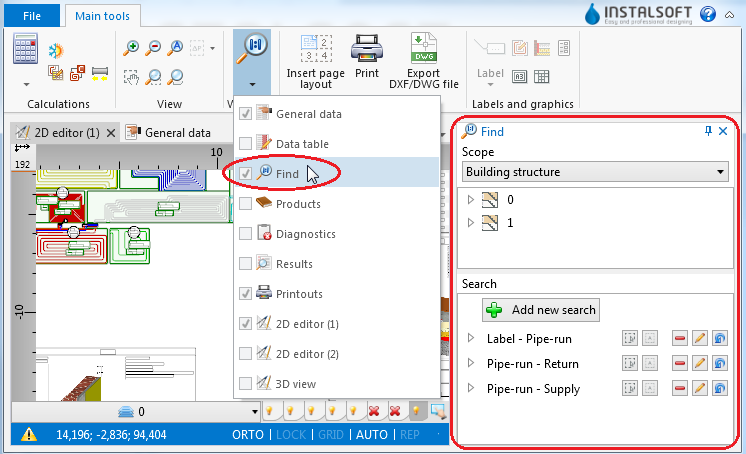
1. function

Example of use
Searching for components of selected type
- Select Scope of search (e.g. Building structure, Heating and cooling installation).
- Select the component in the tree of components.
- Additional buttons on the right side of window enable:
- searching for components of selected type within a drawing indicated by the user,
- searching for all components of selected type.
Searching for components that meet defined criteria
- Select one of the previously defined searches
or - Select Add new search.
- Fill in the Search name field.
- Select the scope of search in the Find field.
- Select from the list the data type to be used in the search.
- Narrow down the range of your search by specifying the values of selected data.