Creating network profiles
Revision as of 14:59, 23 April 2026 by Klintsevicho (talk | contribs) (→Basic scenario - generating)
| Product | NetSystem 5 |
| Type of article | Functions and tools |
| Source for translation | 2026-04-13 |
Description
This article describes the methods of creating Profiles of Water supply networks and Sewage networks.
The profile creation feature allows to:
- automatically generate network profiles based on the prepared network. Profiles are created according to user-defined routes. The appearance can be manually configured.
- manually create network profiles without performing calculations.
Location in the program
- Icons of components and functions for the Profiles creation are available on the Main tools bar in the Profiles section when Water supply networks or Sewage networks scope is active:
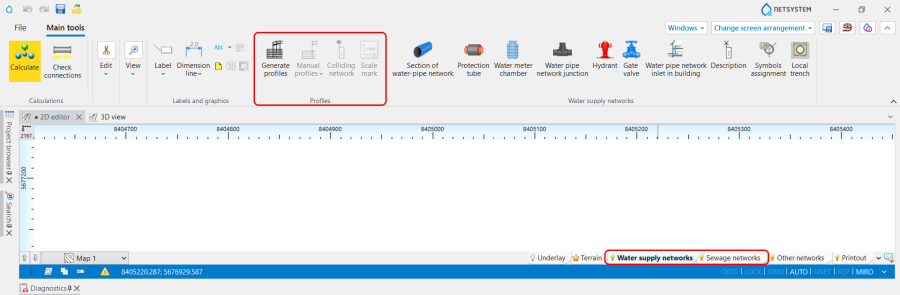
1. Profiles icons of components and functions. - List of all created in a project Profiles is displayed in the graphic view management window.

2. Profiles list.


Examples of use
Basic scenario - generating Automatic profiles
The path for generating Automatic profiles is the following:
Define required network profiles
- Add to the project and configure the Automatic profiles worksheets in the General data window:
- (Optionally) Change the scale, reference level, spacing between profiles for the worksheet, and profile table width,
- (Optionally) Select the profile appearance configuration for the worksheet.
Define profiles routs
- In the 2D editor window open Project browser and select Profiles Water supply networks or Profiles Sewage networks scope;
- Choose Automatic profiles / Profile route definitions;
- Add a profile route, specifying in the Data table window:
- From worksheet - the Name of Worksheets with maps from which the profile will be generated,
- On the worksheet - the Name of Worksheets with profiles on which the profile will be generated,
- Start des. - select start destination from the list,
- End des. - select end destination from the list.
Note: The specified route will be highlighted on the Map so its correctness can be verified. - (Optionally) Change Start type - Normal or Compacted.
Generate profiles
- Run the function Generate profiles,
- Open the generated profile on the corresponding worksheet.
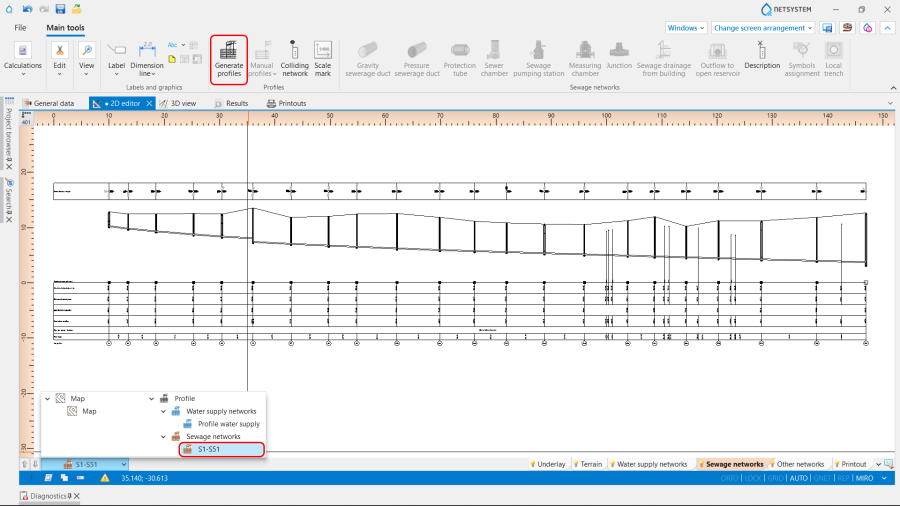
3. Generate profiles.

(Optionally) Modification or creation of a new profile configuration
- Adding a new profile configuration.
- Selecting the data displayed in the profile table.