Component appearance and descriptions configuration
| Product | InstalSystem 5 |
| Type of article | FUNCTION AND TOOL |
| Source for translation | 2022-12-01 |
Description
The functionalities contained in the Component appearance and descriptions configuration section enable the configuration of the appearance of components (e.g. in terms of colour or scale selection) and some editing parameters individually for each project. This allows the appearance of the drawings and the workflow to be better adapted to the individual requirements of the project in progress.
Location in the programe
This feature is available in the General data window, Component appearance and descriptions configuration tab.

Example of use
Component styles tab
The tab provides a list of components that can be inserted in the graphical editor, allowing the selection of a component for appearance editing in 2D editor and in 3D view. For most components, two windows are displayed - one defines the styles of the component, the other the label styles of that component. However, style editing and label inserting is not available for all components.

Within the scope of existing styles it is possible to:
- modify:
- the type, colour and thickness of lines,
- the fill colour and transparency,
- 3D colour and 3D transparency;
- change the name;
- create new styles of components;
- copy;
- delete;
- reposition in the style list;
- Restore default program settings:
- globally for all components or for a selected component,
- separately the component appearance and the label appearance;
- save the configured styles as a template file For more information, see: Software configuration;
- load the default settings from a template:
- globally - labels and styles for all components,
- for a selected component: separately the component appearance and the label appearance.
Label editing
For labels, in addition to the basic style modification features, there is an Edit label window which enables:
- specifying the shape of the label;
- specifying the default label position;
- text formatting;
- displaying/concealing the line connecting the label with the component and configuring the style of that line.

Kryterium wyboru stylu
Styl może mieć włączone automatyczne kryterium wyboru, które po skonfigurowaniu będzie przypisywało automatycznie styl do zidentyfikowanego po kryterium elementu. W przypadku, gdy dla danego elementu na podstawie kryteriów można przypisać kilka styli, to automatycznie przypisywany jest pierwszy na liście spełniający kryteria.
Wybór stylu w Tabeli Danych
Wygląd elementu oraz jego etykiety można edytować w Tabeli danych, narzucając styl indywidualnie lub zbiorczo, poprzez wybór ze zdefiniowanych styli w Component styles:
- przy zaznaczeniu elementu na rzucie lub w widoku 3D w sekcjach 2D/3D view style oraz Label:

4. Data table-2D/3D view style - przy zaznaczeniu elementu na rozwinięciu w sekcjach View style (Schematic view) i Label(Schematic view):
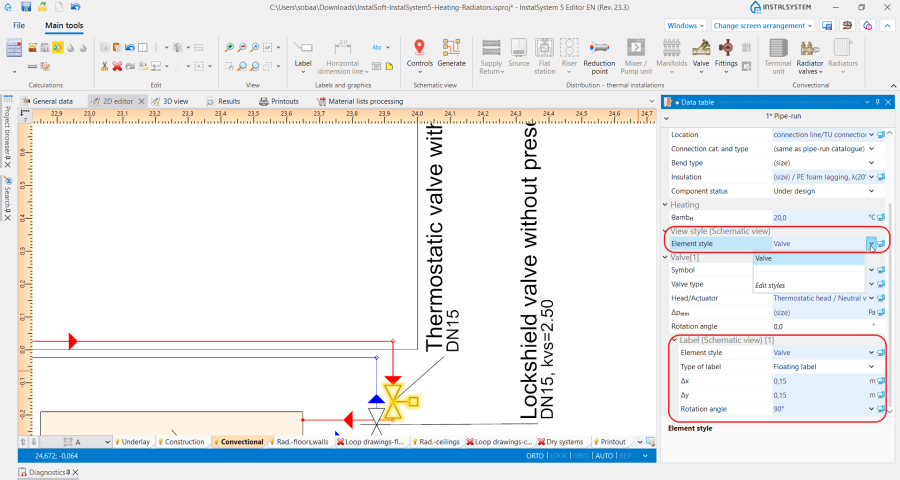
5. Data table-Label(Schematic view)


Zakładka Drawing options
W zależności od wybranego zakresu projektu, w zakładce możliwy jest:
- wybór normy rysunkowej z listy;
- zaznaczenie/odznaczenie dodatkowych opcji dotyczących wyglądu projektu na rysunku oraz wydruku.
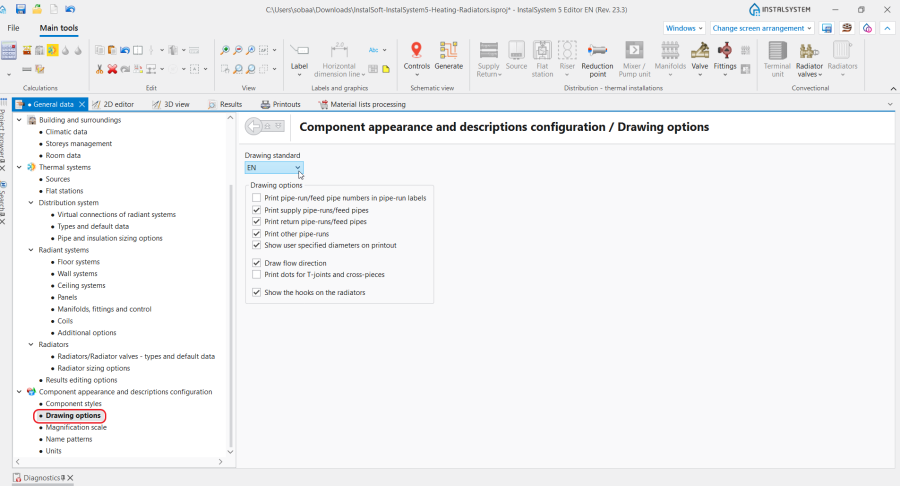
6. Drawing options

Zakładka Magnification scale
Dostęp do modyfikacji skali odniesienia, powiększenia armatury oraz możliwość uwzględniania średnicy połączeń dla każdego z rodzaju arkuszy oddzielnie.

Zakładka Name patterns
Umożliwia edycję wzorców nazw automatycznie nadawanych wybranych elementom w projekcie.
Nazwy nadawane są automatycznie, gdy pole w oknie Data table wybranych elementów ma pola: Symbol, Name lub inne służące identyfikacji, w stanie:  .
Instrukcja schematu nadawania nazwy jest dostępna pod ikoną
.
Instrukcja schematu nadawania nazwy jest dostępna pod ikoną  w każdym wierszu.
Widoczność wierszy zależna jest od wyboru na zakładce Project scope.

Zakładka Units
Pozwala na wybór, zależnie od wybranego zakresu projektu:
- zestawu oznaczeń wybranych wielkości w obliczeniach cieplnych;
- jednostki prezentowanej dla wybranych wielkości w instalacjach wodociągowych.

9. Units

Dodatkowe informacje
Elementy posiadające dodatkowe opcje edycji wyglądu
- Room - Floor dimming change,False ceiling dimming change);
- Opening in a wall - ustawienia koloru oraz stopnia przyciemnienia przeszkleń;
- Coil configuration - Different circuit colours,Pipefeeds use same colour as coil.