Translation System
Range of lesson
Translation procedure using the InstalSoft TranslationSystem.
Inital state
This tool can be accessed using Microsoft Internet Explorer web browser at: http://translation.instalsoft.com (other web browsers are not supported)
Important! If If you encounter problems accessing the tool, check whether your operating system has Microsoft Silverlight installed.
If necessary download it from (http://www.microsoft.com/silverlight/) and install.
Steps to perform
- Log in to the service using the supplied login and password (‘change password’ tab).
- Switch to the ‘Texts’ tab (top right corner of the screen).
- In the ‘Categories’ window you will see one or more categories, depending on the range of translations to be done. In the case of the need to translate missing/new texts this will usually be one particular category.
- Upon clicking the category, the right-hand window will display texts that require translating, modifying or verifying.
- To edit a text double click it – a text editing window will open.
- Enter the translated text into the Translated Text field. The syntax and relevance of the text is verified by the program, which is indicated by highlighting the field (yellow or red) and displaying a diagnostics message above the field.
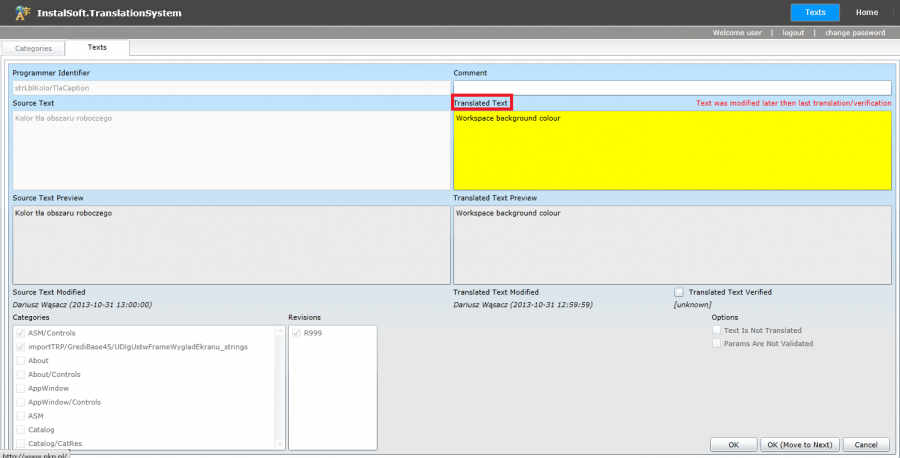
Translated text field

- yellow highlighting usually appears when the original text was modified, and therefore the existing translated text needs to be verified and updated.
- red highlighting means incorrect syntax of the text. This may be caused by:
- Different number of parameters (e.g. %@, %s) in the original and translated text. The number of parameters should be the same. Parameters are not subject to translation!
- Different number of lines in the original and translated text. The number of lines should be the same.
Confirm changes by clicking ‘OK.’ or ‘OK (Move to Next)’.
- 7. After completing work log out of the system.
Final state
Valuation of translation
After selecting a category, a ‘Dump’ button is activated in the bottom right corner of the translator. Clicking it creates a CSV file containing all text, both source and translated, of the selected category. Opening the file in a word processing software (e.g. MS Word) enables removing appropriate columns and counting characters or words.
IMPORTANT! Files in the CSV format are often opened by default in MS Excel. Opening a file by double clicking it may result in the skipping of the file conversion step and placing all of the text in a single column, making proper character or word counting difficult. In such case the CSV file should be opened with MS Excel. Properly opened CSV file should have three columns: ID, Original text, Translated text.