Translation System
Range of instructions
How to use the TranslationSystem tool to translate the texts of the InstalSoft software interface.
Access to tool
- From the address: http://translation.instalsoft.com/installation/ please download the installation file "TranslationSystemEditor.msi" and install the application.
- From the address: https://dotnet.microsoft.com/en-us/download/dotnet/thank-you/runtime-desktop-8.0.18-windows-x64-installer install .NET.
After installing the program, the "InstalSoftTools" folder will appear under the Windows "Start" button, and the "InstalSoft.TS.TranslationEditor" application will appear in it.
Instructions for use
I. SCENARIO I - TRANSLATION PERFORMED DIRECTLY IN TRANSLATION SYSTEM
- Log into the service using provided login and password and change password (‘change password’ tab).
- Switch to the ‘Texts’ tab (top right corner of the screen).
- In the ‘Categories’ window you will see one or more categories, depending on the range of translations to be done. In the case of the need to translate missing/new texts this will usually be one particular category -need translation or review-.
- Upon clicking the category, the right-hand window will display texts that require translating, modifying or verifying.
- To edit a text double click it – a text editing window will open.
- Enter the translated text into the 'Translated Text' field.
- Confirm changes by clicking ‘OK.’ or ‘OK (Move to Next)’.
- After completing work log out of the system.
ATTENTION! The syntax and relevance of the text is verified by the program, which is indicated by highlighting the field (yellow or red) and displaying a diagnostics message above the field.
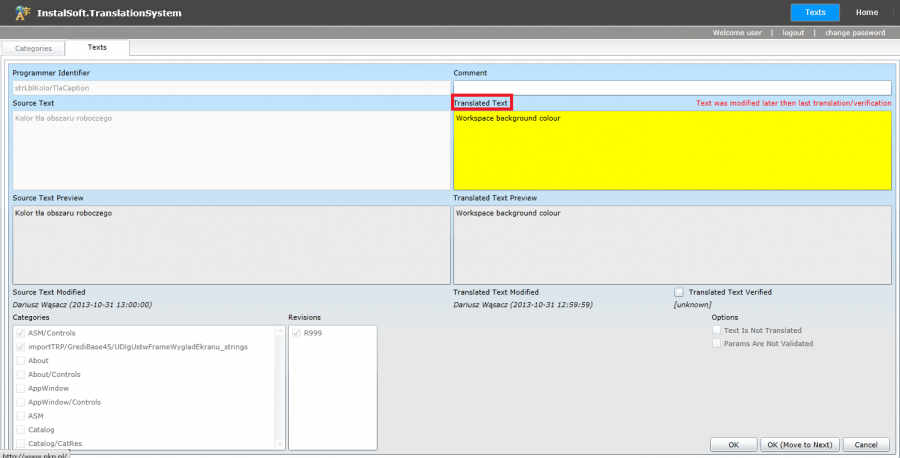
Translated text field

- yellow highlighting usually appears when the original text was modified, and therefore the existing translated text needs to be verified and updated.
- red highlighting means incorrect syntax of the text. This may be caused by:
- Different number of parameters (e.g. %@, %s) in the original and translated text. The number of parameters should be the same. Parameters are not subject to translation!
- Different number of lines in the original and translated text. The number of lines should be the same.
II. SCENARIO II - TRANSLATION PERFORMED BY AN EXTERNAL TOOL THROUGH EXPORT / IMPORT OF TEXTS TO / FROM XLSX FORMAT
- Log into the service using provided login and password and change password (‘change password’ tab).
- Export, translate and import texts in accordance with instructional video below.
CAUTION!!! It is not allowed to delete columns, rename columns or change the column order in the XLSX file . However, you can change the width of the columns.
- During the import program may generate additional XLSX file with texts which couldn't be imported correctly. Indicated texts should be verified and corrected in TranslationSystem. Diagnostics of correctness of texts syntax described in previous scenario might be helpful in finding the problem.
- After completing work log out of the system.
Valuation of translation work
Counting number of source/translated characters/words
After selecting a category, a ‘Dump’ button is activated in the bottom right corner of the translator. After clicking it creates a CSV file containing all text, both source and translated, of the selected category. Opening the file in a word processing software (e.g. MS Word) enables removing appropriate columns and counting characters or words.
IMPORTANT! Files in the CSV format are often opened by default in MS Excel. Opening a file by double clicking it may result in the skipping of the file conversion step and placing all of the text in a single column, making proper character or word counting difficult. In such case the CSV file should be opened with MS Excel. Properly opened CSV file should have three columns: ID, Original text, Translated text.
Good practices
- It is possible to display identifiers of texts translated by the Translation System directly in the interface of the translated program (InstalSystem 5). Thanks to this, it is possible to get to know the context of using a given text, avoiding incorrect interpretation and translation. In order to display the identifiers in the program, follow these steps:
- Download file File:Instalsoftspecialsettings.ini.im to my documents folder
- Delete "im" extension
- Open and edit the file:
- Download file File:Instalsoftspecialsettings.ini.im to my documents folder
- [SpecialSettings]
- showTSid = 0 or 1
- where:
- 1 - ON - text identifiers visible
- 0 - OFF - invisible text identifiers
- Run the InstalSystem 5 program - text identifiers will be visible
- An extensive text search engine is available under the "Search" button. For example, it allows you to find a text by its identifier or a translator's comment.

- Texts which interpretation usually causes problems for translators are supplemented with an additional comment in the 'Comment' field.

- Texts with the comment "ONLY <LANGUAGE> TRANSLATION REQUIRED" should not be translated, but only the original text should be copied from the "Source Text" window to the "Translated Text" window.

- For each language separately, it is possible to add additional comments for translators in the "Comments for translators" field. The comment will be visible to all translators of a given language.

- Long words that may not fit, for example, in the column width, can be automatically divided. When entering a translated text, a special character must be entered in a place where the word can be divided (Alt 0173).

It is possible to display the special character 'soft hyphen' after ckicking the appropriate checkbox

- Notes on existing translations should be provided in a text document indicating the screenshot of the text requiring correction and with the expected wording in the text form (with the possibility of copying).
