This page presents the rules of navigating in the design area in 2D editor and 3D view windows.
Location in the program
The following can be used for navigation:
Mouse
Main tools - View
Navigation cube
Example of use
Navigating in 2D editor using the Mouse
Effect
Default action
Zoom in / Zoom out
Scroll the mouse wheel
Move
Move the mouse + mouse wheel depressed
Move up / down
Scroll the mouse wheel + Ctrl
Move right / left
Scroll the mouse wheel + Shift + Ctrl
Navigating in 2D editor - section View in Main tools
Effect
Tool
Zoom in
Zoom out
Show all
/ F5
Find critical circuit/route
Move
/ Ctrl + M
Zoom in Rectangle
Show all from active edit scope
Navigating in 2D editor - Graphic grid and GNET modes
Use Graphic grid and GNET modes to facilitate accurate drawing of the Building structure and installation elements. Available in the blue Status Bar or using the short key Ctrl + G.
Navigating in 3D view - Mouse
Effect
Default action
Zoom in / Zoom out
Scroll the mouse wheel
Move
Move the mouse + mouse wheel depressed
Move up / down
Scroll the mouse wheel + Ctrl
Move right / left
Scroll the mouse wheel + Shift + Ctrl
Rotate view in 3D
Move the mouse + mouse wheel depressed + Ctrl
Navigating in 3D view - section View in Main tools
Effect
Tool
Zoom in
Zoom out
Show all
/ F5
Find critical circuit/route
Move
/ Ctrl + M
Zoom in Rectangle
Show all from active edit scope
Navigating in 3D view using the navigation cube
Effect
Default action
Rotating the view up - down, right - left
Grab the cube at any point and move the mouse
Switch to predefined view (side view, isometric view)
Click the corner, face or edge of cube
Rotate 3D view without changing the viewing angle
Grab the ring under the cube and move the mouse
Switch to predefined view (selected cardinal direction)
Click the cardinal direction on the ring
Navigating in 3D view - status bar
Сommon 3D model view
Effect
Function
Turn On / Off visibility of the 3d model edges
Edges view of the 3D model
Turn On / Off perspective view of the 3d model
Perspective view
View mode
Realistic mode Architectural mode Flat mode
Turn On / Off elements shadows visibility of the 3d model
Elements' shadows
Turn On / Off 3D view rotation animation
View rotation animation
Turn On / Off visibility of the 3d model storey levels
Storey levels visibility
Change the Workspace background colour for 2D editor and for 3D view
Workspace background colour
Construction elements' visibility
Effect
Function
Present / hide all walls in 3D view
Present all walls in 3D view / Hide all walls in 3D view
Present / hide all slabs in 3D view
Present all slabs in 3D view / Hide all slabs in 3D view
Present / hide all roofs in 3D view
Present all roofs in 3D view / Hide all roofs in 3D view
Turn On / Off Visualization of Floor thickness and Thickness of false ceiling (according to the data from the General data)
Turn on: %sVisualization of Floor thickness and Thickness of false ceiling / Turn off: %sVisualization of Floor thickness and Thickness of false ceiling
Turn On / Off Net volume area of the Room
Turn on: %sNet volume area (3D) - Full building structure only / Turn off: %sNet volume area (3D) - Full building structure only
Navigating in 3D view using the Visible storeys tab
Сhanging the storey visibility is operative for the Building structure and for all installations included in the project.
To keep the storey in use visible, turn off the visibility of the rest storeys; Note: elements belonging to all levels remain visible (e.g. stairwells, risers).
To quickly switch on the visualisation of the whole building, turn on the visibility of the Building.
Navigating in 2D editor and in 3D view
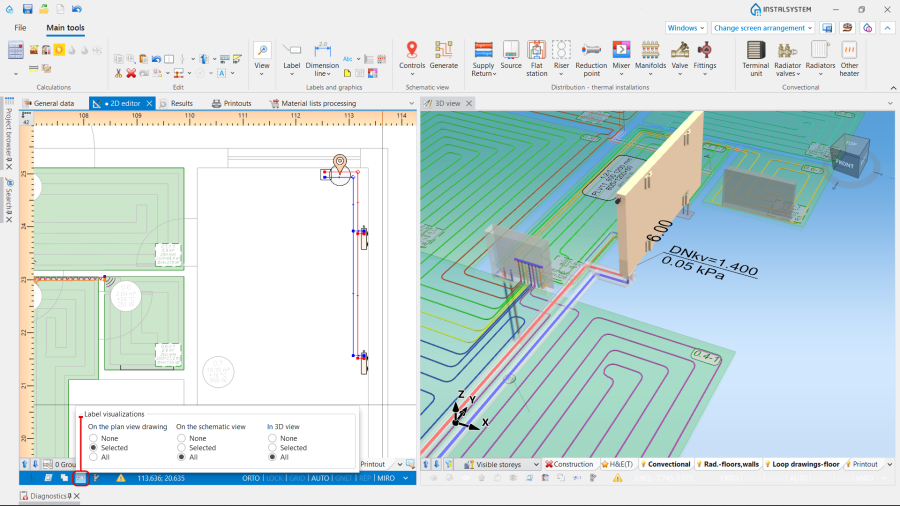
Label visualizations
Effect
Function
Enable / disable element label visualisation On the plan view drawing, On the schematic view and In 3D view:
Label visualizations:
All labels are invisible (project preview mode)
None
Floating label, Simplified label and Perpendicular label are not visible; labels for "large surfaces" (Room, Heating/Cooling Zone, etc.) remain in view, allowing the selection of these elements
Selected
All labels are visible
All
1. Label visualizations.
Installation elements' visibility
Effect
Function
Enable / disable elements visualisation
Installation elements' visibility
Partitions visibility in H&E(T) scope
For the precise verification of thermal partitions use the function Partitions visibility, located on the working menu and on the status bar for the H&E(T) scope.


 / F5
/ F5

 / Ctrl + M


