Project management: Difference between revisions
Jump to navigation
Jump to search
(Created page with "<!--Case 104715--> {{Article table |commercial_product1=InstalSystem 5 |p2 =<!--gdy jest kolejny produkt handlowy, zamienić na->"produkt_handlowy2="--> |p3...") |
No edit summary |
||
| Line 17: | Line 17: | ||
}} | }} | ||
==Description== | ==Description== | ||
This article describes managing projects by means of the ''InstalSystem Manager''. It also shows how to open and create projects in various program versions depending on the user's needs. | |||
==Location in the program== | ==Location in the program== | ||
=== | ===Creating new projects and openining existing projects=== | ||
* | * Create new project/Open existing project is accessible in the ''Zarządca InstalSystem 5'' window:<br/>[[File:Suf-project-manager-new-file.png|700 px|left|thumb|1. New project/open project in InstalSystem Manager 5]]<br clear="all"/><p>and in ''InstalSystem Editor 5'':<br/>[[File:Suf-file-manager-new-file.png|700 px|left|thumb|2. New project/open project in InstalSystem Editor 5]]<br clear="all"/></p> | ||
=== | ===Managing project files and additional files=== | ||
* | * List of recently edited projects is accessible in the ''Zarządca InstalSystem 5'' window:<br/>[[File:Suf-project-manager-recently-projects.png|900px|left|thumb|3. Recently edited projects in InstalSystem Manager 5]]<br clear="all"/>and in ''InstalSystem Editor 5''.<br/>[[File:Suf-project-manager-recently-edited-projects.png|900px|left|thumb|4. Recently edited projects in InstalSystem Editor 5]]<br clear="all"/> | ||
* | * Project management is accessible in the ''Project Management'' tab in the ''InstalSystem Manager 5'' window:<br/>[[File:Suf-project-manager-versions.png|750px|left|thumb|5. Project management in InstalSystem Manager 5]]<br clear="all"/> | ||
==Examples of use== | ==Examples of use== | ||
=== | ===Creating new projects and openining existing projects=== | ||
* ''' | * '''New project''' - when creating a new project it is possible to indicate one of the downloaded subversions of the program. The most recent subversion is indicated by default. When a new file is created, a template can be selected for use in the project.<br/>{{Info}} [[Application configuration#Template files|Template files]]. | ||
* ''' | * '''Existing file''' - when opening an existing project file, a program subversion can be selected to be used for further file processing. This enables carrying on the project using the program version with which the project was created.<br/>The [[InstalSystem 5]] package also enables loading files created with [[InstalSystem 4]].<br/><br clear="all"/> | ||
{{#ev:youtube|txjsy7C-mNo|900||||rel=0}} | {{#ev:youtube|txjsy7C-mNo|900||||rel=0}} | ||
=== | ===Managing project files and additional files=== | ||
* ''' | * '''Recently edited projects''' - this list is created automatically, it facilitates access to recently edited files, irrespective of their location. <br clear="all"/> Selected projects can be placed at the top of the list irrespective of the date of the most recent processing. This is done with the use of a '''tack''' - clicking the pin [[File:Pin-off-pl.png|32 px]] beside the selected project makes it stay on the top of the list [[File:Pin-on-pl.png|32 px]]. | ||
* ''' | * '''Project management''' - When installing the program, default location for projects can be selected. It is recommended that each project (object being designed) has a dedicated subfolder where the various InstalSystem project versions (files with .isproj extension) and other additional files, e.g. base drawings used, will be stored. Another advantage is that the package version with which the file was developed ia displayed for .isproj files. <br clear="all"/> | ||
{{#ev:youtube|hg-86Lse_eQ|900||||rel=0}} | {{#ev:youtube|hg-86Lse_eQ|900||||rel=0}} | ||
Revision as of 21:36, 10 April 2016
| Product | InstalSystem 5 |
| Type of article | FUNCTIONALITY |
| Source for translation | IS 5.0 Beta 26 |
Description
This article describes managing projects by means of the InstalSystem Manager. It also shows how to open and create projects in various program versions depending on the user's needs.
Location in the program
Creating new projects and openining existing projects
- Create new project/Open existing project is accessible in the Zarządca InstalSystem 5 window:
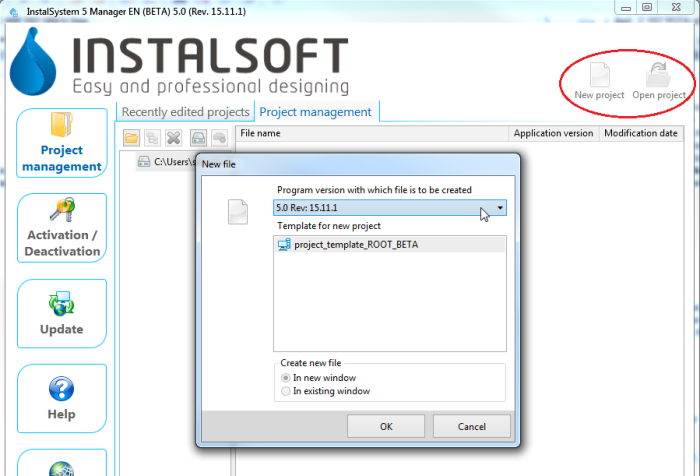
1. New project/open project in InstalSystem Manager 5 and in InstalSystem Editor 5:
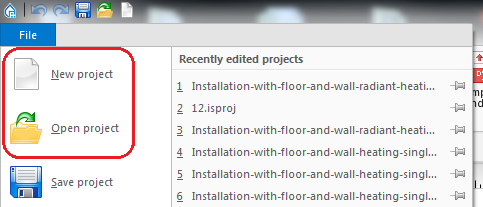
2. New project/open project in InstalSystem Editor 5


Managing project files and additional files
- List of recently edited projects is accessible in the Zarządca InstalSystem 5 window:
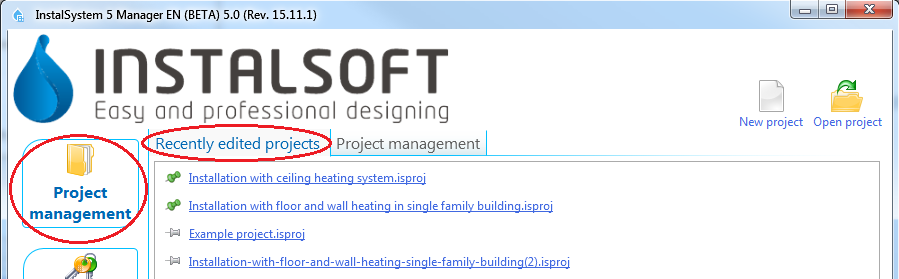
3. Recently edited projects in InstalSystem Manager 5
and in InstalSystem Editor 5.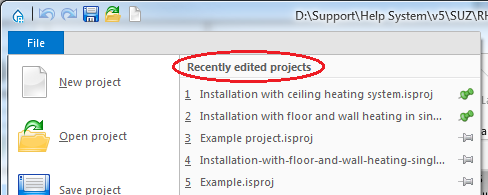
4. Recently edited projects in InstalSystem Editor 5 - Project management is accessible in the Project Management tab in the InstalSystem Manager 5 window:
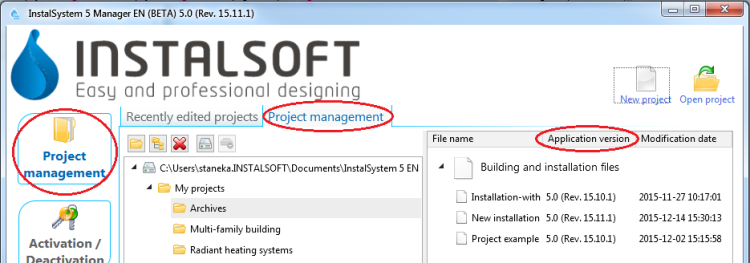
5. Project management in InstalSystem Manager 5


Examples of use
Creating new projects and openining existing projects
- New project - when creating a new project it is possible to indicate one of the downloaded subversions of the program. The most recent subversion is indicated by default. When a new file is created, a template can be selected for use in the project.
For more information, see: Template files. - Existing file - when opening an existing project file, a program subversion can be selected to be used for further file processing. This enables carrying on the project using the program version with which the project was created.
The InstalSystem 5 package also enables loading files created with InstalSystem 4.
Managing project files and additional files
- Recently edited projects - this list is created automatically, it facilitates access to recently edited files, irrespective of their location.
Selected projects can be placed at the top of the list irrespective of the date of the most recent processing. This is done with the use of a tack - clicking the pin beside the selected project makes it stay on the top of the list
  .
. - Project management - When installing the program, default location for projects can be selected. It is recommended that each project (object being designed) has a dedicated subfolder where the various InstalSystem project versions (files with .isproj extension) and other additional files, e.g. base drawings used, will be stored. Another advantage is that the package version with which the file was developed ia displayed for .isproj files.

