Project browsing, searching and selection of elements: Difference between revisions
Jump to navigation
Jump to search
Klintsevicho (talk | contribs) |
Klintsevicho (talk | contribs) |
||
| Line 32: | Line 32: | ||
#* Selecting all elements located in the given graphical editor and belonging to the active edditing scopes | #* Selecting all elements located in the given graphical editor and belonging to the active edditing scopes | ||
#*:- use the Ctrl+A buttons combination | #*:- use the Ctrl+A buttons combination | ||
#*:- perform a ''<IS_TS id=CStrZaznaczWszystko/>'' operation, accessible on the ''<IS_TS id=NarzedziaGlowne/>'' toolbar, section ''<IS_TS id=ctgstringEdycja/>'', after expanding ''<IS_TS id=rsZaznacz/>'' icon < | #*:- perform a ''<IS_TS id=CStrZaznaczWszystko/>'' operation, accessible on the ''<IS_TS id=NarzedziaGlowne/>'' toolbar, section ''<IS_TS id=ctgstringEdycja/>'', after expanding ''<IS_TS id=rsZaznacz/>'' icon | ||
#* Selecting multiple elements by specified criteria with the use of the righ mouse button context menu | |||
#*:-''<IS_TS id=strContextMenuSelectAll/>'' | |||
#*:-''<IS_TS id=strContextMenuSelectRegion/>'' | |||
<br>[[File:Select-components-in-rectangle-location.jpg|none|thumb|900px|1. ''<IS_TS id=btRectSelect/>''/''<IS_TS id=CStrZaznaczWszystko/>'']] | |||
# ''<IS_TS id=ProjectBrowser/>'' window, by selecting suitable ''<IS_TS id=StructureType/>'' (eg. ''<IS_TS id=ScopeKonstrukcjaBudynku/>'', ''<IS_TS id=strInstalacjaGrzewczaIChlodnicza/>''), from a drop-down list located at the top of the window | # ''<IS_TS id=ProjectBrowser/>'' window, by selecting suitable ''<IS_TS id=StructureType/>'' (eg. ''<IS_TS id=ScopeKonstrukcjaBudynku/>'', ''<IS_TS id=strInstalacjaGrzewczaIChlodnicza/>''), from a drop-down list located at the top of the window | ||
#* Selecting only elements of defined type, which belong to a given window section | #* Selecting only elements of defined type, which belong to a given window section | ||
Revision as of 09:57, 28 June 2023
| Product | InstalSystem 5 |
| Type of article | FUNCTION AND TOOL |
| Source for translation | 2023-06-27 |
Description
The article describes the ways to observe all project elements, quick searching and selecting according to specified criteria.
Location in the program
Multiple elements can be selected with the use of various software tools, described below:
- Graphical editor (2D editor and 3D view)
- Selecting multiple elements one-by-one
- - while holding Ctrl button, click on individual elements with the left mouse button
- Selecting multiple elements from given area
- - while holding left mouse button, drag the mouse cursor in order to specify selection area
- - perform a Select components in rectangle operation, accessible:
- - in context menu, which is opened by clicking the righ mouse button anywhere in the graphical editor
- - on the Main tools toolbar, section Edit, after expanding Select icon
- Selecting all elements located in the given graphical editor and belonging to the active edditing scopes
- - use the Ctrl+A buttons combination
- - perform a Select all operation, accessible on the Main tools toolbar, section Edit, after expanding Select icon
- Selecting multiple elements by specified criteria with the use of the righ mouse button context menu
- -Select all by criteria
- -Select in rectangle by criteria
- Selecting multiple elements one-by-one

- Project browser window, by selecting suitable Scope (eg. Building structure, Heating and cooling installation), from a drop-down list located at the top of the window
- Selecting only elements of defined type, which belong to a given window section
- - Select in rectangle components of defined type button located at the right side of each element type
- - Select all button located at the right side of each element type
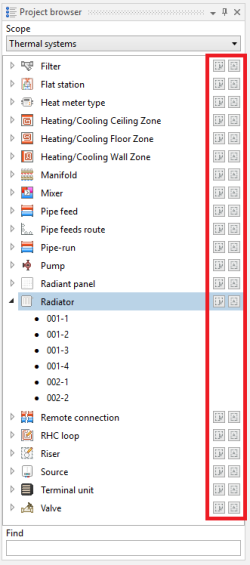
2. Selecting elements of defined type in Project browser window
- Selecting only elements of defined type, which belong to a given window section
- Search window
- Selecting only elements of defined type, which meet the additional selection criteria (possibilty to define own criteria)
- - Select in rectangle components of defined type button located at the right side of each element type
- - Select all button located at the right side of each element type
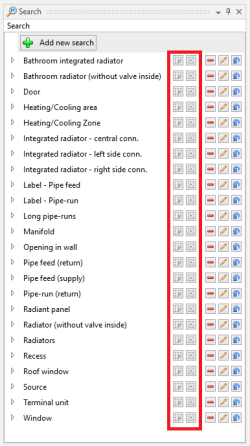
3. Selecting elements meeting additional criteria in "Search" window
- Selecting only elements of defined type, which meet the additional selection criteria (possibilty to define own criteria)
- Diagnostics window
- Highlighting all elements, for which a single, grouping diagnostic message was displayed
- - click left mouse button on diagnostic message
- Selecting all elements, for which a single, grouping diagnostic message was displayed
- - double-click left mouse button on diagnostic message
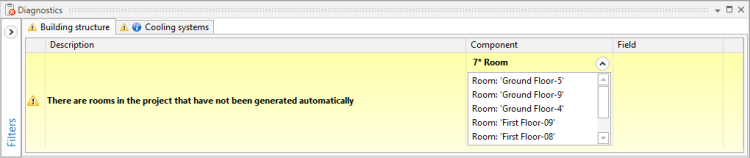
4. Diagnostic message grouping many elements
- - double-click left mouse button on diagnostic message
- Selecting all elements, for which a particular error has occured, in case of repeated diagnostic messages
- - click right mouse button on any of the repeated diagnostic messages and select a Mark all components where the error has occurred option from a contex manu
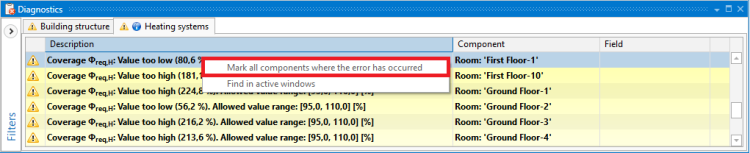
5. Mark all components where the error has occurred function for repeated diagnostic messages
- - click right mouse button on any of the repeated diagnostic messages and select a Mark all components where the error has occurred option from a contex manu
- Highlighting all elements, for which a single, grouping diagnostic message was displayed


Example of use
Selecting return pipe-runs from a specified area, through a Search window
Specifying additional selection criteria for pipe-runs and selecting all elements, which meet these criteria
Additional information
- Correction of the selection:
- There is a possibility to deselect individual elements, by holding the Ctrl button and clicking the left mouse button on previously selected element