Import underlay files: Difference between revisions
Jump to navigation
Jump to search
No edit summary |
|||
| Line 11: | Line 11: | ||
|c3 =<!--Jest kategoria -> zamienić na: "category3=" i uzupełnić link do sekcji kategorii na stronie głównej produktu--> | |c3 =<!--Jest kategoria -> zamienić na: "category3=" i uzupełnić link do sekcji kategorii na stronie głównej produktu--> | ||
|category_name3 =<!--podać nazwę kategorii "ZASTOSOWANIE"/"FUNKCJONALNOŚĆ"/...--> | |category_name3 =<!--podać nazwę kategorii "ZASTOSOWANIE"/"FUNKCJONALNOŚĆ"/...--> | ||
|version1 =[[Release notes InstalSystem 5#Version BETA | |version1 =[[Release notes InstalSystem 5#Version BETA 34 Rev. 0.0.B34|IS 5.0 Beta 34]] | ||
|v2 =<!--Jest wersja -> zamienić na: "version2=" i uzupełnić link do sekcji RN danego produktu--> | |v2 =<!--Jest wersja -> zamienić na: "version2=" i uzupełnić link do sekcji RN danego produktu--> | ||
|v3 =<!--Jest wersja -> zamienić na: "version2=" i uzupełnić link do sekcji RN danego produktu--> | |v3 =<!--Jest wersja -> zamienić na: "version2=" i uzupełnić link do sekcji RN danego produktu--> | ||
Revision as of 08:53, 21 October 2016
| Product | InstalSystem 5 |
| Type of article | FUNCTIONALITY |
| Source for translation | IS 5.0 Beta 34 |
Description
Artykuł opisuje funkcję użycia podkładów projektowych w programie poprzez wywołanie operacji importu podkładu, wybór pliku zewnętrznego do zaimportowania, wstawienie podkładu do projektu oraz jego odpowiednie wyskalowanie i spozycjonowanie.
Obsługiwane formaty plików podkładów:
- DWG
- BMP
- PNG
- JPG
- GIF
- DXF
Location in the program
- Ikony elementów i funkcji dotyczące importu podkładów dostępne są w oknie Edytor 2D na pasku Main tools w sekcji Underlay przy włączonym zakresie edycji Underlay.
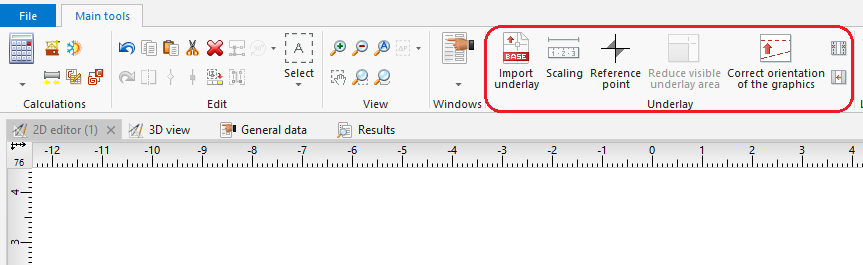
1. Importuj podkład

Example of use
Importing complete structure of building
- Select Import from gbXML.
- Select the file to be imported.
Importing base drawing
- Select Import underlay.
- Select the image to be imported.
- Indicate the position of the imported image in the editing area.
- Verify the correctness of scale units of the inserted base drawing.
Additional information
- It is particularly advantageous to import a base drawing in the DWG format, as it enables snapping the cursor to components located on indicated layers of the base drawing when editing the structure.
- It is worth noting that printed plan drawings can be scanned or photographed, and the file thus obtained can be imported.
- After importing the file and rescaling all storeys, mutual alignment of the drawings must be verified. To adjust the position the Reference point
 component can be used.
